
Overview
Before you create any assessments in Learnosity, you will need to review their materials which provide a solid foundation for using the tool. To begin, follow these steps:
- Review the Where Do I Start? page. This will lead you to the Author Guide which provides great information and help on creating items and questions, explaining the types of questions, and math scoring.
- There are also some good webinars to review on a variety of topics. The Introduction to Authoring webinar provides a good overview of how to get started. It is recommended that you watch this webinar. It will help you get the basics of the tool. Feel free to review and watch any of the resources within the Author Guide before you get started or as you are working in the tool.
Once you have reviewed the materials, you are ready to begin creating assessments!
Important Note: To create an assessment in Learnosity, you will need to author the activity within Learnosity and then you will link it into Skillways. See the “How do I add a Learnosity assessment to Skillways?” user guide for steps on adding your assessment.
1. Log in to the Learnosity Authoring Site
Login using the login and password the administrator has provided for you.

2. Create an Item
In the upper left click on the Item tab and select Item Bank.

To create an item, click the blue Create button in the top right.
-
- This is where you will add the question type (e.g., multiple-choice, fill in the blanks, graphing, math, highlight, and drawing, written and recorded, chemistry, etc.)
- You can also add features (e.g., protractor, image tool, scientific calculator, audio player, video player, passage, etc.).

For more information, visit the Learnosity tutorial on Creating Questions and Items.
For examples and explanations of all the question types available in Learnosity, see the Question Types user guide.
3. Create an Activity for Your Item/s.
Once you’ve created an item, you’ll need to house it inside an Activity. Multiple Items are combined to create an Activity, which you can think of as the assessment, quiz, or a test.
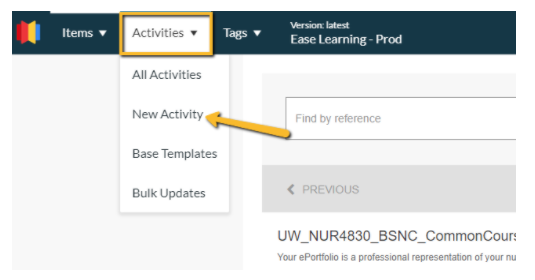
To create an Activity for your item/s, click on the Activities tab in the top left and select New Activity.
Add a Reference/Title for the activity (1) and a Description (2).

Under Item List, click Add to add your item/s to the Activity.

Scroll down and select the Item/s you wish to include in the activity from the item bank.
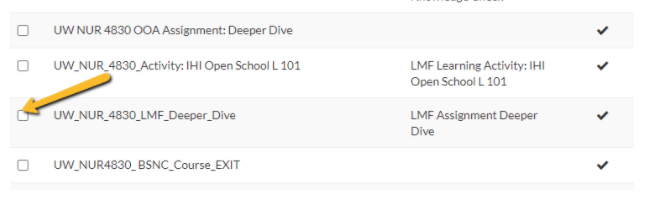
Scroll up and click Select from the top right.

Under the Edit tab, you can configure settings such as Navigational Controls, UI/Time Settings, and Accessibility Settings. For more information, see the Learnosity guide on Configuring Activity Settings.

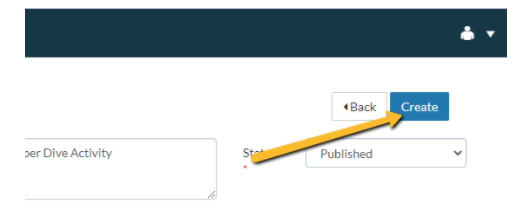
Change the Status in the top right to Published (if desired).

Finally, select Create from the top right.
Remember, the Author Guide is a click away at the bottom left of your screen should you need further assistance as you create your items and activities.

Note: Any changes made to an item/activity in Learnosity will update in the Skillways assessment you link to your learning path.
Comments
0 comments
Please sign in to leave a comment.