
Overview
Once you have created your activity in Learnosity, how do you link it in Skillways? This guide will help you.
1. First Go to Your Learnosity Activity
Log in to the Learnosity Authoring site (if you aren’t already there). Then select All Activities from the Activity dropdown.
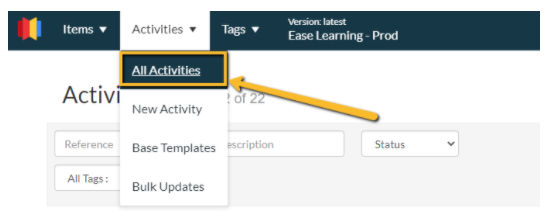
Select the Activity you wish to add to your Skillways Learning Path.

Copy the activity reference number.

2. Next, go to Skillways and Add the Activity
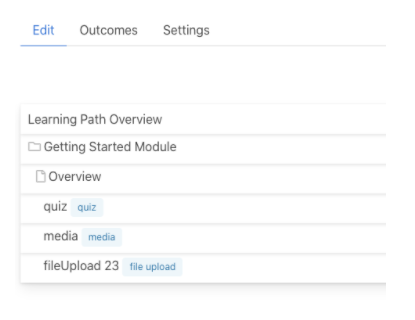
Go to the Edit tab from the Learning Path.
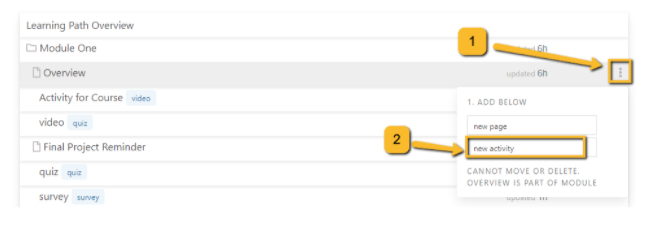
Hover over the page or activity that you want the activity to come after and click the three dots to the far right (1). Then click on new activity (2).
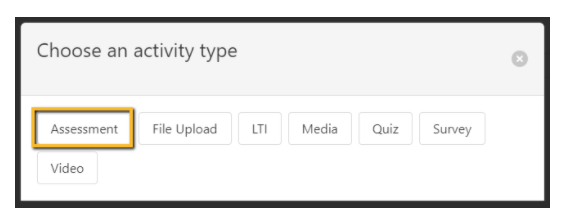
A new window will open that asks you to choose an activity type. Click on Assessment.
A new window will open.

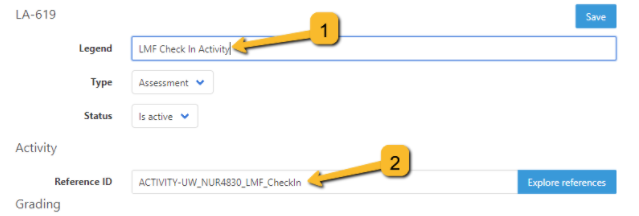
Add the name to the Legend (1). Note: Make the Legend title short. It should just be a few words. And then add the Reference ID (2) that you copied from Learnosity in the provided space.
You can also enable conversation for the activity. Conversations are not graded. See the user guide How Do I Enable A Discussion Conversation In A Different Activity? on how to use this feature.

Select the type of Grading.
The grading can be by rubric, which is attached to the activity, or by points. You can also choose none, which will allow for a complete/incomplete. Note that the individual points for each assessment question are assigned in Learnosity. The overall grade for the assessment is added here in Skillways.

Select the number of attempts allowed.

When finished, click Save.

Comments
0 comments
Please sign in to leave a comment.