
Overview
In Skillways, you can collaborate and engage with peers in discussions. This guide will help you navigate the discussion tool.
Go to the discussion activity.
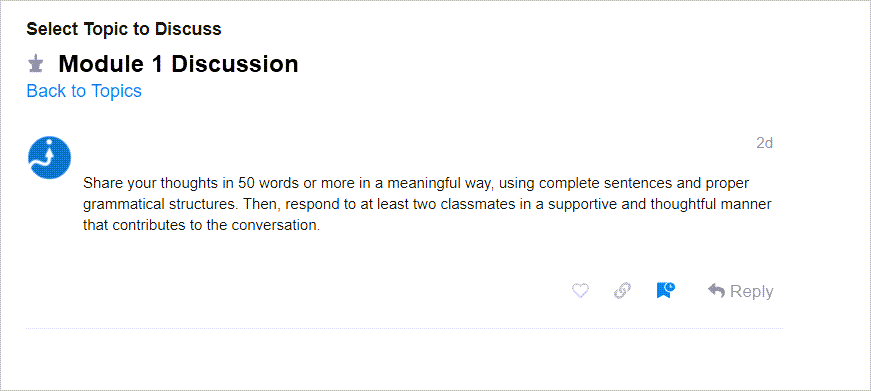
Reply to a Topic.
To respond to a topic, click on Reply.
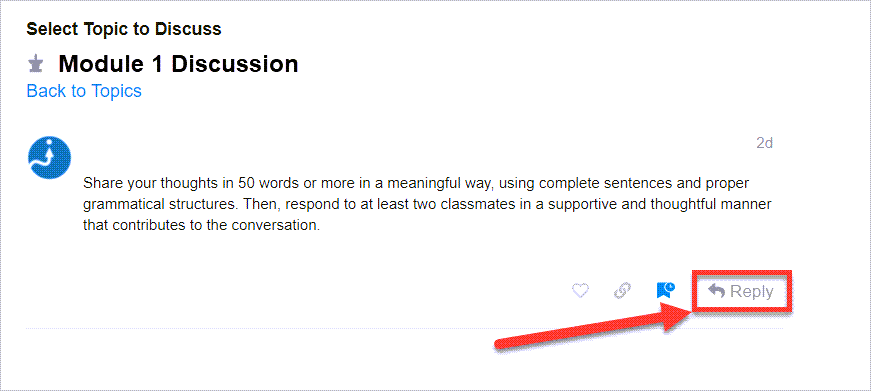
A new window will open.
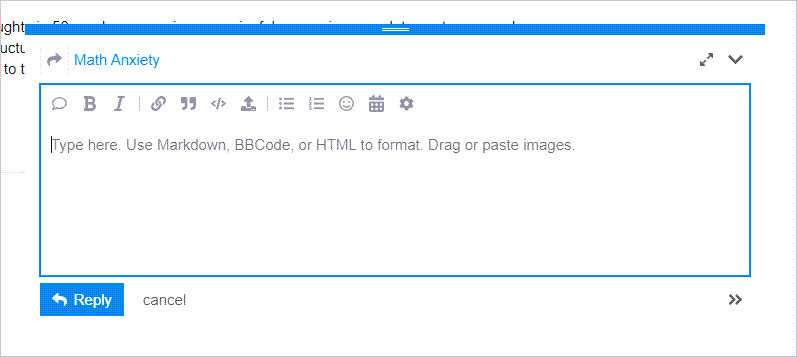
Within the box, you will be able to add a written post.
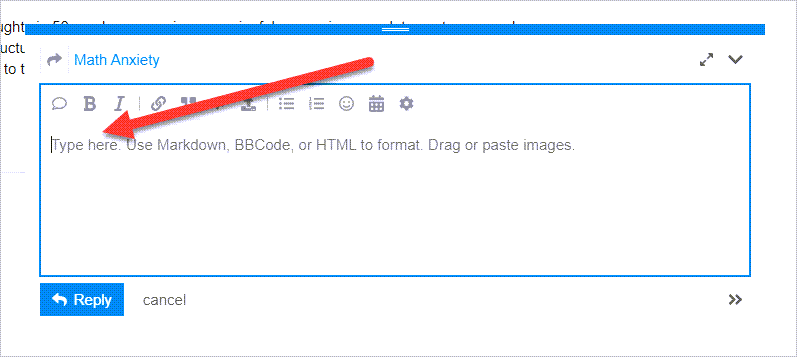
Edit your post and add files or images.
The tools in the content editor will allow you to do the following:
Quote

This feature allows for quoting the whole post.
Bold and Italic

These features allow you to bold or italic any of the text in your post for emphasis.
Link

This feature allows you to insert a hyperlink to a file, website, or article.
Block Quote

This feature allows you to highlight text in your post into a blockquote. It will put your text in a grey box and keep the format that you have applied to it.
Preformatted Text

This feature will put your text in a grey box and keep the format that you have applied to it.
Upload

This feature allows you to upload a number of file types including jpg, jpeg, png, gif, mp3, mp4, mov, pdf, doc, xls, ppt, and pub. The maximum file size limit is 512 MB.
Simply click upload and it will prompt you to add your file. You can add it from your computer by choosing a file or from the web.
Bullets and Numbering

This allows you to bullet or number content in your post.
Emoji

This allows you to add an emoji.
Calendar

This feature allows you to add a date and time.
Extra Features

This icon provides a drop down menu with two options: hide details and build poll. The hide details allows you to hide highlighted text in your post. Build poll allows you to create a poll within your post.
Preview
To view the final look of your post, enable the Preview pane by selecting the arrows. Select them again to hide the preview pane.

Once you are done creating your post, click Reply.

Post Tracking/Notification
Once posts are made to the discussion, you will have the opportunity to track or set notifications for posts.
Select the bell icon  next to the post.

The following options will appear.
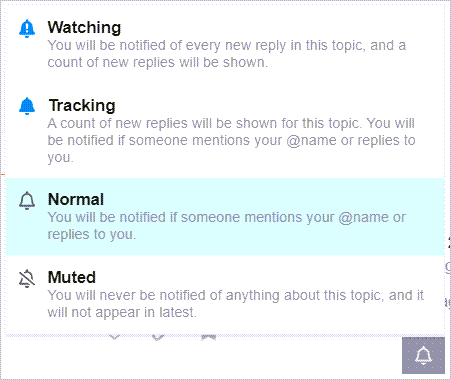
- The Watching option notifies you every time a new reply is posted and also tallies the count of new replies.
- The Tracking option tallies a count of new replies posted to the topic and notifies you if your name is mentioned (@name) or someone replies to you.
- The Normal option, which is selected by default, notifies you if your name is mentioned (@name) or if someone replies to you.
- The Muted option does not send you any notifications about the topic.
Date Tracking/Timeline
The timeline provides tracking of what date learners have posted to the topic.

Comments
5 comments
Hello classmates,
My name is Jolene Hunt-Fleming, I'm not sure if I'm typing in the correct area I sure hope I am. I'm feeling a little math anxiety trying to get used to maneuvering through the modules. Math has alway been a subject that I wasn't comfortable with but I'm up for the challenge. I'm looking forward to working with my instructor and classmates in days to come. I wish us all the best of luck and don't forget to be kind to yourself.
Best regards,
Jolene
Hi Jolene,
It looks good to me. Great job and good luck.
Joe
Dear Instructor,
My name is Mohammad Niazy, and I am excited to join the Skillways Learner Orientation. I look forward to exploring the platform, learning its features, and engaging with my peers. I appreciate the opportunity and the resources provided to help me succeed.
Thank you,
Mohammad Niazy
HI name is Samantha Payne math has always been a struggle for me. I almost did not graduate high school because of math. I had the hardest time with algebra when it came to math. I am looking forward to starting this course.
Sincerely,
Sam Payne
Hi Classmates,
My name is Julea Casel. I am excited to join this program to gain more knowledge. It will be great to engage with my peers.
Best,
Julea Casel
Please sign in to leave a comment.