
Overview
Skillways Progress is where you and your instructor will be able to view your progress related to learning outcomes. The following guide provides an overview of the progress and outcome features from the learner view.
Go to Progress
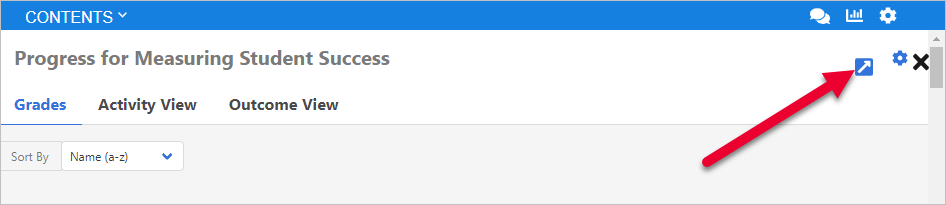
Select Progress (graph icon) from the upper right. A new window will open defaulting to Grades view.

Select the arrow to expand the window if desired.
Activity View
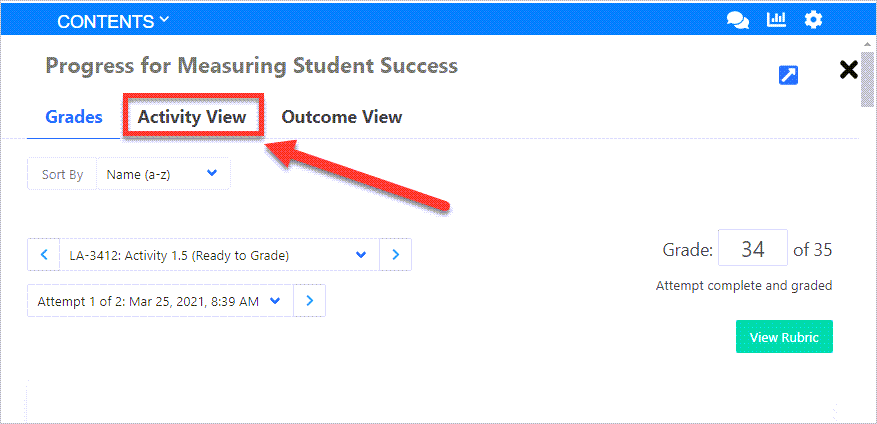
Select the Activity View tab.
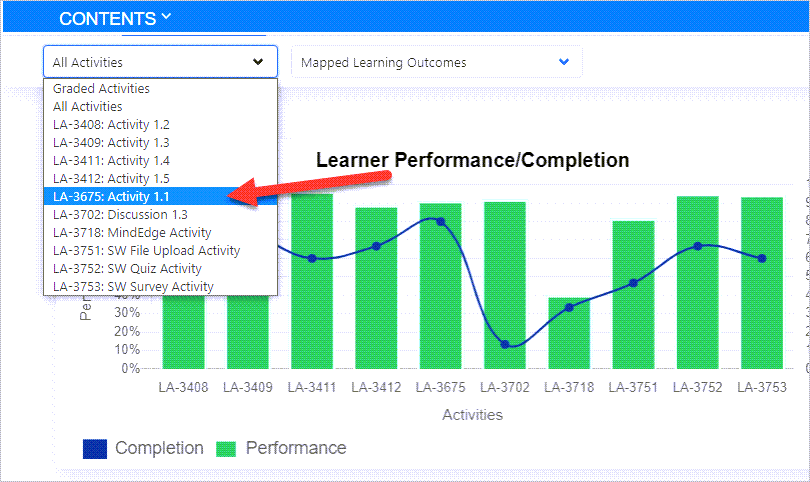
Activity View provides an overview of your performance (green bar graph) and completion of activities (blue line graph).

You can view the progress of all activities or use the drop-down menu to select a specific activity.
Lower Section
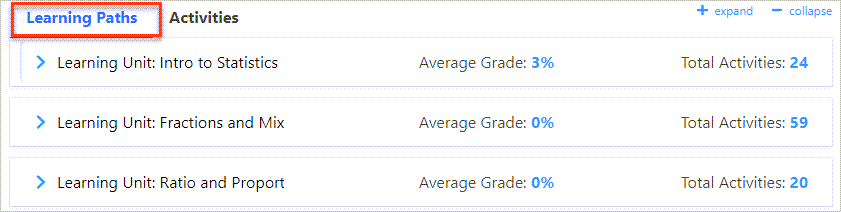
In Activity View, the lower section shows the information from the upper section by Learning Paths and Activities.

Select Learning Paths which will show activities sorted by module or learning unit.
(Note: If your instructor has used separate Skillways paths for each assignment, use the Activities tab instead as shown below.)
Select a learning path and select the activity under the learning path you wish to review.

This will provide the ability to see learning outcomes (1) associated with the activity and your grade (2).

The Activities tab will display all activities in the course.
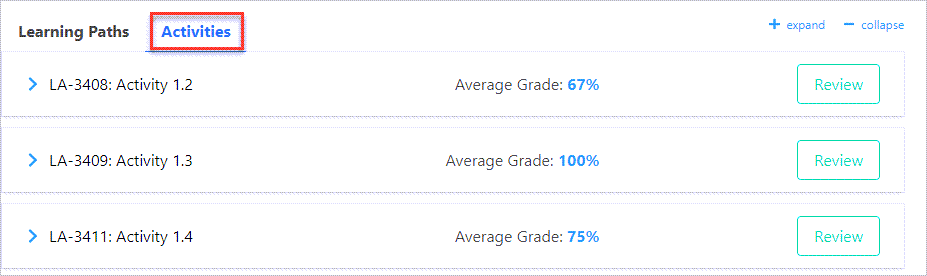
Here you can also see learning outcomes (1) and your grade (2).
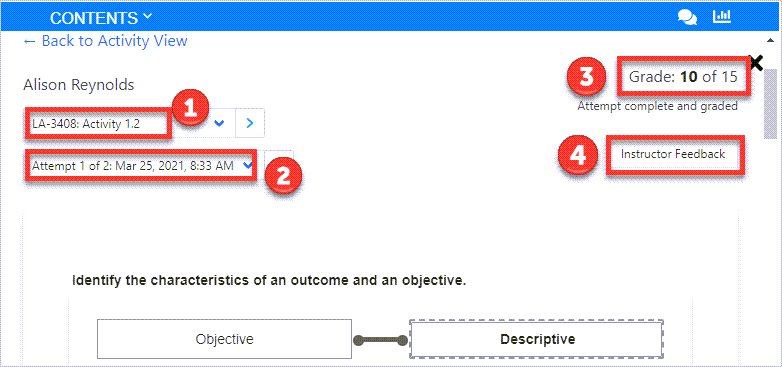
You can also review details of your submitted activity by selecting Review.

A new window will open taking you into Grades view. You can see the name/number of the Activity (1), the Attempt including a timestamp of when it was submitted (2), the Grade (3), and instructor feedback (4) if your instructor has left feedback.
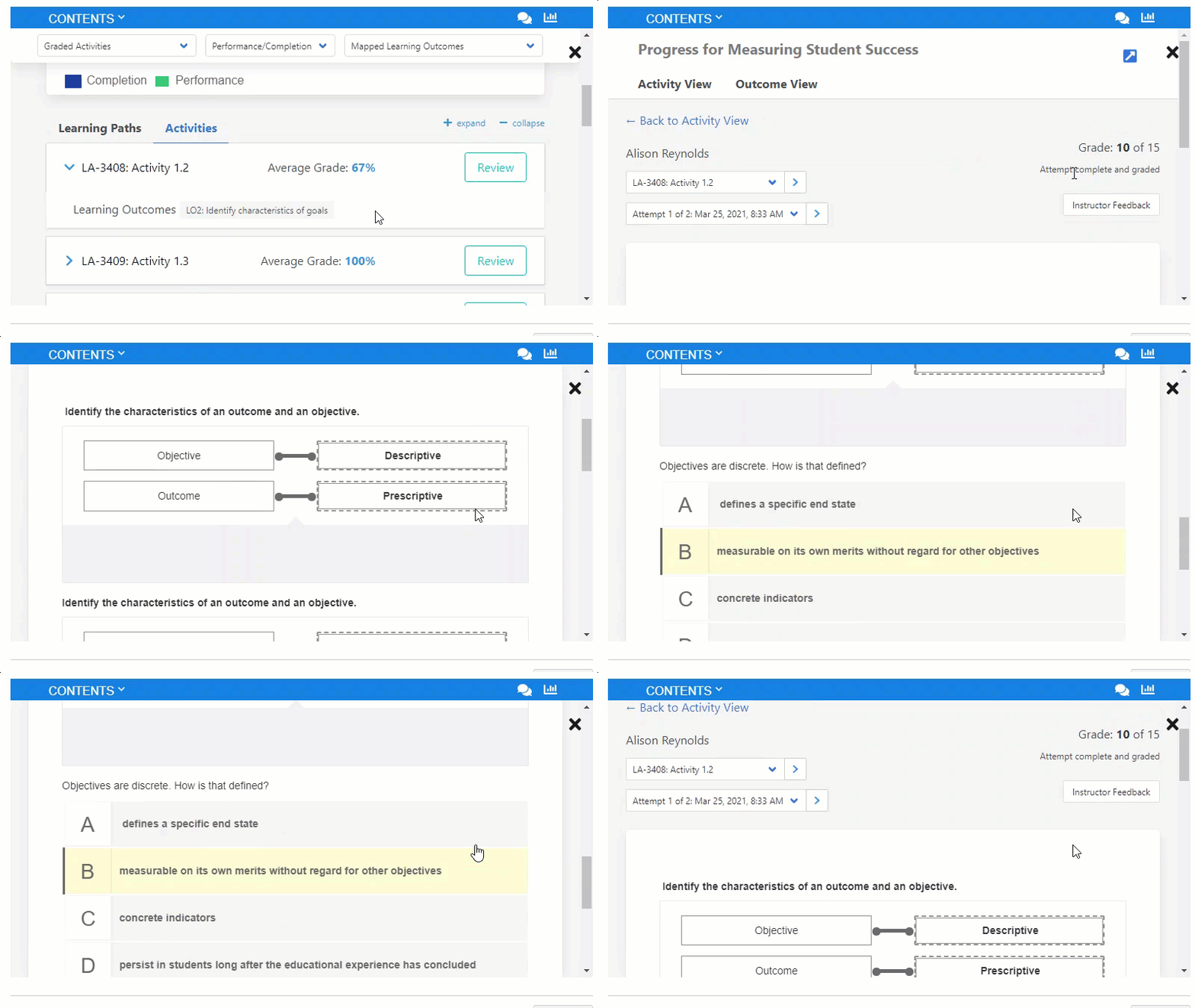
You can also scroll down or flip through the questions to review your submission.
Outcome View
Outcome view provides insight into how you’re progressing toward mastery of learning outcomes in the course or learning unit.
To get to Outcome View, select the Outcome View tab at the top of the screen.

A new window will display defaulting on Learning Outcomes in the lower section of Progress.
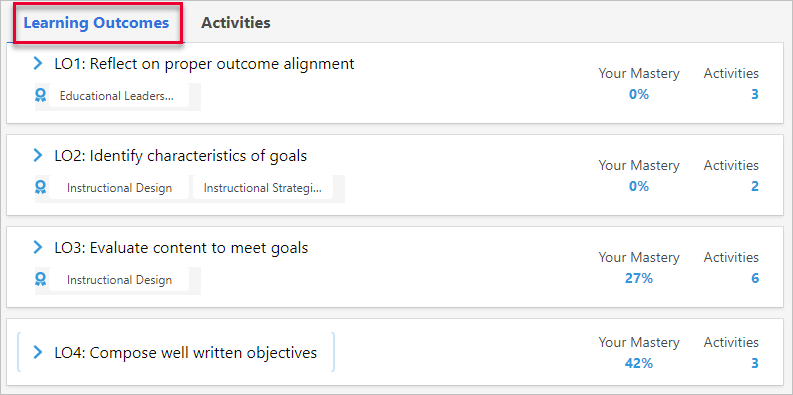
For each learning outcome you can view associated skills, credentials or competencies (1), your mastery (2) and the number of associated activities (3).

Select the credential icon below the outcome, to view all associated skills, credentials, or competencies.
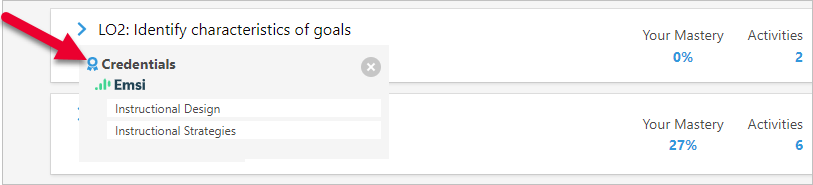
Drill down further using the arrow to the left of the outcome to see all activities associated with the learning outcome (1), your grade on each activity (2), and review the submitted activity (3) if desired.

As when you are in Activity View, the Activities tab displays a list of all activities in the course, your grade, and the option to review each submission.

Select the drop down arrow to display details such as average grade for the activity and associated learning outcomes.

Comments
0 comments
Please sign in to leave a comment.