
Overview
This guide will help you set up a Skillways LTI1.1 Syndication in Canvas. Note that each path has its own LTI link. You can add as many paths to Canvas as you need.
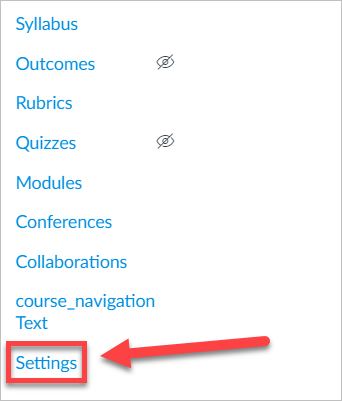
Go to Canvas Settings on the left navigation menu.
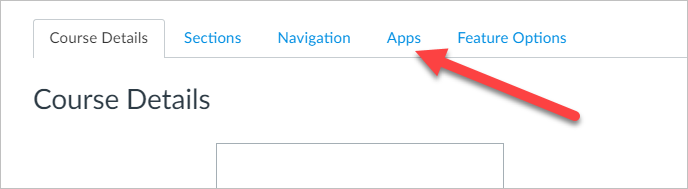
Go to the Apps menu tab.
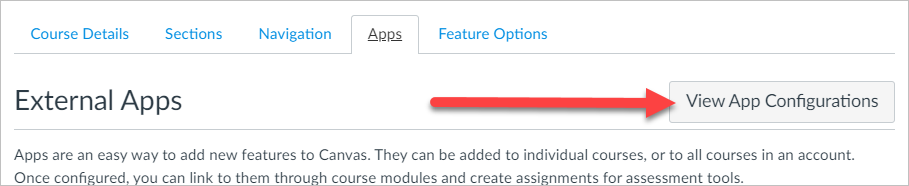
Click on View App Configurations
Click on the add App button.
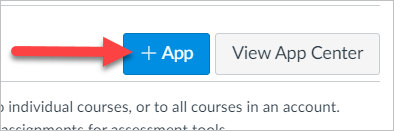
A new window will appear.

Grab the Syndication information from Skillways.
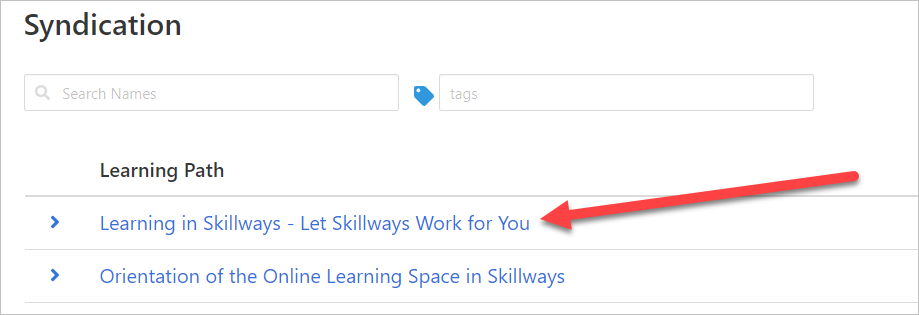
In a new browser tab or window, log into Skillways and click on Syndication from the Skillways navigation.

Go to the path you want to add to Canvas and click on the title.
Select Delivery Instructions.
Note: in some cases there may be more than one syndication for the path, so make sure you are selecting the desired syndication.
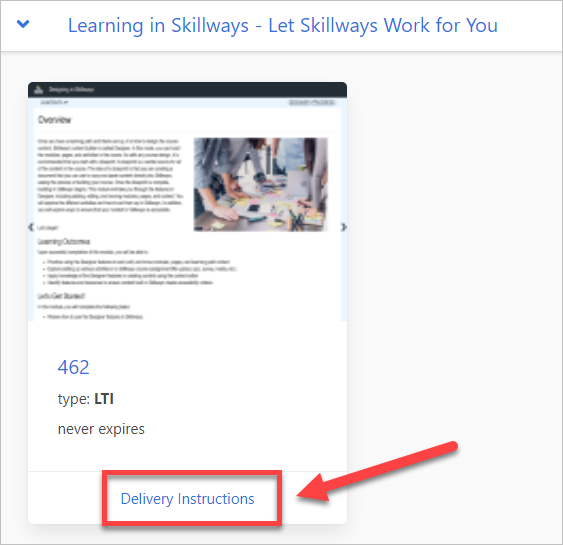
The LTI information will appear.

Add the LTI configuration to your Canvas Course.
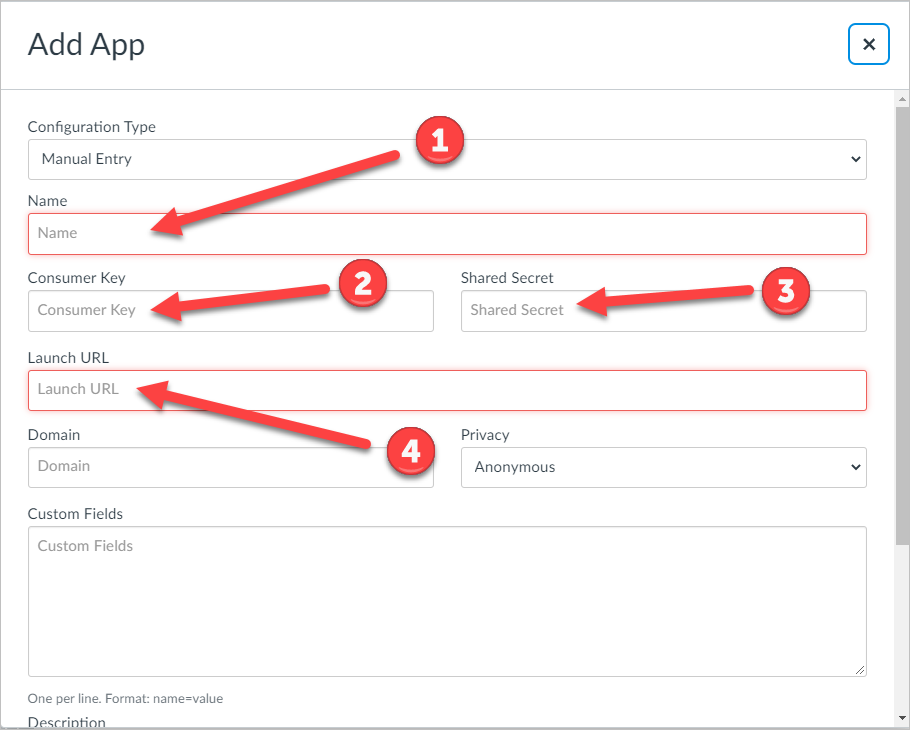
Go back to your Canvas screen and add a name for your Skillways learning path (1). Then, copy and paste the consumer key (2), secret (3), and url (4) into the Canvas window.
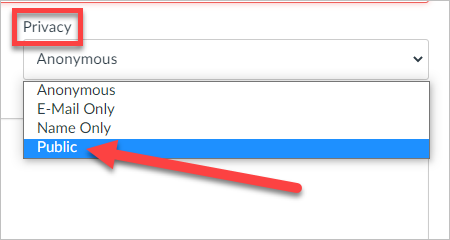
Under Privacy, select Public. This will allow Skillways to view and pass back user data such as grades.
Scroll down and click Submit.
Set up the Module
Go to the Module page in Canvas and click add Module.
A new pop up window will appear. Add the Module Name (1) and select Add Module (2).

Once you get to this point, you can choose one of two options depending on whether or not you need grades to pass back to the Canvas grade book .
OPTION 1: No LMS Grade Passback
If you do not need grades to pass back to the Canvas gradebook, complete the following steps. If you need grades to pass back, skip to option 2.
Click the plus sign to the far right of the Module you just added.

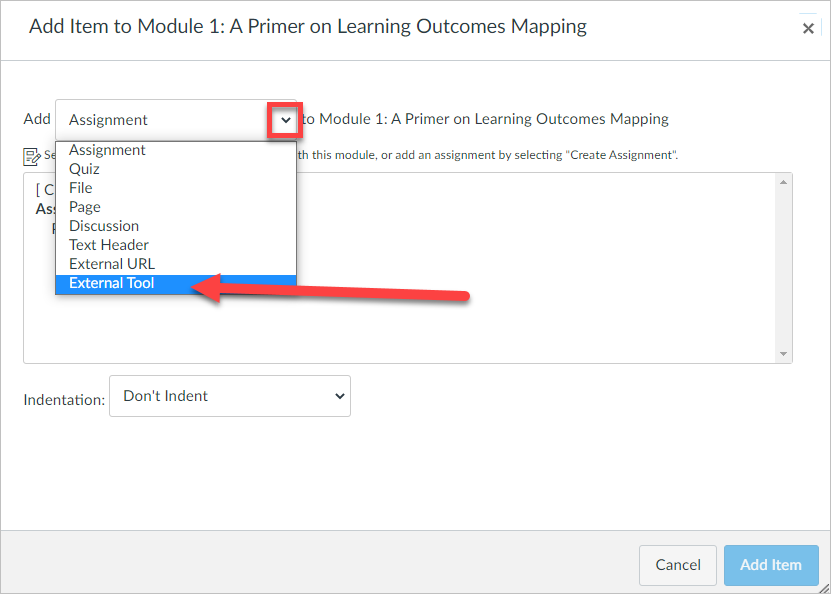
A pop up window will appear. Click on the drop down menu and select External Tool.
Select the learning path (LTI you added to Canvas Apps) from the list that appears.

Select Add Item.
The path should now show under the Module in Canvas

OPTION 2: LMS Grade Passback
If you need grades to pass back to the Canvas gradebook, complete the following steps:
Go to Assignments from the left navigation in Canvas.
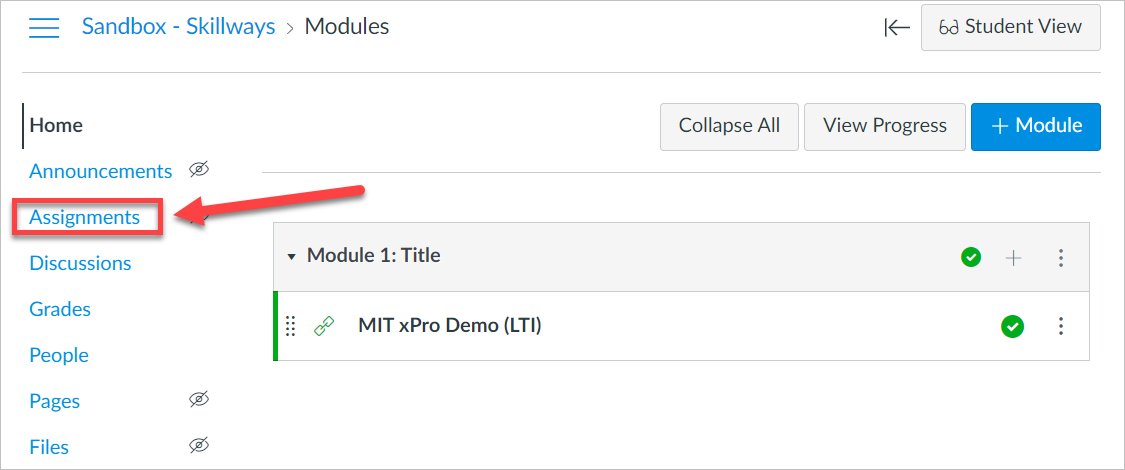
Select Add Assignment.
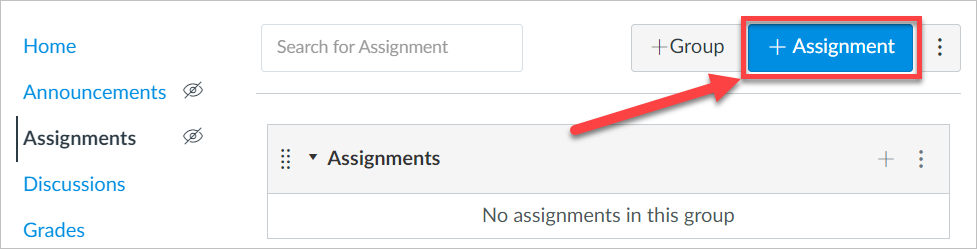
A new window will appear.
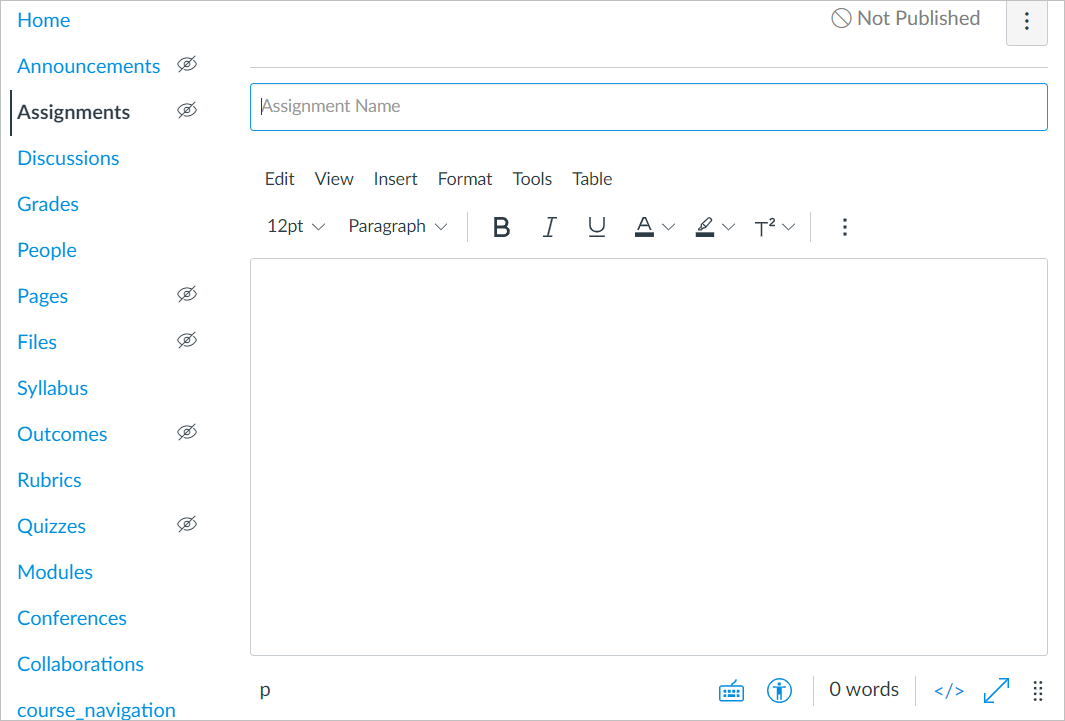
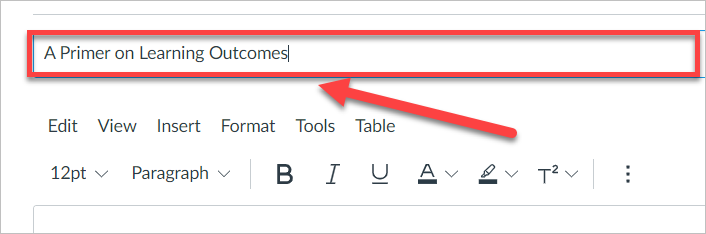
Add the name of the Skillways path or module.
Add the total points of the module or path.
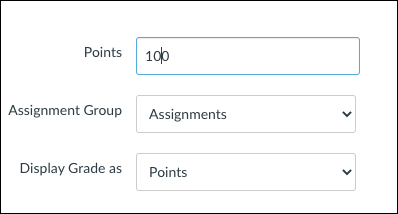
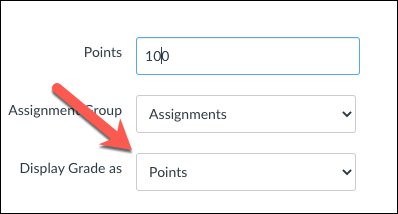
Select how you want the grade displayed from the drop-down menu.
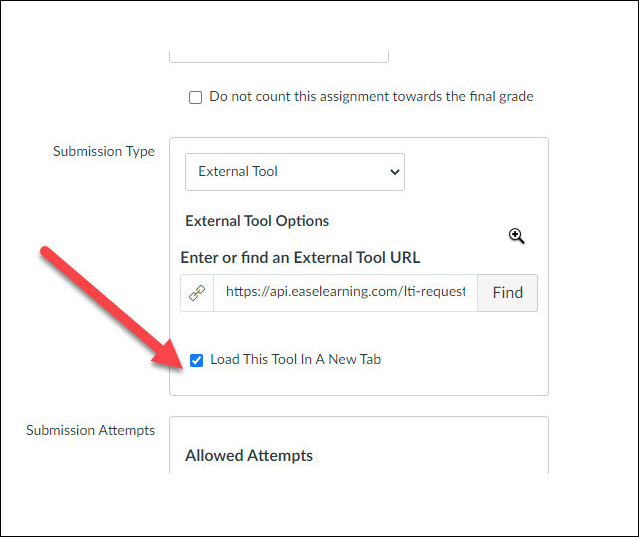
Add the Submission Type, which should be the External Tool from the drop-down menu.
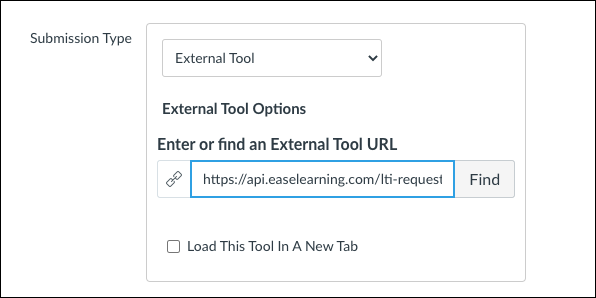
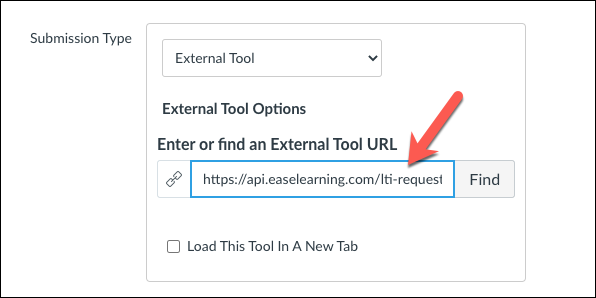
Add the Skillways learning path URL. Note: Do not use the find feature, just add the URL copied from the Skillways syndication page.
If you want the Skillways path or module to open in a new tab when learners view it in Canvas, select the Load This Tool in a New Tab option. Otherwise, leave this option unchecked and the Skillways path or module will display embedded in Canvas.
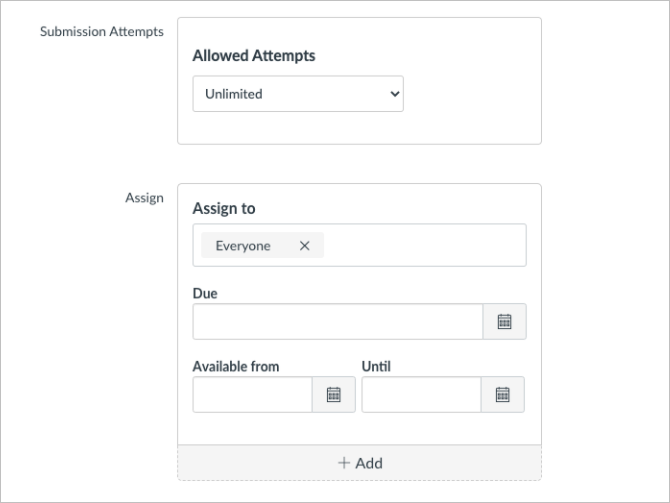
Adjust the additional settings as needed. Add the number of attempts for the learning path and/or due dates if desired.
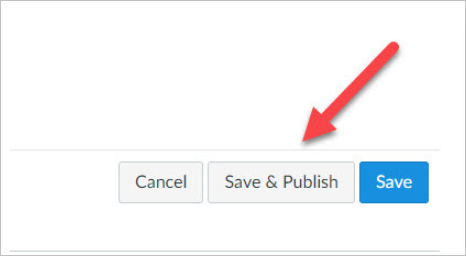
Select Save and publish.
Add the Assignment (Skillways path) to the module in Canvas.
Return to the module page in Canvas. Select the plus sign to the far right of the Module.
A pop up window will appear. Select Assignment from the drop down.
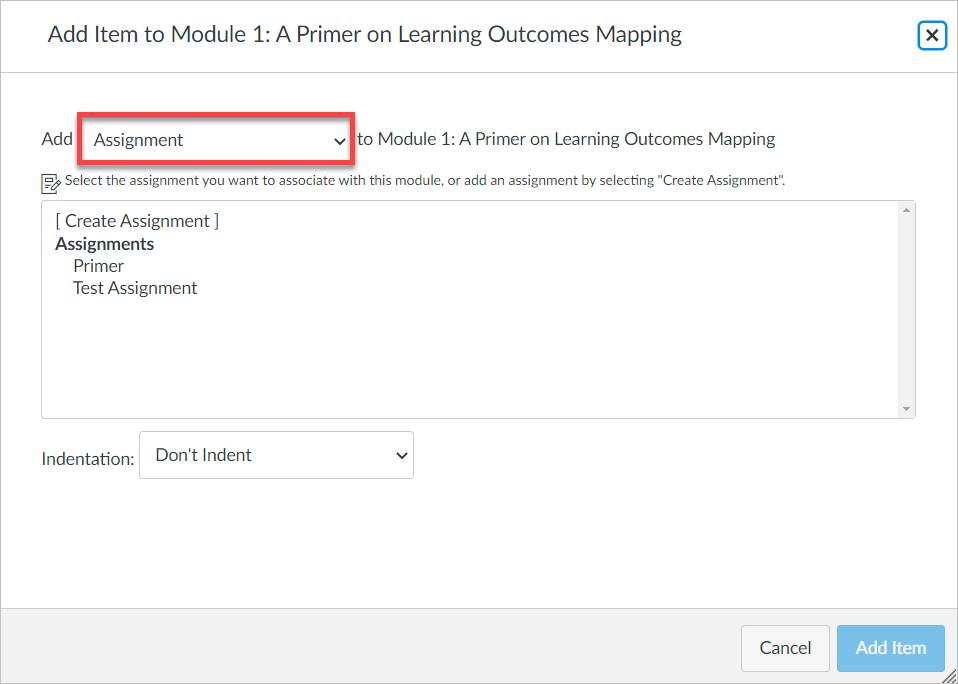
Choose the learning path from the list.
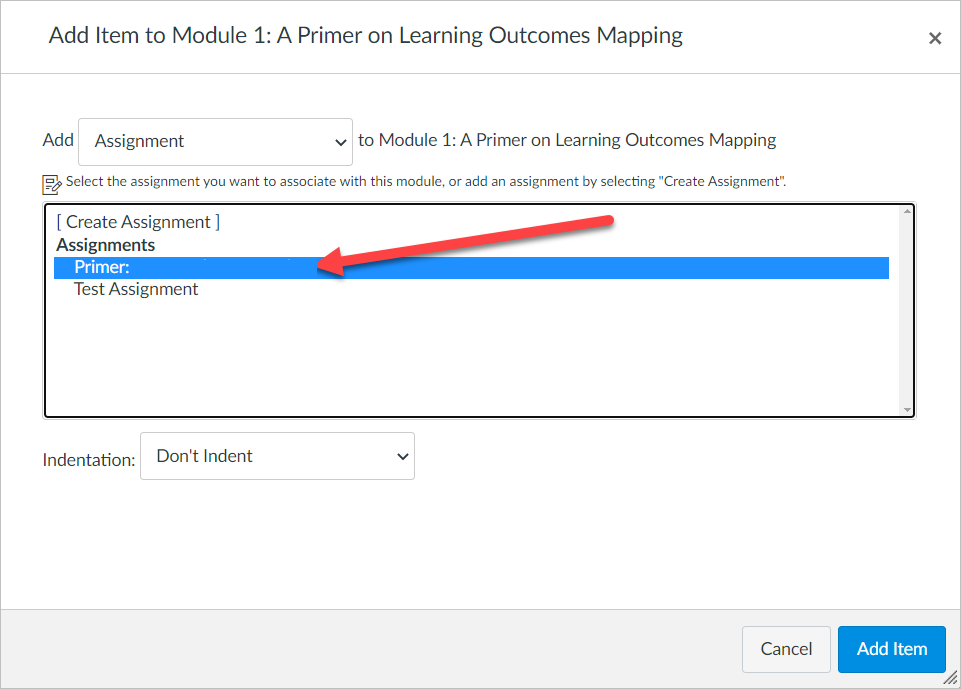
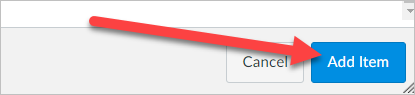
Select Add Item.
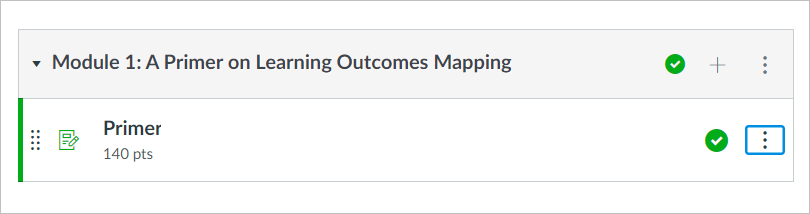
The path should now show under the Module in Canvas.
Comments
0 comments
Please sign in to leave a comment.