
Overview
This guide will help you set up a Skillways LTI1.1 syndication in Moodle. Note that each path has its own LTI link. You can add as many paths to Moodle as you need.
Set up Moodle
Use the instructions in Moodle Documentation called: External Tool Settings.
It is important to note that you will need unique keys and secrets for each LTI link you add to a course.
Retrieve the Syndication information from Skillways
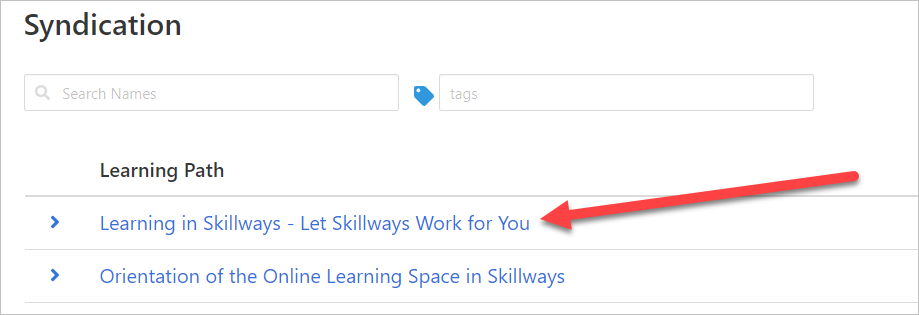
In a new browser tab or window, log into Skillways and click on Syndication from the Skillways navigation.

Go to the learning path you want to add to Moodle and click on the title.
Click on Delivery Instructions.
Note: in some cases there may be more than one syndication for the path, so make sure you are selecting the desired syndication.
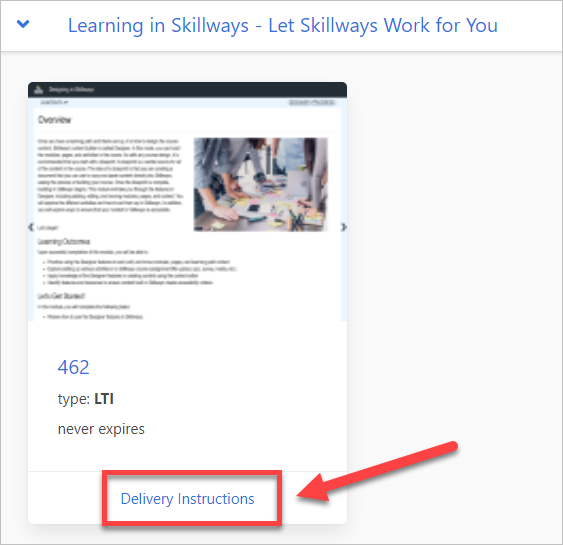
The LTI information will appear.

Add the LTI configuration to your Moodle Course
Use the External Tool Settings instructions in Moodle Documentation to set up the LTI link in your Moodle course.
Comments
0 comments
Please sign in to leave a comment.