
Overview
If you have multiple LTI links to add to Skillways, you can use the CSV uploader to save time and streamline the process. Skillways requires you to create a new page and then add an LTI activity. The CSV uploader allows you to do this in an automated process.
Set Up Your Excel Spreadsheet
This process works best if you have an Excel sheet set up with the LTI links, key (if included), and secret (if included).
Set up your worksheet with the following headers:
Module, Page Name, LTI URL, LTI Key, and LTI Secret

The Module Name column tells the uploader which module to add the LTI link to. If all LTI links will go in the same module, you can list that module number for each link as shown in the example above. If you would like the LTI links to appear in separate modules, indicate that in the Module Name column.
Save your Excel spreadsheet as a .csv file
When your Excel spreadsheet is ready, save it as a .csv file. Follow this Microsoft Office guide, save a workbook to a text format, and choose the .csv option when you save.
Go to the Learning Path
From the Home page, click on Paths in the top-right navigation.

Select the learning path where you wish to bulk upload the LTI links.
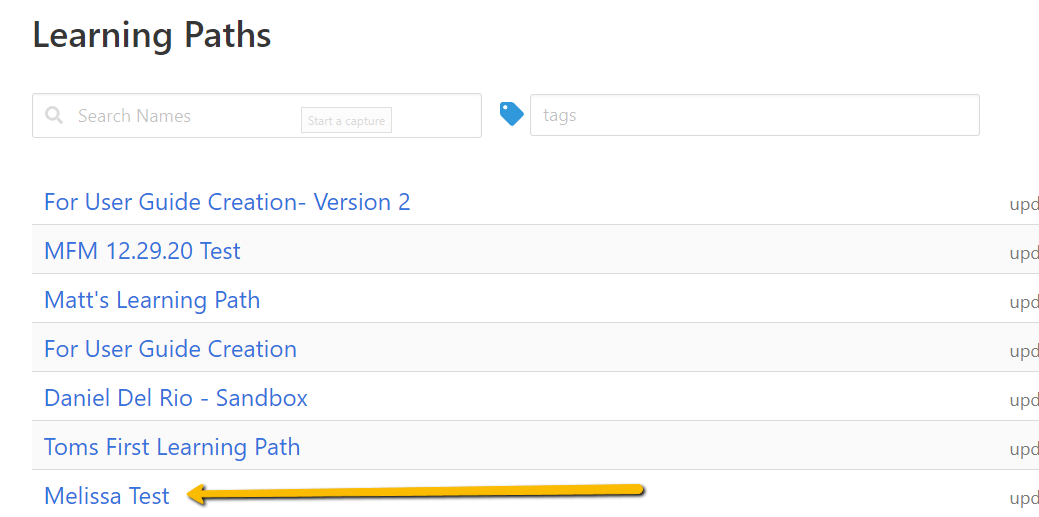
Note: if you wish to create a new learning path for the LTI links to be added, consult the How do I Create a Learning Path user guide, then proceed with the steps below.
Bulk upload your LTI links
Go to the uploader button.
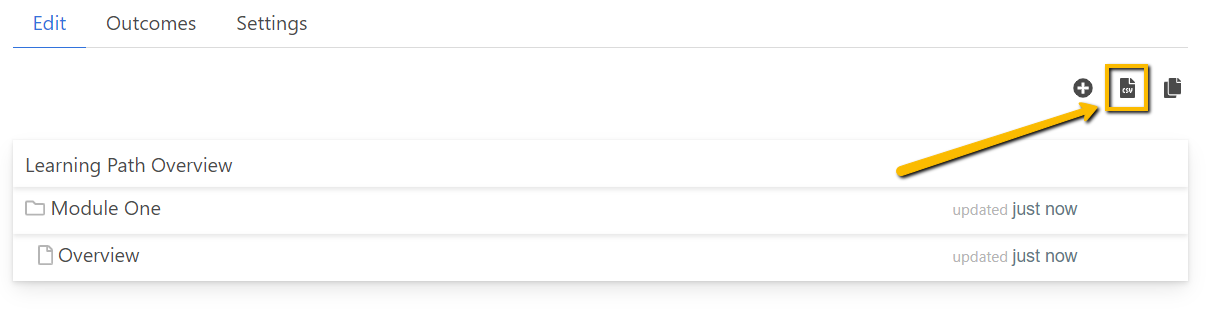
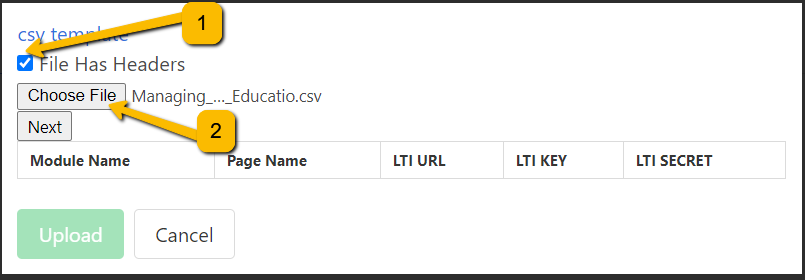
A pop-up window will appear.

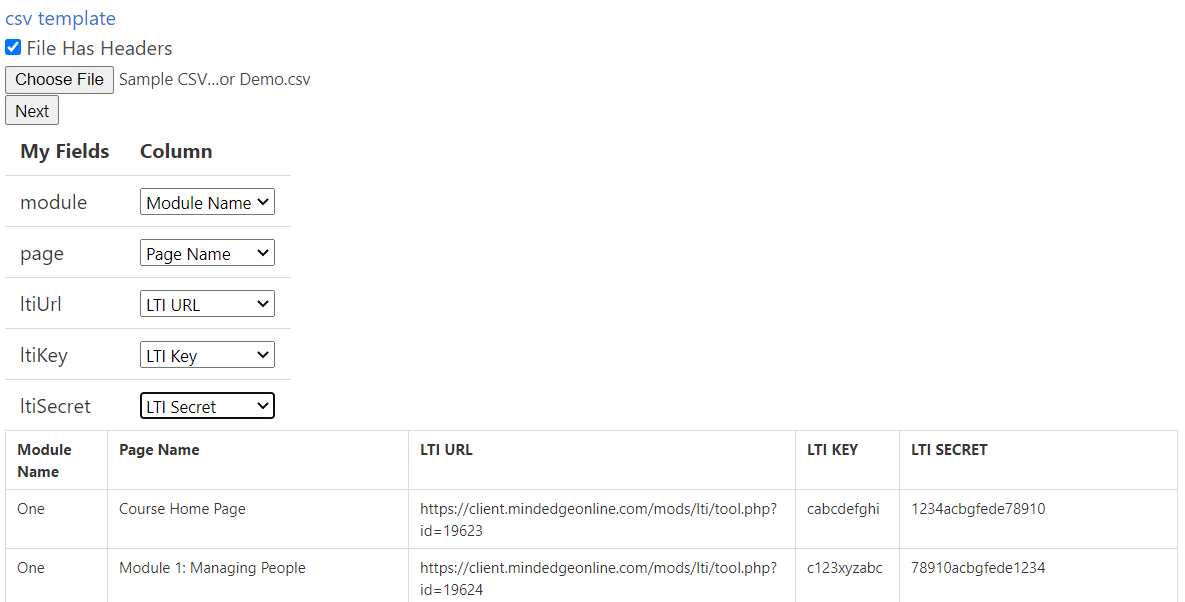
Click on File Has Headers (1), select Choose File (2), and choose your recently saved .csv file.
Once the file is uploaded, click Next and a list of the fields will appear. Select the corresponding columns from the dropdown for each of your fields (ex. LTI Url, Key, and Secret).
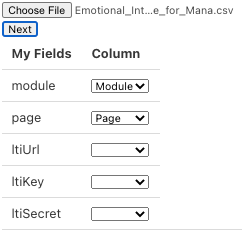
Once you select the correct fields, the information from the .csv file will appear.
Click Upload at the bottom of the list.

The course will then populate in the learning path.
Comments
0 comments
Please sign in to leave a comment.