
Overview
Skillways has three types of discussion activities: Forums, Discussions, and Conversations. Unlike conversations and forums, which are more informal in nature, discussions can be graded by points or rubric. They are typically used to provide a collaborative space for peer-to-peer learning and interaction around module-specific topics. It is important to note that Discussions must be accessed from the path, module, or learning unit, where they are created.
Add a Page for the Discussion
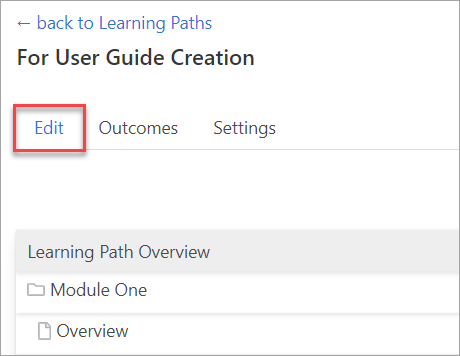
Click the Edit tab from within the Learning Path.
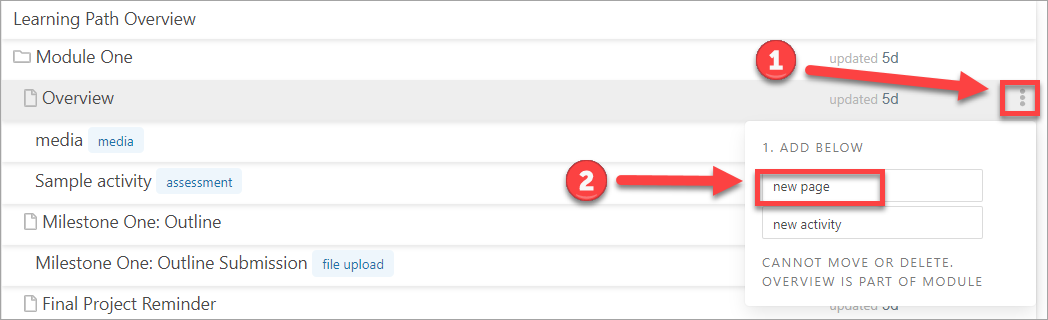
Hover over the item that you want the discussion to come after and click the three dots to the far right (1). Then click on new page (2).
Add the name of the page. This can be the same name as the Discussion assignment.

Click Save. This will save the name of the page.

Once you click Save, the content editor will appear.
Add an introduction to the discussion, if desired (1), and click Save (2). Note: when students navigate between discussions using the discussion navigation (rather than the contents navigation), they will not see the associated page content, so the discussion prompt itself should not be added to the page. The discussion prompt will be added in the following step.

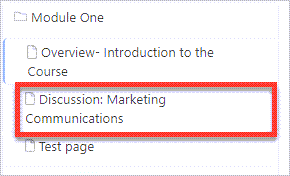
The newly added page will appear under the module in the left-hand navigation.
Add a Discussion activity
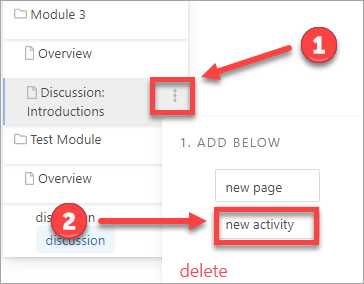
From the left navigation, hover over the page you just added (for a stand-alone discussion) or hover over the activity that you want the discussion to come after and click the three dots to the far right (1). Then click on new activity (2).
A new window will open that asks you to choose an activity type. Click on Discussion.

A new window will appear.
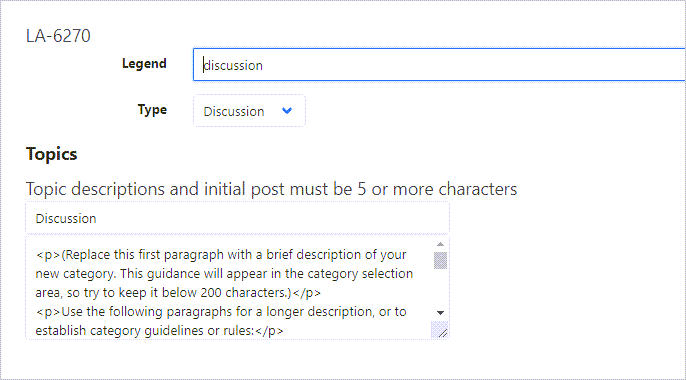
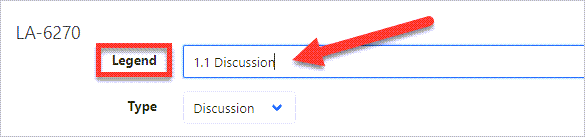
Add the discussion name in the Legend field at the top. Note: the Legend title should be short (a few words or less). It can be the same title as your page title (if you created a page for a stand-alone discussion).
Add the discussion topic description. This should be a short description and must be 5 characters or more. Note: this is not the actual discussion prompt which you will add later.

Add the discussion prompt. You will see a default prompt with source code. You can copy and paste any prompt. You do not need to write it in source code. Simply replace the default with your prompt text. See example below.
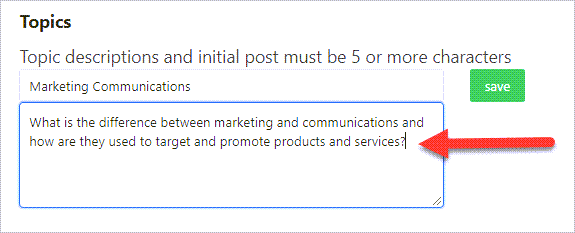
When you are done, click Save.

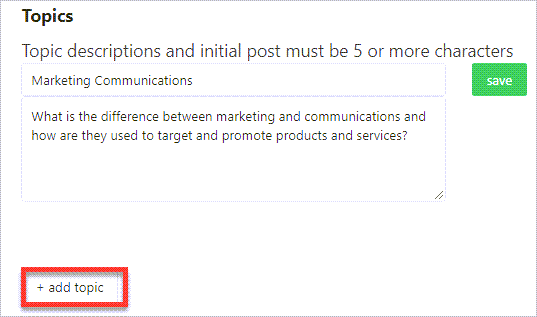
You may also choose to add additional topics. By adding additional topics, you will add the ability to have more than one discussion going in the same activity.
Set up Grading
When you have finished adding topics, select the preferred Grading method from the dropdown. The grading can be “manual points” which means the learner would receive points for completing the discussion or “participation” which allows for a complete/incomplete type of assignment without points associated. You can also choose to add a Rubric for grading. “None” means no grading is associated with the discussion.

Finally, click Save at the bottom of the page.

Comments
0 comments
Please sign in to leave a comment.