
Overview
You can embed videos hosted on other sites such as YouTube or Vimeo into pages when building content in Skillways. To embed a video in Skillways, you will use the source view. This article reviews the process.
Grab the embed code
Go to the site where the video is hosted and copy the embed code.
Open the Page
Open the page where you wish to embed the video.
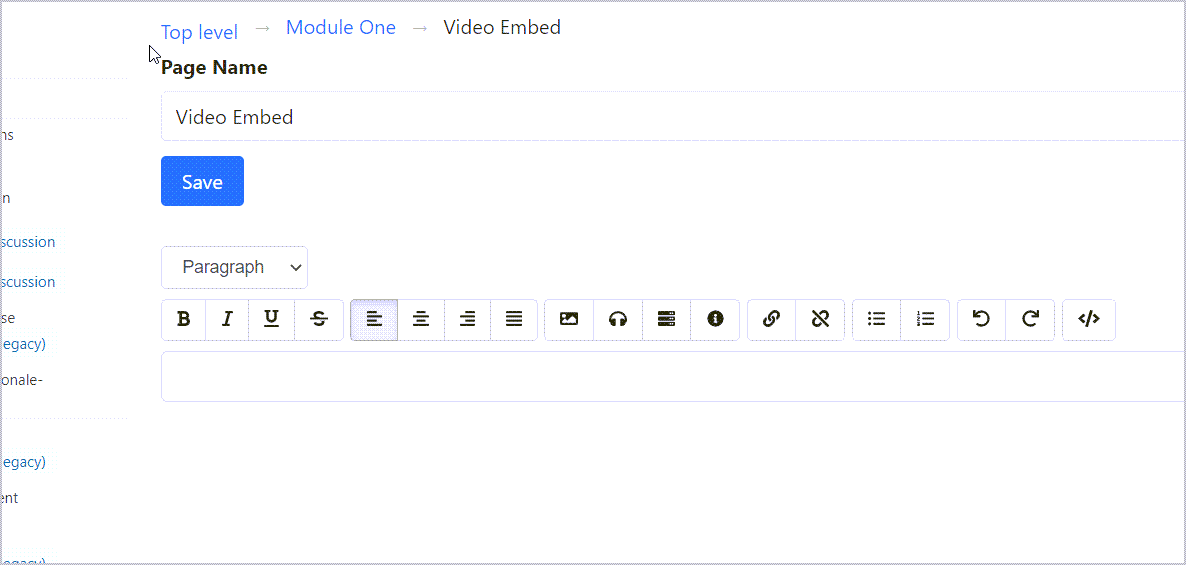
Select the source view icon from the content editor tool bar.

Paste your embed code into the editor.
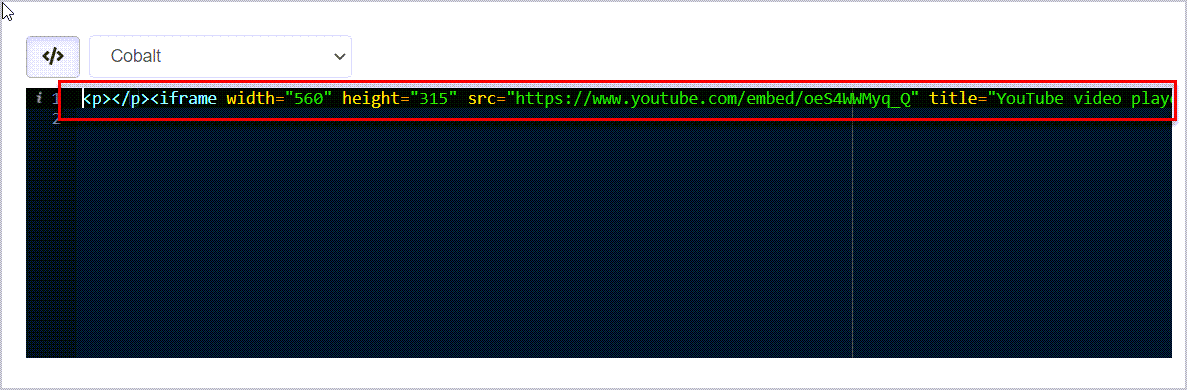
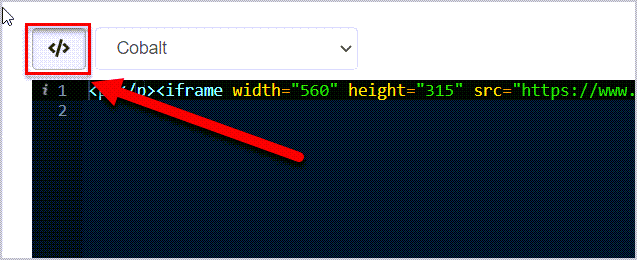
Select the source view icon again to save your work and return to the WYSIWYG (what you see is what you get) view.
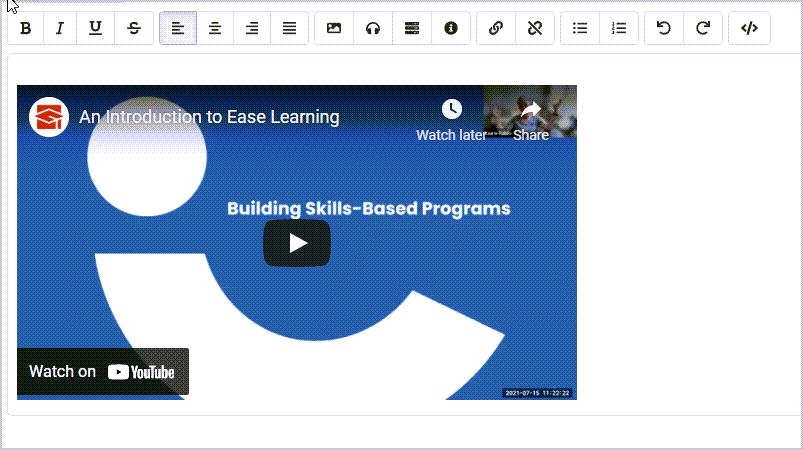
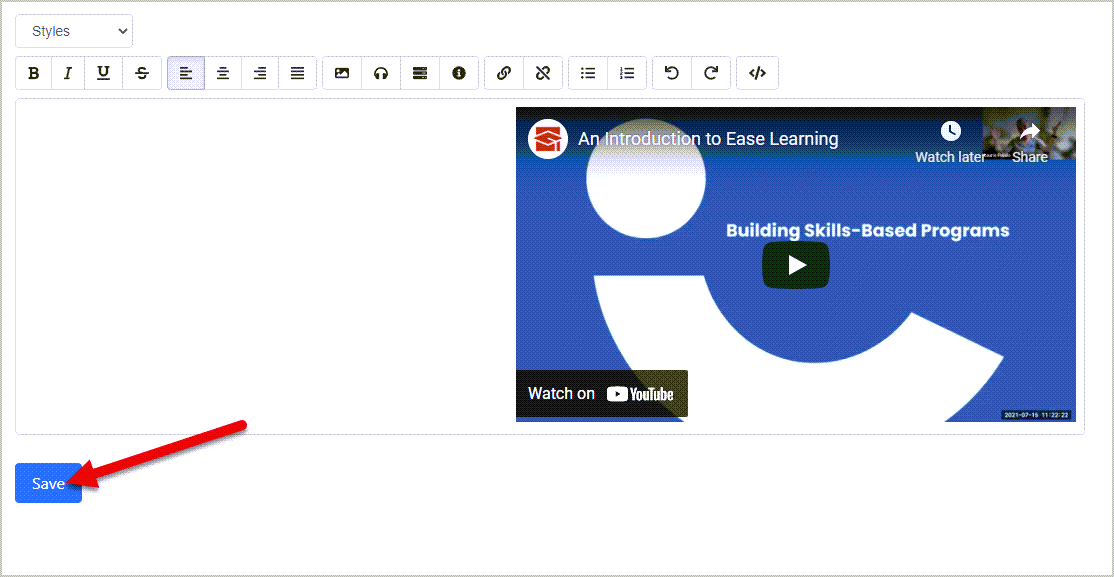
Your video will display.
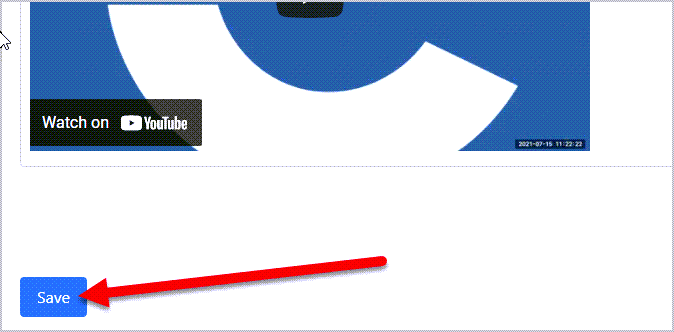
Select Save to save your changes.
Adjusting Video Sizes
You can resize your video if needed from the source view.
From the source view, replace the values in parentheses for the width and height.
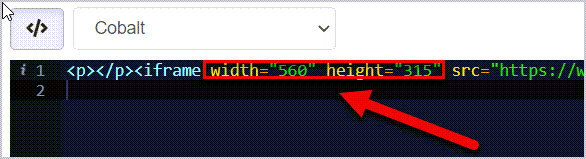
Note: it is important to maintain the aspect ratio of the original video to avoid stretching it out of proportion. You can use a free editor like Pixlr or an image aspect calculator.
Select the source view icon again to save your work and return to the WYSIWYG (what you see is what you get) view.
Your newly sized video will display.
Select Save to save your changes.
Tips for Adjusting Video Alignment
You can adjust the video alignment using simple code in the source view.
Select the source view icon from the content editor tool bar.
Add the following code before your embed code:
<div>
<p class="text-right">
And add the following code after the embed code.
</p>
</div>
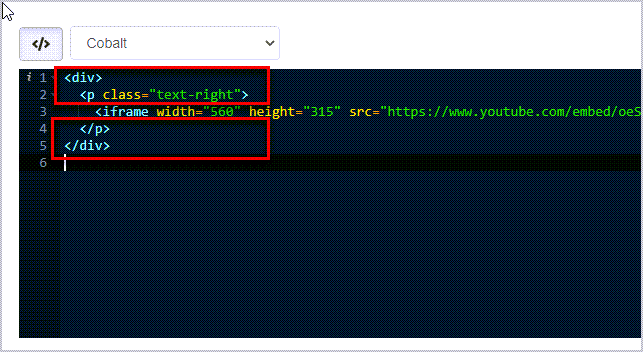
To change the alignment to center, you can replace "right" with "center" in the second line of code.
When finished, select the source view icon.
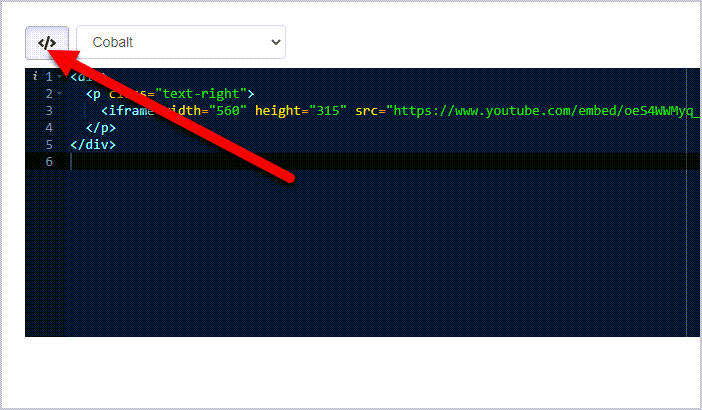
Select Save to save your work.
Additional Coding Tricks
Power users, with an interest in coding, may find additional tips and tricks at the Bootstrap CC site.
Comments
0 comments
Please sign in to leave a comment.