
Overview
There are several activity types you can add to Skillways. This user guide covers how to upload a video activity such as a screencast or video presentation.
It is important to note that any activity in Skillways must be attached to a page. You can add any content to the page. This is a great way to include an introduction to the activity or instructions. Alternatively, the page can be blank or only include a title if you prefer not to add any additional content. You can also add multiple activities to a page. For example you can have a video activity and a file upload attached to the same page.
Add an Activity
Go to the Edit tab from the Learning Path. 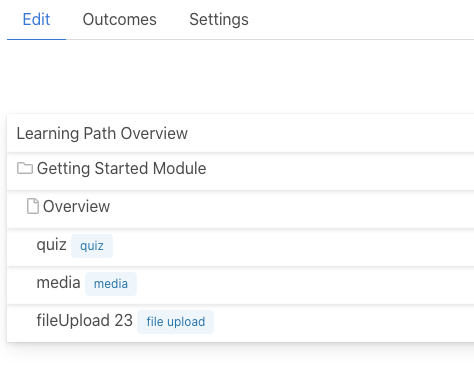
Hover over the page or activity that you want the activity to come after and click the three dots to the far right (1). Then click on new activity (2).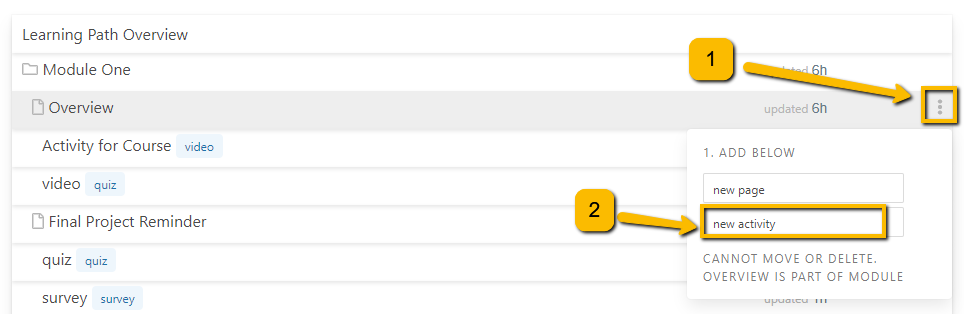
A new window will open that asks you to choose an activity type. Click on Video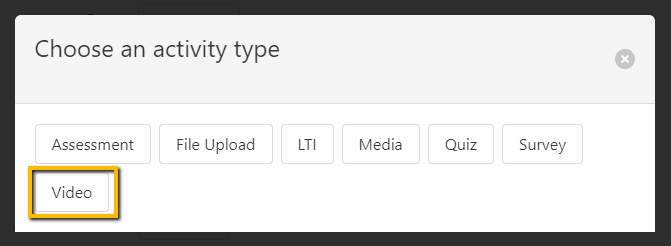
A new window will appear.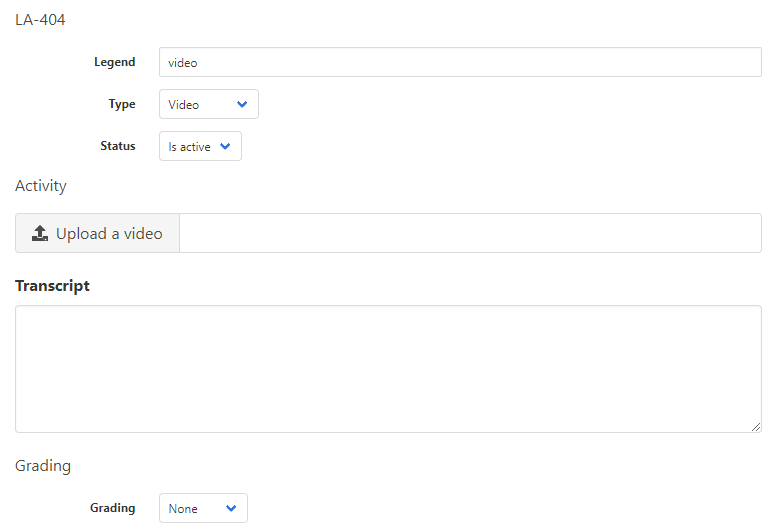
Add the Video
Add the video name in the box at the top.
Note: Make the Legend title short. It should just be a few words.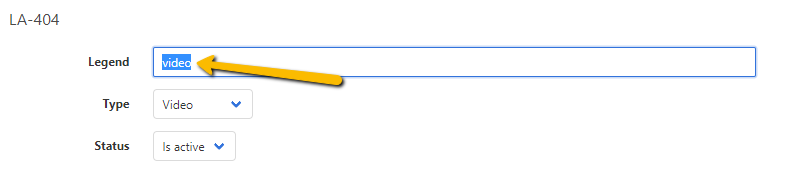
Select whether your Video activity should be active or remain in draft form. 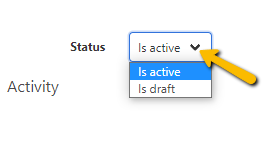
Upload the video file and add the transcript. You can upload any browser support video format (for example, .mp4).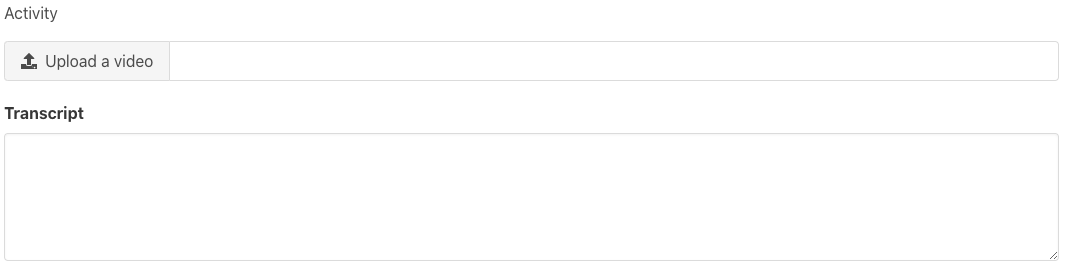
Set the Grading
Adjust the grading for this activity. The grading can be “by points” which means the learner would receive all points if they watched the video or “none” which allows for a complete/incomplete type of assignment without points associated.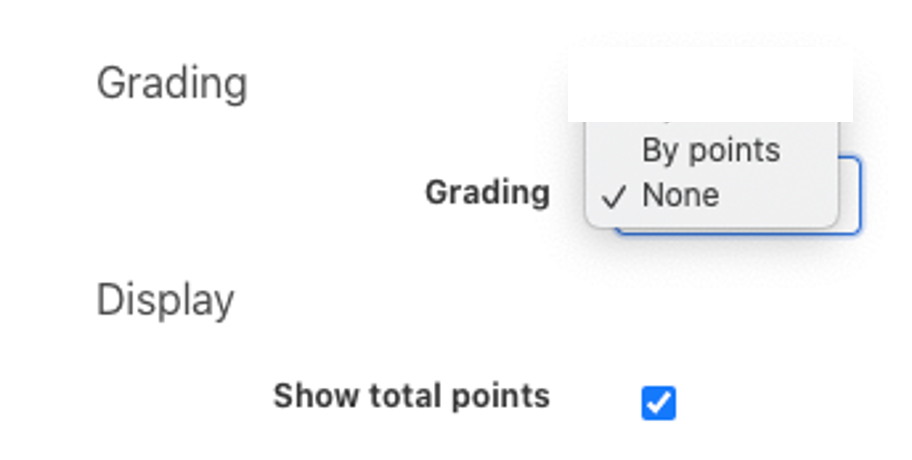
When you are done, click Save.
Comments
0 comments
Please sign in to leave a comment.