
Overview
Skillways has three types of discussion activities: Forums, Discussions, and Conversations.
Conversations are informal, ungraded discussions that can be added to other activities in the course. You can enable a conversation after a quiz, assessment, media activity, or an assignment submission (file upload). Conversations enhance social learning and encourage casual conversation and exchange around activities that may otherwise be experienced in isolation.
Add an activity
See the specific user guides on adding a file upload activity, video activity, media, assessment, quiz, or survey as you will need to add an activity first.
Enable a Conversation for the activity
From the activity page, go to Conversation.
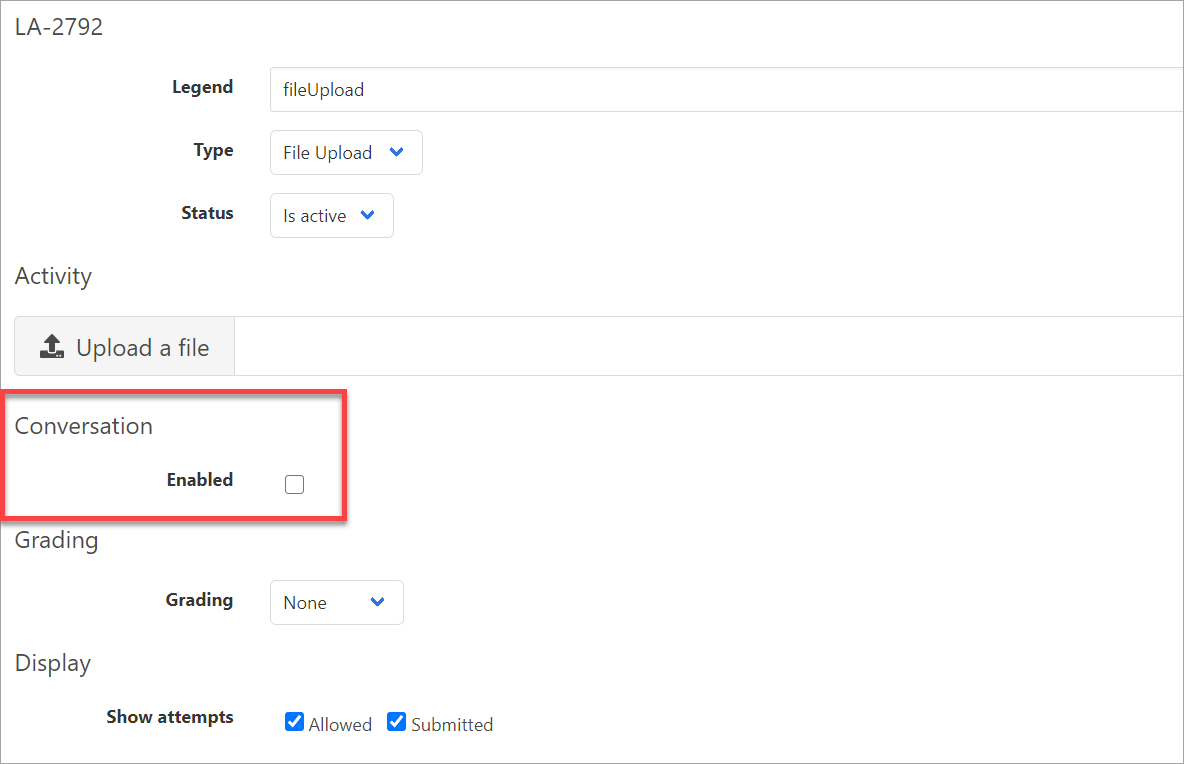
Click the Enabled box.

Click Save at the bottom of the page BEFORE adding the topic.

After clicking Save, the Topic section will appear to add the prompt.
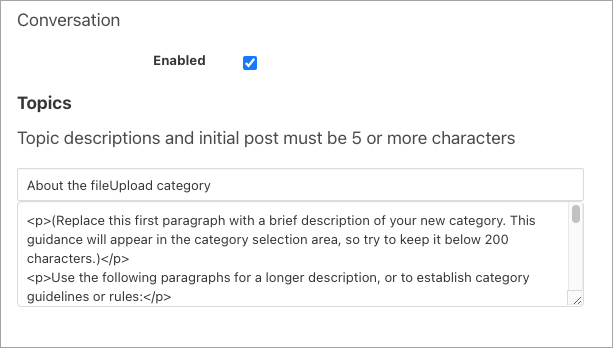
Add the discussion topic description
This should be a short description and must be 5 characters or more. Note: this is not the actual discussion prompt which you will add later.

Add the discussion prompt
You will see a default prompt with source code. You can copy and paste any prompt. You do not need to write it in source code. Simply replace the default with your prompt text. See example below.
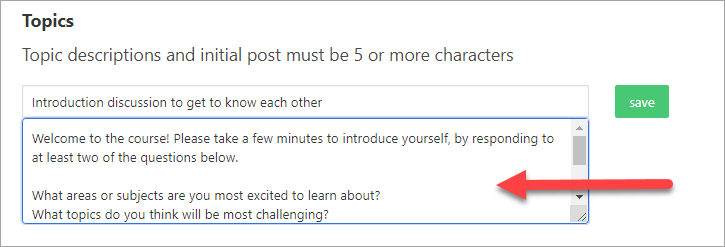
When you are done, click Save.

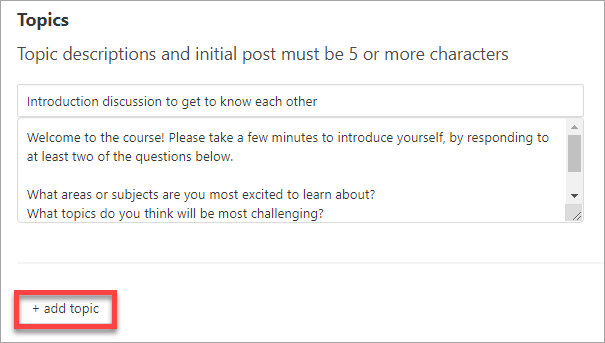
You may also choose to add additional topics. By adding additional topics, you will add the ability to have more than one discussion going in the same activity.
Grading Enabled Conversations
Conversations enabled within an activity are intended to be informal and are typically ungraded. The Grading section within the activity page is for the activity itself (in this example, a file upload). If, however, you wish to award points for the enabled conversation in the activity, you can do so by adding a criteria to the rubric in the grading section. For more information on Rubrics, see the How do I add a rubric to an activity user guide.
Learner View
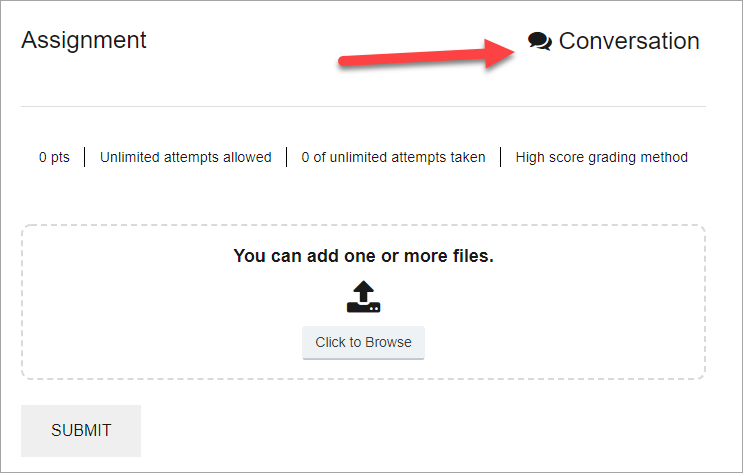
When learners access the activity, a Conversation link will display where students can click to access the discussion topic.
Comments
0 comments
Please sign in to leave a comment.