
Overview
Skillways includes a tag feature (separate from skill tags) that allows you to organize your data and filter for search purposes. The key difference between skill tags and tags is that skill tags are sourced from standard skills taxonomies and databases whereas tags are fully customizable allowing clients and admins to set them up according to their needs to help filter and organize content and data. For example, you might add a tag to maps or learning paths used in the same program or training to be able to easily search for them. The tag feature can also be used with outcomes to add additional mapping for accreditation purposes (ex. for essential accreditation competencies for a specific discipline). Tags related to outcomes show on the curriculum map in list, lineage, and preview and are available for all levels of outcomes.
This guide will walk you through how to add a tag to a learning path.
Go to Paths
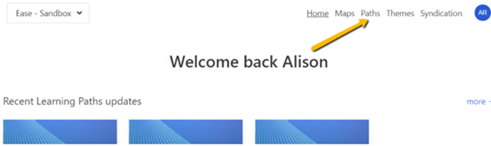
Click Paths from the top-right navigation.
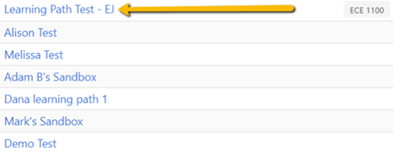
Select the Path from the list.
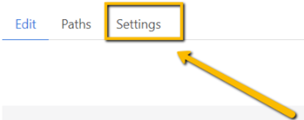
Select the Settings tab.
To Add a New Tag
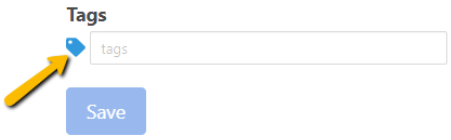
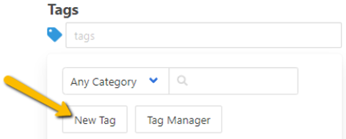
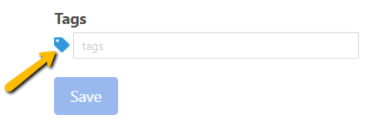
Scroll down to Tags and click the Tag icon.
Select the New Tag button.
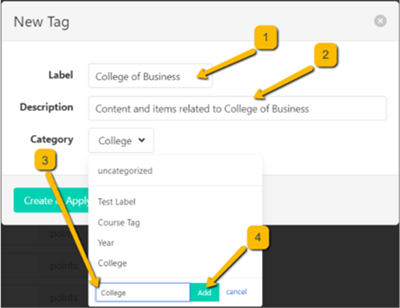
Add a label, description, category, and click Add.
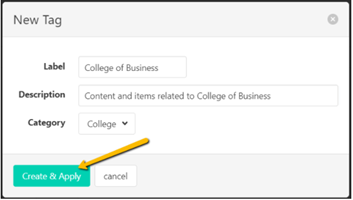
Select Create and Apply to create and add your Tag.
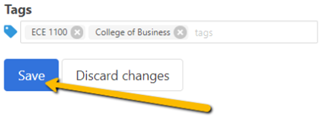
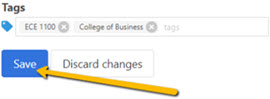
Click Save to save your tag.
To Add an Existing Tag
Scroll down to Tags and click the Tag icon.
Click the checkbox next to the tag you wish to apply.
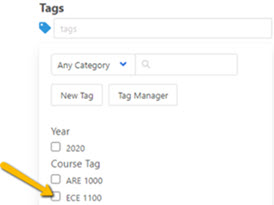
You may also filter the tags by category before selecting them. To do so, click the dropdown arrow next to Any Category.

Select the Category (in this example, Course Tag) and click the checkbox next to the tag you wish to apply.
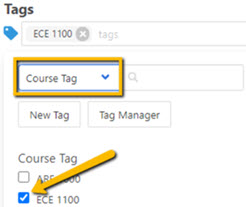
Your selected tag will now appear in the Tags field and you can search or filter any content or data associated with this tag at any time.

Click Save to save your tag.
Comments
0 comments
Please sign in to leave a comment.