
Overview
Skillways includes various layout options that make it easy for you to chunk content while providing some interactivity for your learners. The accordion icon in the content editor allows you to add these displays including accordion, tab, and carousel layouts.
Go to the content editor
On the page where you wish to add an accordion, tab, or carousel layout, go to the content editor.
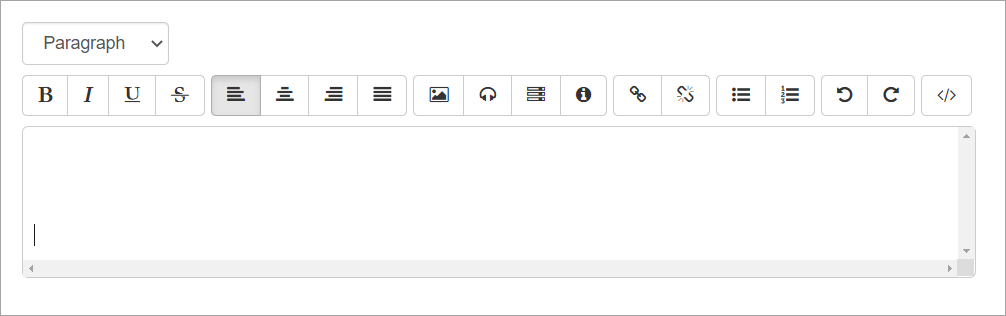
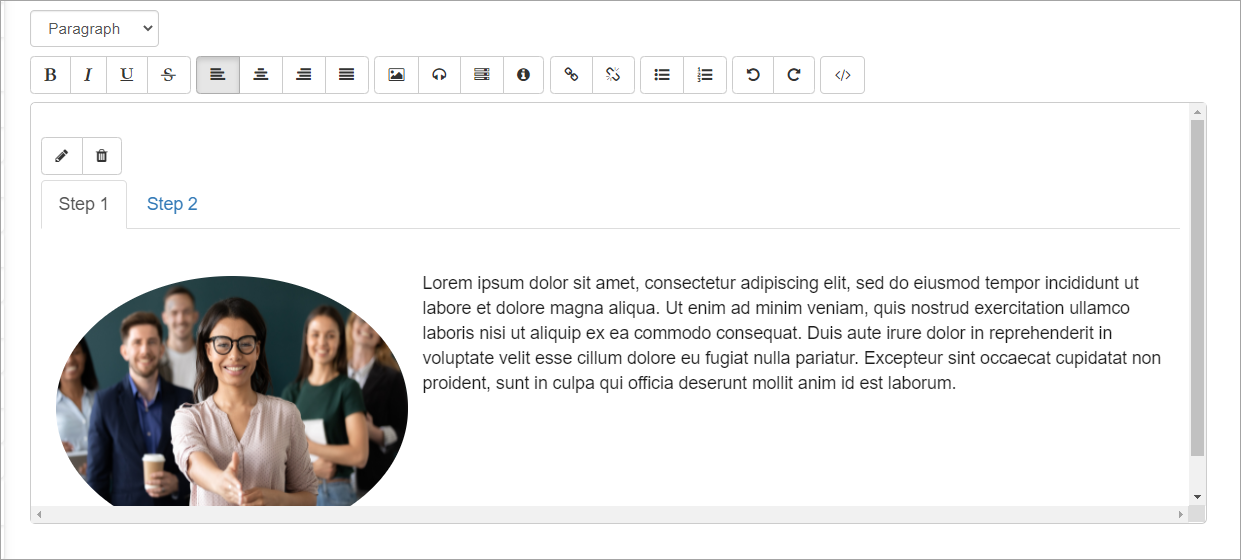
Click on the advanced content display icon.

A slide template will appear.
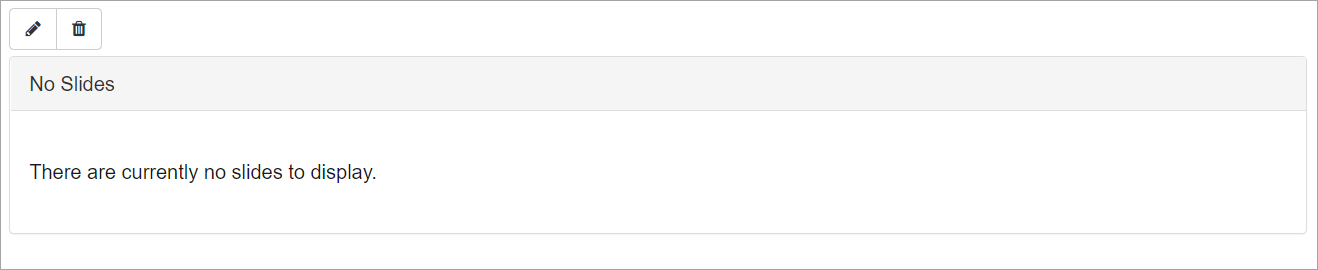
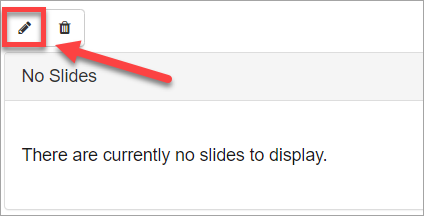
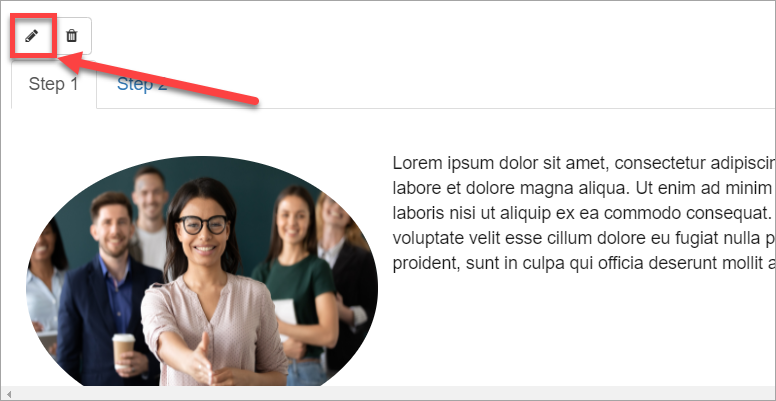
Click the edit icon.
A new window will appear.
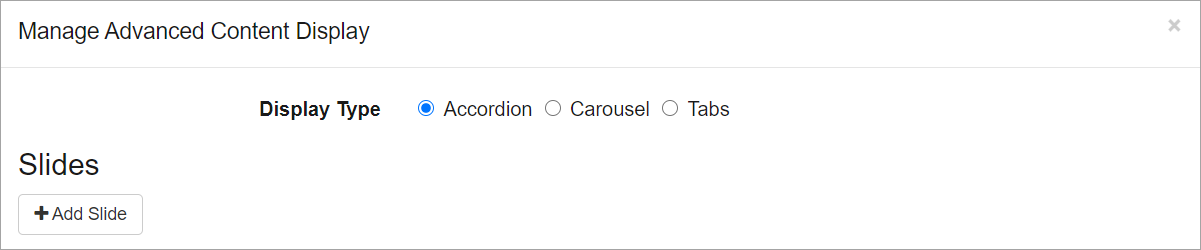
Choose the display type

Accordion
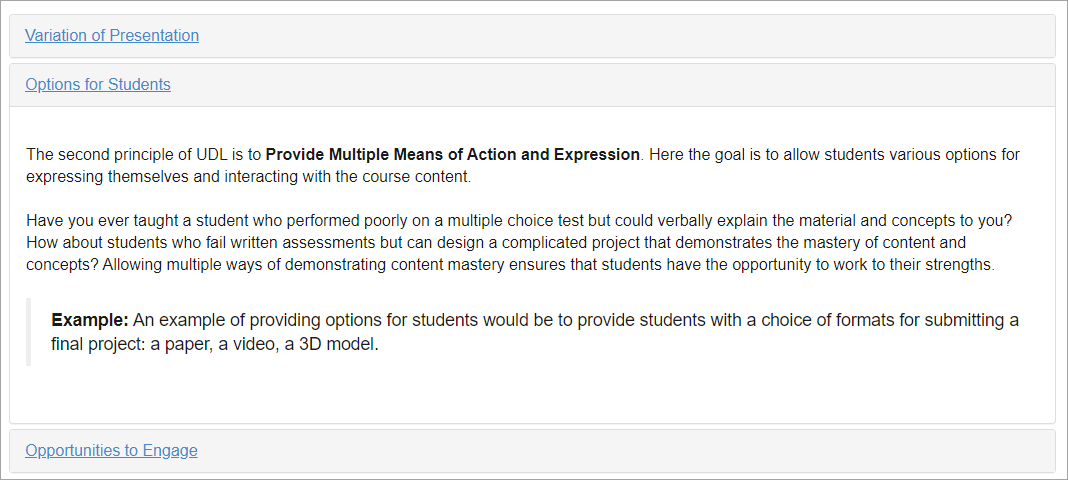
An accordion is a vertically stacked list of headers that can be clicked to reveal or hide content associated with them as shown below.
Carousel
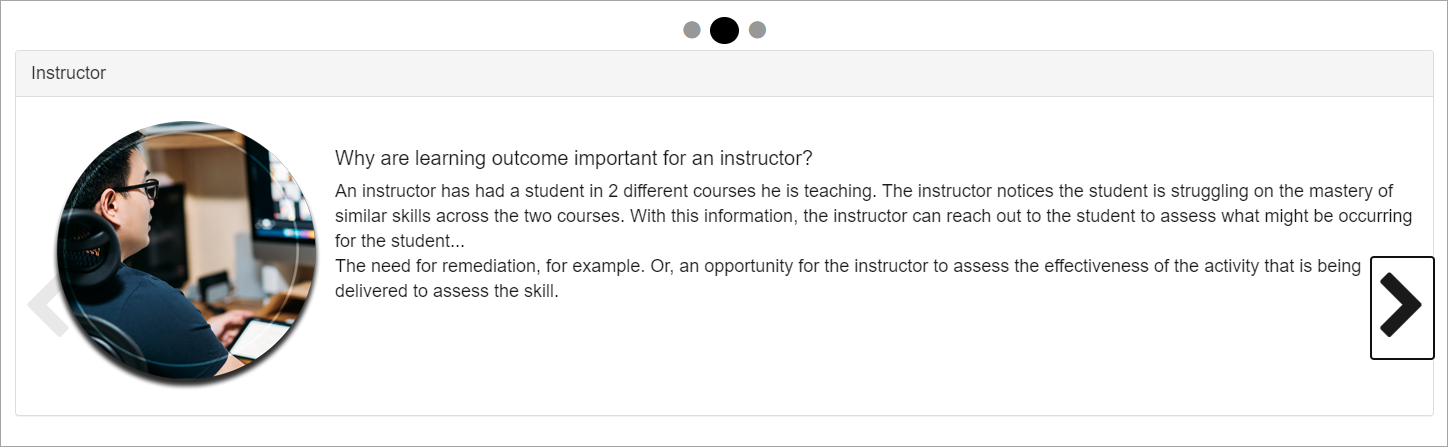
A carousel is a slideshow for cycling through a series of content. The example below shows slide two of a carousel display as indicated by the enlarged second dot at the top of the page.
Tabs
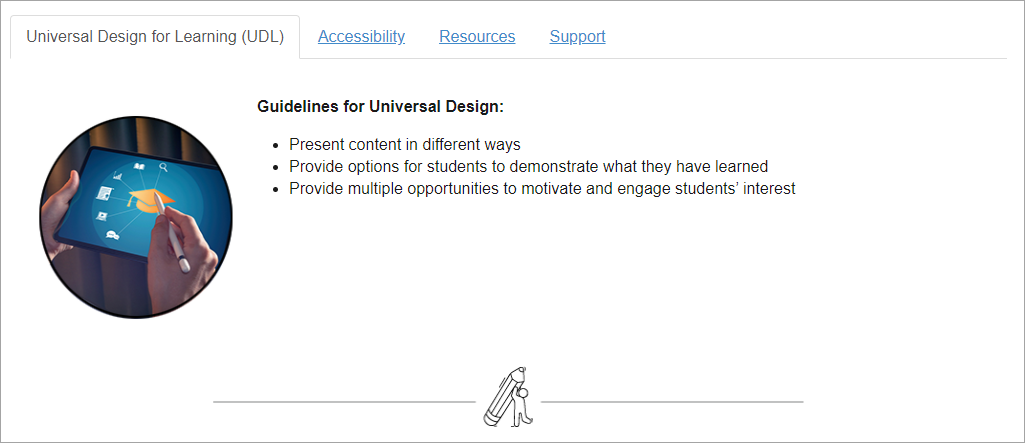
A tabbed layout divides content into separate panels that are accessible from the same page. Learners click through the tabs to reveal the content.
Add Slides
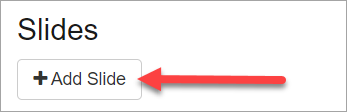
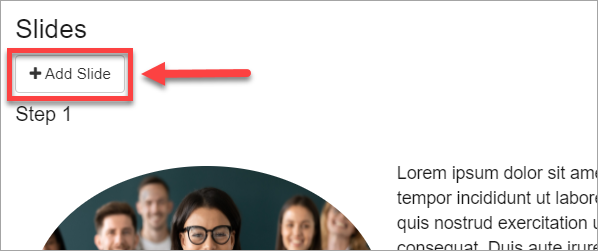
After selecting your layout type, click Add Slide to begin adding slides and content.
Click on the words New Slide.
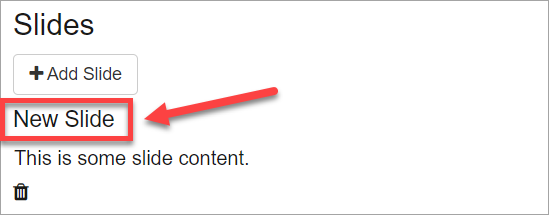
Then add your title (1) and then click on the check to save (2).

Your Slide Title is now saved. To add content to this slide, click on the words This is some slide content.
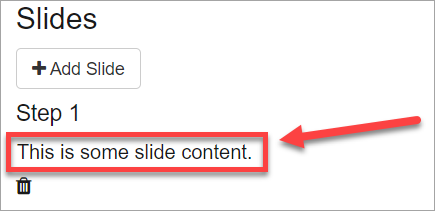
This enables the content editor where you can begin adding your content.
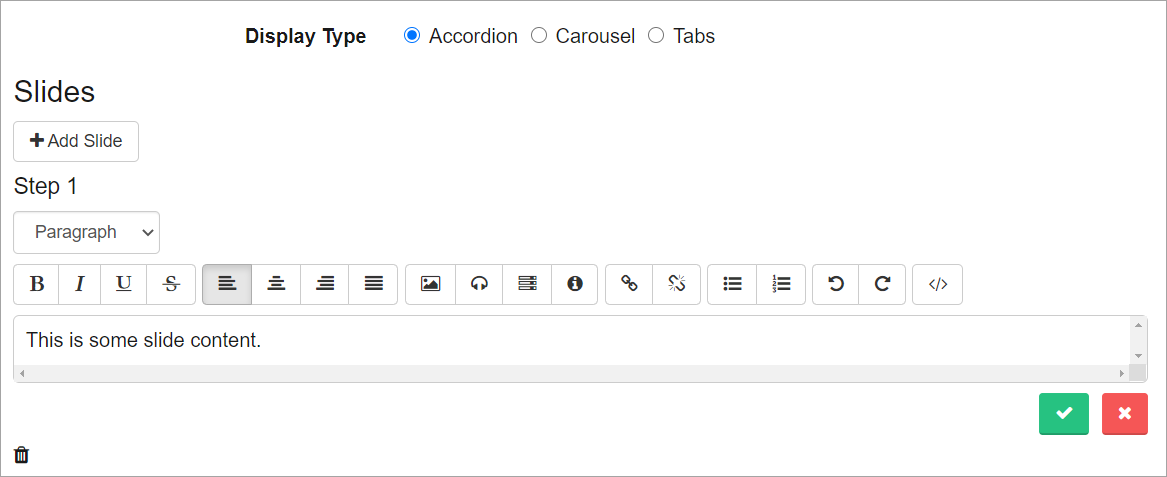
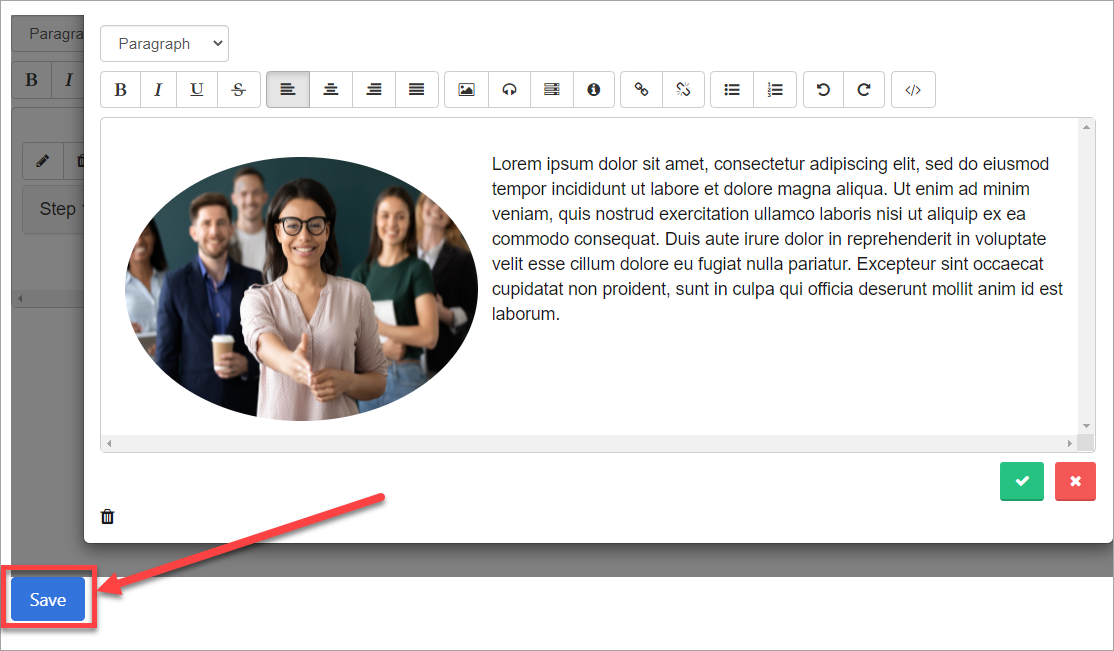
When you’ve finished adding your content, click the checkmark to save it to your page.
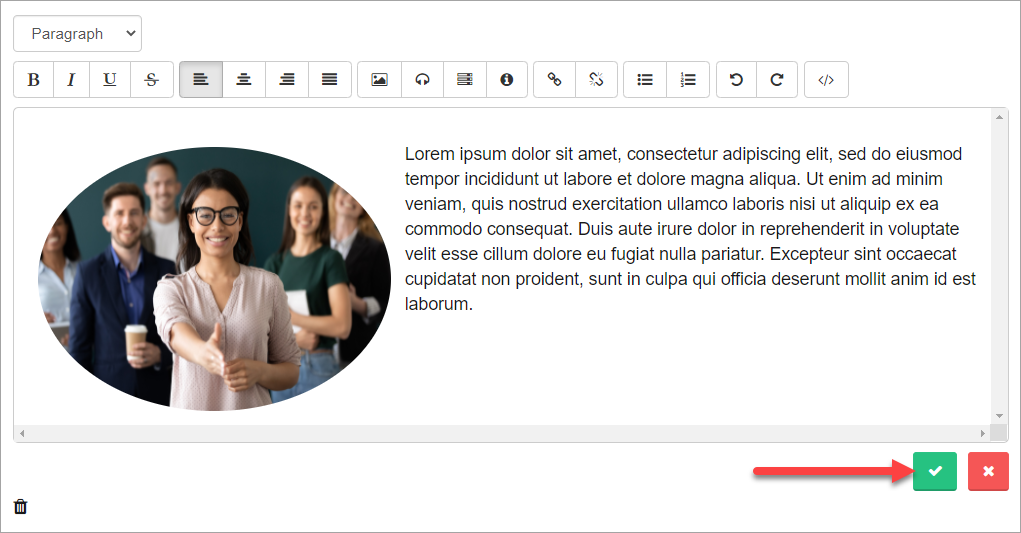
If you want to cancel, click the ‘x.’
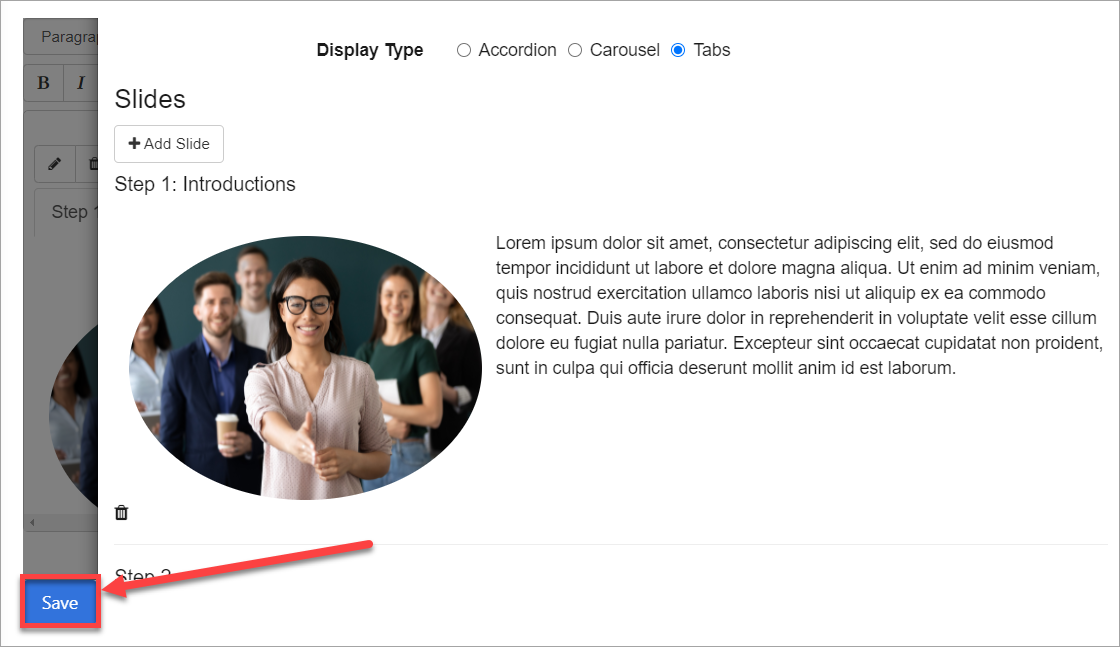
When you are done adding or editing content, click Save at the bottom of the page.
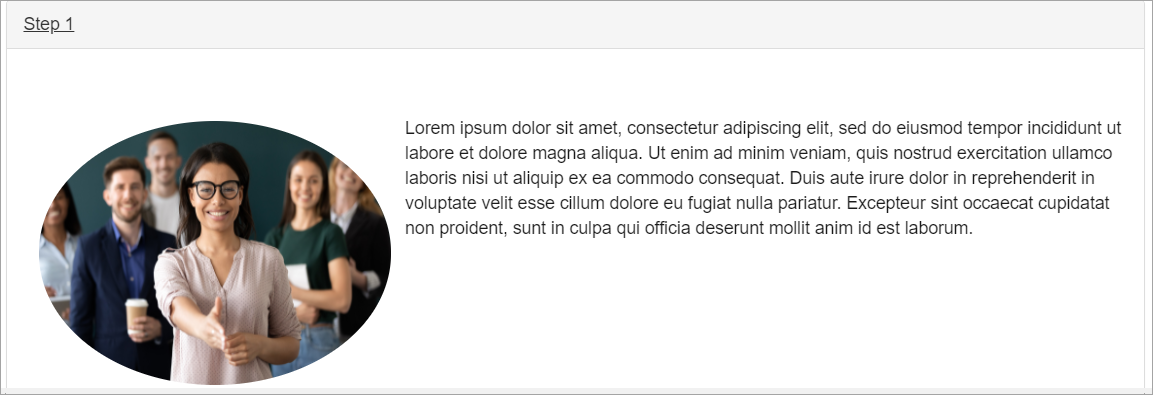
Your newly added content layout should now display on your page.
To add an additional slide, click the edit icon again.
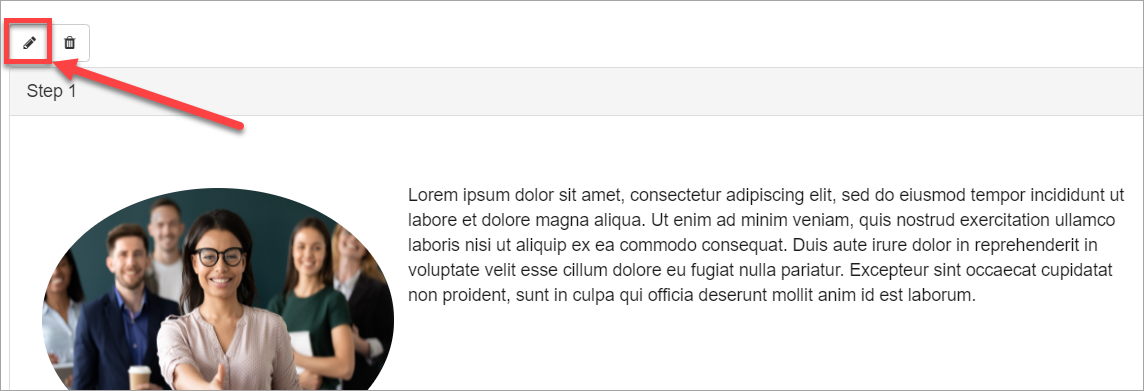
Select Add Slide and proceed with the steps outlined above.
Edit a Slide
To edit a slide, go to the content editor.
Then, click on the Edit icon.
Locate the slide title or content you wish to edit and click on it.

Make your edits (1) and click the check mark to save when finished (2).

Click Save at the bottom when finished editing to save your changes.
Comments
0 comments
Please sign in to leave a comment.