
Overview
Most of the Skillways Question Types are autoscored - excluding Essay, Audio and Image Highlight questions. Each auto scored Question Type has validation settings. Authors can select the scoring type, enter the points for the Question, enter a penalty score for the Question, and enable a Check Answer button.
Scoring type
In most cases, we can validate questions using 2 scoring methods: Exact Match or Partial Match. Some questions, such as Classification and Order List, have additional scoring methods. More details on these can be found in articles for these individual Question Types.
Exact match
The Exact Match scoring option is available in all autoscored Question Types. With Exact Match, the student must get the entire Question correct to receive a mark.
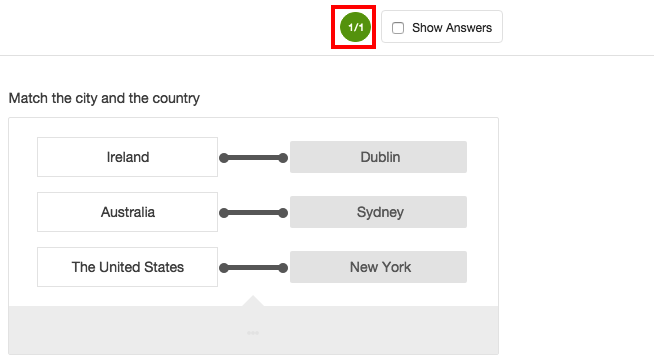
Figure 1: Exact match scoring example
Figure 1 illustrates a Match List question scored using Exact Match. If each response is answered correctly, the student will receive a score of 1.
Partial match
With partial match scoring, a learner gets a partial score for each correct response within the Question. The value entered in the Points box is the overall mark for the Question.
If the Question is given a score of 1, as shown in Figure 2 below, then each response within this Question will be worth .3333 (rounded to 4 decimal places).
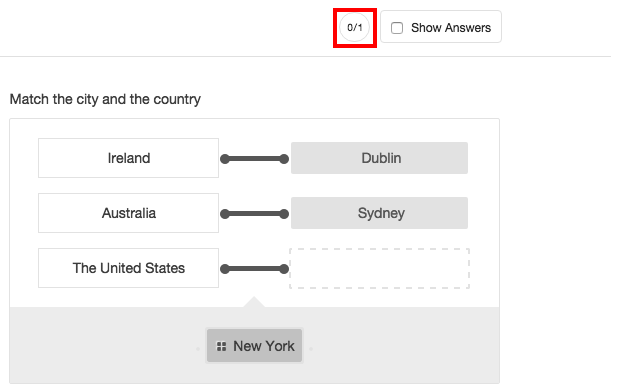
Figure 2: Partial match scoring example
Under Partial Match there is also a Rounding option. Rounding is only available when the scoring type Partial Match has been selected. There are two options to select from the drop down menu: None or Round Down. None is set as the default option.
- None will round the score to four decimal places e.g. 2.6666
- Round down will round the score down to the nearest whole number, e.g. a score of 2.666 will be rounded down to 2.
Penalty score
This will determine if marks are deducted for an incorrect answer. By default, the Penalty Score is set to 0. In the Match List examples above, there are 3 responses to the Question. If we apply a penalty score of 1 to the examples shown above, then:
- Exact Match - If the student answers any of the responses incorrectly, they will receive a score of -1 for the Question.
- Partial Match - For each incorrect response, the student will receive a score of -.3333 with a max penalty score of -1. If rounding has been enabled, it will also apply to the penalty score.
Check answer
Check Answer is a button that appears below a Question, and allows students to check if their response is correct. It is usually only applied to formative assessments. Check Answer can be enabled by toggling the Show Check Answer Button option in the Question Editor. Feedback attempts can be configured to allow the student to test as many times as needed. The default setting is unlimited attempts. The Check Answer button will not disclose the correct answer, but will indicate which answers have been answered incorrectly as shown in Figure 3.
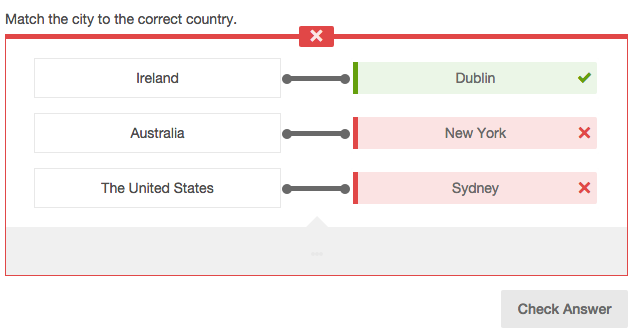
Figure 3: Using check answer
Non autoscored questions
Essay (including Math and Chemistry), Audio and Image Highlight Question Types need to be scored by a teacher. While a correct answer cannot be specified in the Question Editor, a maximum score can be set.
Unscored questions
The Unscored/Practice Usage option allows authors to disable scoring for a question. When enabled, the question will receive no score. This can be found in the scoring section of a question
Comments
0 comments
Please sign in to leave a comment.