
Overview
Skillways allows you to create assessments using a pool of questions. A question pool assessment ensures that learners see different versions of the assessment since questions are pooled randomly. Question pools have the benefit of curbing cheating. They can also be beneficial for practice activities with multiple attempts (learners see a varied set of questions with each attempt). This article walks you through how to set up a question pool assessment.
Go to Paths
In Designer, select Paths from the navigation menu.
Select the Path where you wish to add the pooled assessment.
Add the Pooled Assessment
Select the three dots (1) next to the page where you wish to add the activity, then select new activity (2).
Select Assessment for the activity type.
Add an activity name (1) and from the Deliver Questions as Pool drop down menu, select Yes (2).
In the Question Count field, enter the number of questions you want to appear in the assessment.
Select Save.
At this point, you have two options:
- Create Questions - select this option if your questions don't already exist and you need to create them from scratch
- Add Questions - select this option to add existing questions to your pool.
Create Questions
To create new questions for your question pool, review the Create Your Assessment Questions section of the How Do I Add an Assessment user guide.
Add Questions
To add existing questions to your pooled activity, select the Add Questions button.
Select the questions you wish to add to the question pool by clicking in the check box to the left of the question.
If your question bank contains a lot of questions, you can search by question type (1), by question (2), or by tags (3).
Select the blue Add button at the top left, when you have finished selecting the questions you wish to add to the pool.
Note: the number of questions you add to your question pool must be greater than or equal to the number you entered in the question count in the previous step.
The questions you selected for your pool will appear in the Questions list.
Add a Conversation to the Assessment
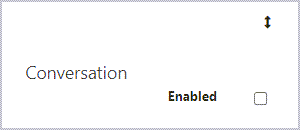
To enhance social learning and peer interaction, you may chose to enable the conversation feature if desired. Review the user guide How Do I Enable a Conversation in an Activity? for help on this feature.
Add Grading Settings
Indicate the type of grading for the assessment.
- Autograde- the system will autoscore the assessment. Note: all questions must be set to autoscore in the question templates and autograde scoring can not be used for manually scored question types such as file uploads, essays, audio recorders, etc.
- Manual Points - the instructor or facilitator manually inputs scores after reviewing learners' submissions
- Manual Rubric - the instructor or facilitator manually scores learners' submissions using a rubric
- Mixed- mixed grading is used when there is a mix of manual score and autograde questions in an assessment. Select this option if your pool contains both.
- Participation- learners are automatically awarded the max score upon submitting the assessment
- None- used for ungraded activities
Adjust the Max point value as needed. For autoscored questions, the Max Points will automatically tally the sum of the points set in the question templates.

To set a different max score for an assessment, select Set Max Score.

Then, add a new max point value. The new max score will automatically distribute point values to the questions.

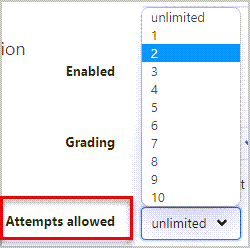
Select the number of attempts allowed.
Indicate when the activity should begin:
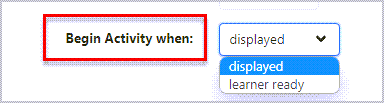
- Displayed means the assessment will display automatically below the page content.
- The Learner Ready setting requires the learner to select a link to begin the assessment.
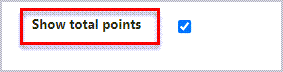
Select whether to display total points for the assessment to the learner (recommended for Learner Ready view)
Save the Assessment
When you are done, select Save to save your pooled assessment.

Comments
0 comments
Please sign in to leave a comment.