
Overview
The Skillways assessment engine provides a robust set of assessment types including file uploads, matching, drag and drop, multiple choice, and audio recorder questions. You will need to add an assessment to a page or another activity (i.e. a discussion or other assessment). Make sure you have added a page or another activity first.
Go to the Path and Add the Activity.
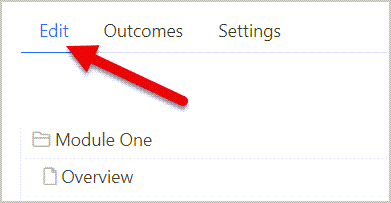
Go to the Edit tab from the Learning Path.
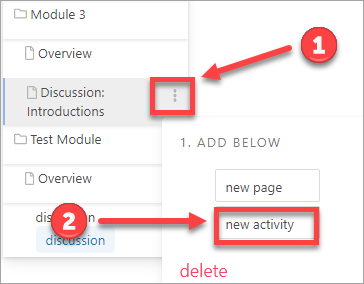
Hover over the page or activity that you want the assessment to come after and select the three dots to the far right (1). Then select new activity (2).
A new window will open that asks you to choose an activity type. Select Assessment.

A new window will open.

Add a name for the activity.
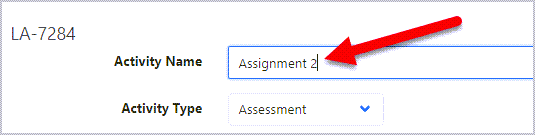
Adjust the settings for your activity as follows:
- Deliver questions as a pool - allows you to add an assessment that randomly generates questions from a pool.
- Distractor rationale*- enables distractor rationale which is feedback provided once students answer a question.
- Time limit- allows you to set a time limit (not recommended in general due to associated accessibility implications)
- Shuffle questions- shuffles the order of the questions for each attempt.

Note*: For distractor rationale/feedback to display, it must be added to the distractor rationale field and the check answer button must be enabled in the question template when creating your questions (review steps for assessments using feedback/distractor rationale).
Create Your Assessment Questions
To set up a new assessment with new questions, select Create Question (the Add Question button allows you to add existing questions as explained later).
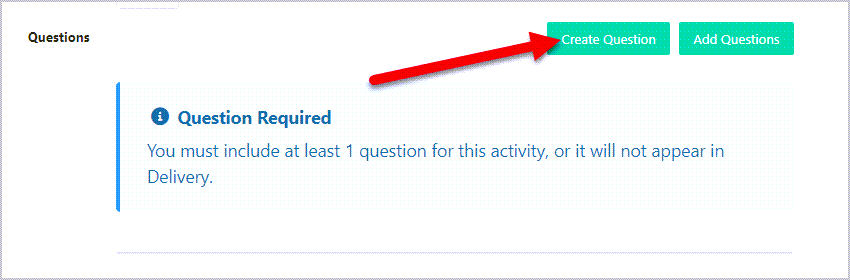
A new window will appear.
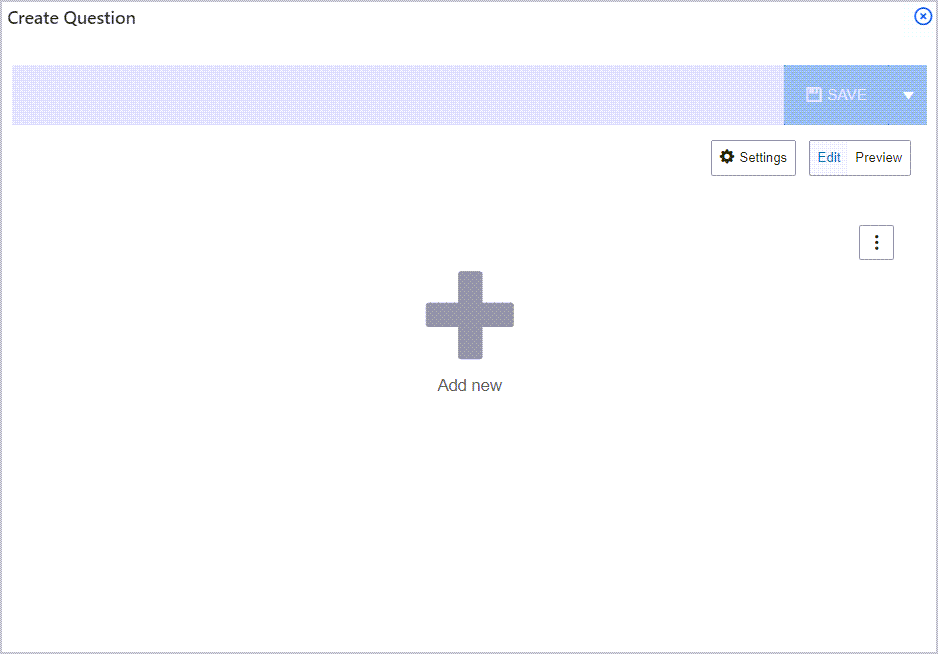
Select Add new.

A new window will appear with the option to choose from various question templates.
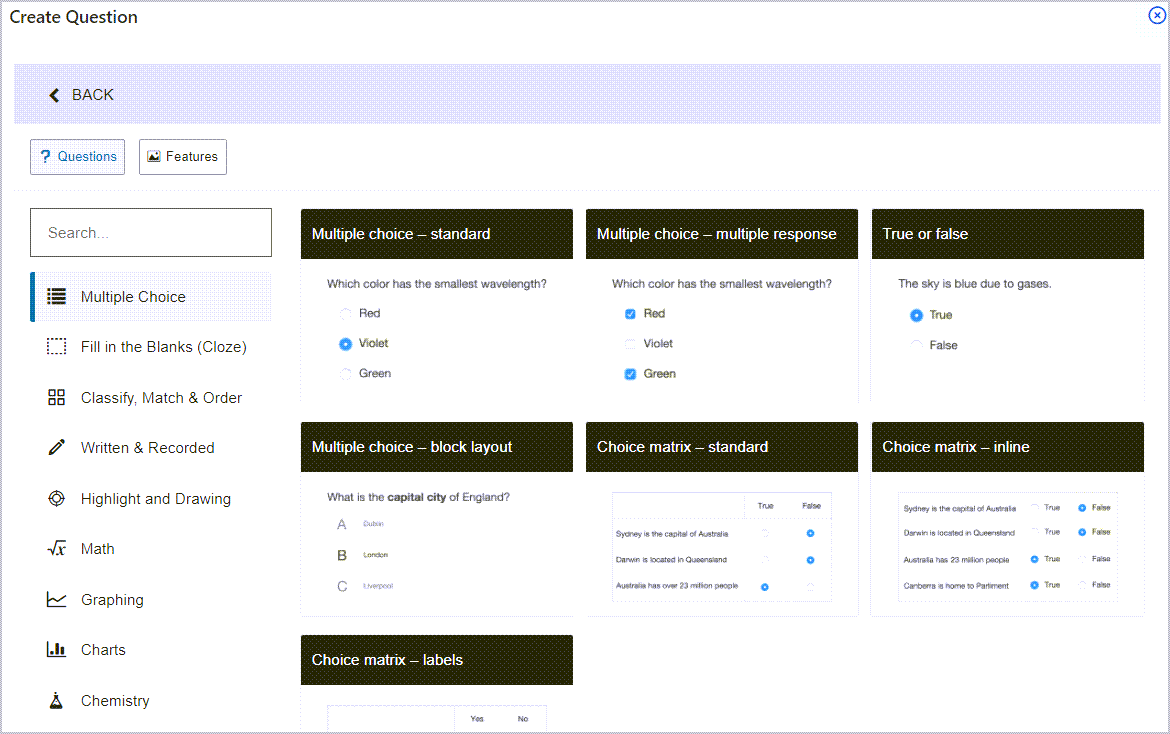
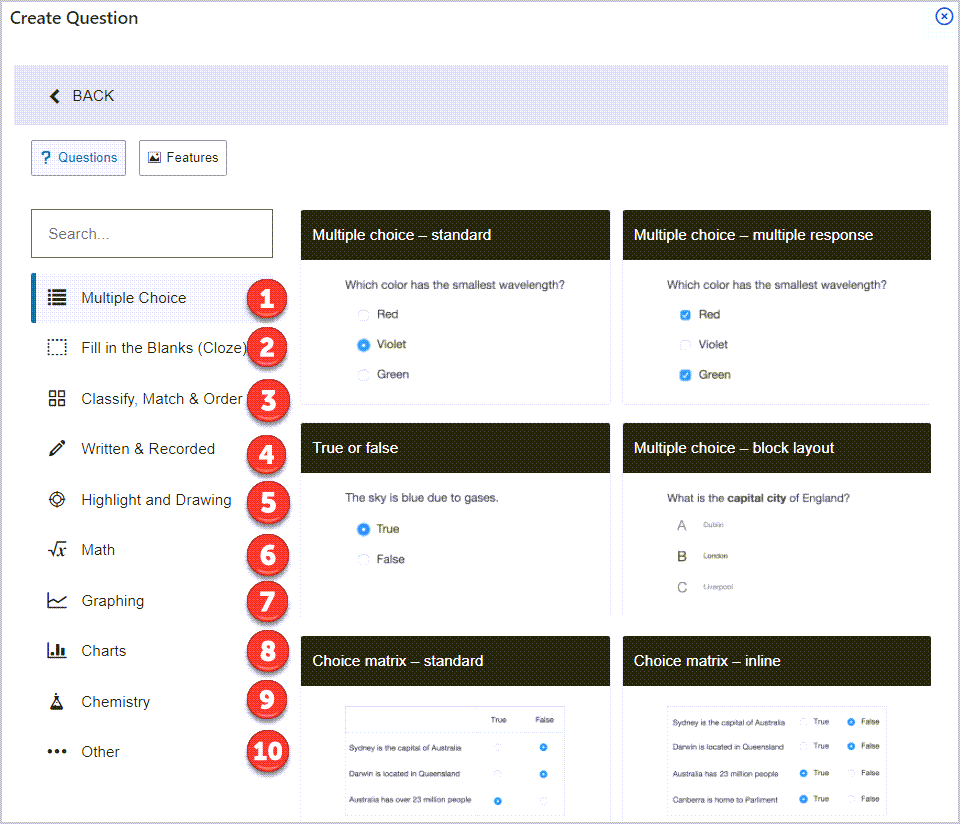
From this window you can browse and choose from many different question types as follows:
- Multiple Choice- various question templates for multiple choice and true and false
- Fill in the Blanks (Cloze)- cloze/fill in the blank options for drag and drop, drop down, cloze text, and label image question types all of which can be autoscored if desired
- Classify, Match and Order- matching, classifying, ordering, and sorting question templates
- Written and Recorded- essay, short answer, audio and video recorder questions (all manual scored)
- Highlight and Drawing - drawing, shading, highlight, and hotspot question templates
- Math- math formula, math fractions, cloze math, and math question generator templates
- Graphing - plotted graph and number line question templates
- Charts- bar chart, line chart, histogram, dot plot, and line plot question templates
- Chemistry - chemistry formula, cloze chemistry, chemistry with essay and/or image question templates
- Other- file upload, image annotation, and rating question templates
Accessibility note: Skillways assessment question templates are designed with accessibility in mind and the majority of the question types are fully compliant. Some of the question types have a few limitations. Ask your project lead for the latest conformance report for further details.
Select the template you want to use for your question type. For this example, we will use multiple choice standard. For instruction for using our other question types, visit our Assessment User Guides.
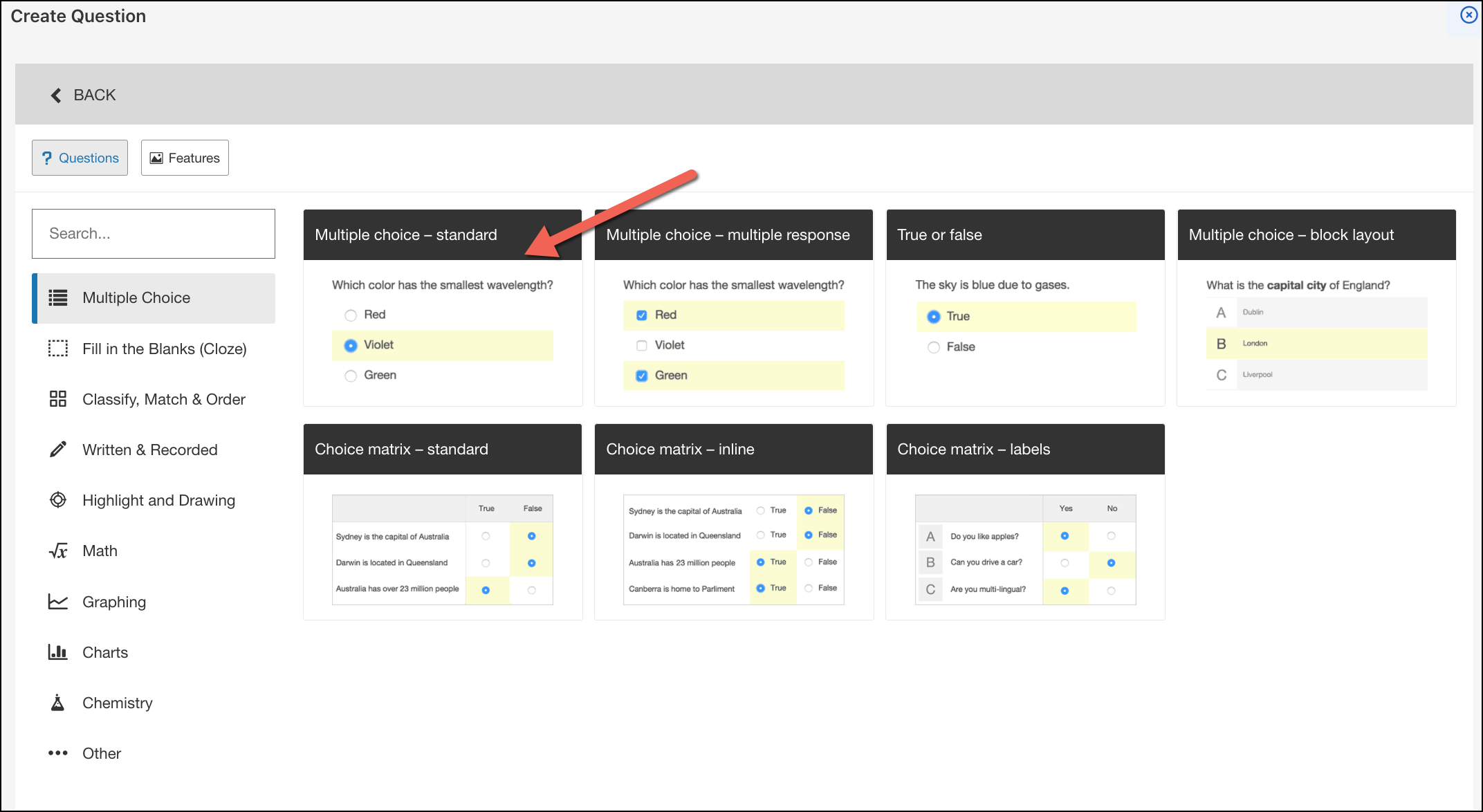
A new window will open.
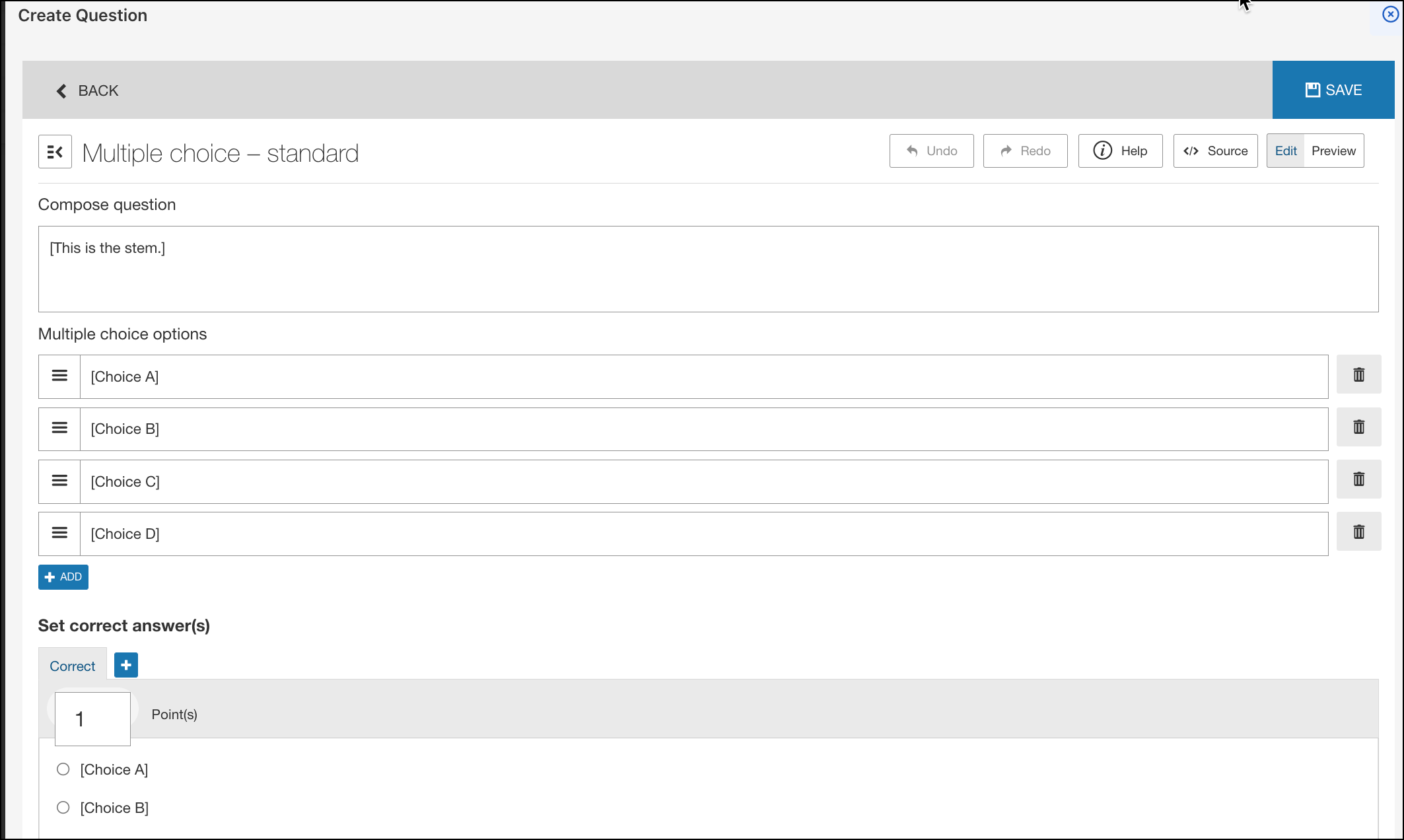
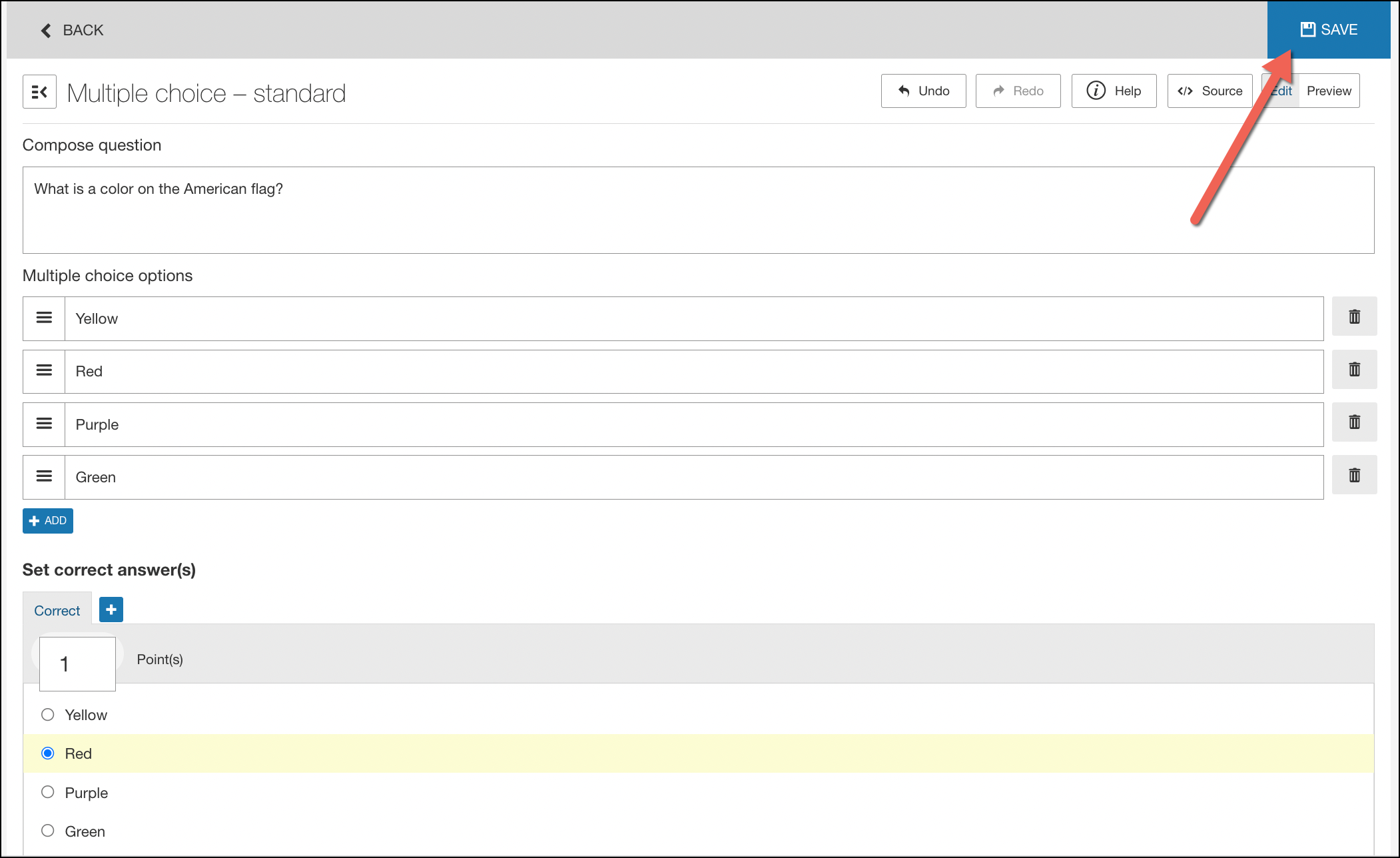
Fill in the template with the required information (instructions/question, answer options, correct answer, score, etc.) and select Save.
For Assessments using Feedback (Distractor Rationale)
Feedback (Distractor Rationale) can be configured for the following question types:
-
Multiple Choice
-
True and False
-
Cloze with drop down
-
Cloze with drag and drop
-
Cloze with text
Note: in order for distractor rationale to display, you must:
- Enable the check answer button in the question editor
- Turn the distractor rationale on in the assessment settings
- Set up distractor rationale for all questions in the assessment
If you have chosen to include feedback (distractor rationale), select the check answer button in the question editor and indicate the number of attempts the learner can check their answer (if left empty, the number of attempts will be unlimited).

Next include your feedback in the appropriate distractor rationale field.

- Distractor rationale- used for global feedback, regardless of answer selected by the learner
- Distractors- can be added for specific feedback for each answer option (for multiple choice questions only)
For more detailed information on Distractor Rationale, review the Understanding The Extras Section of the Question Editor user guide.
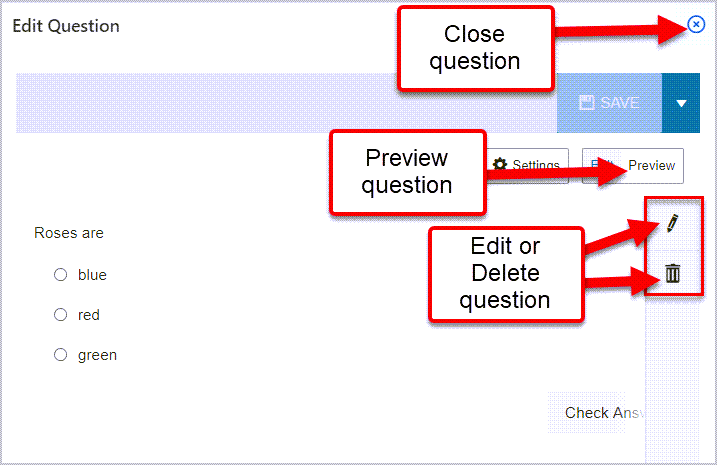
Once you have saved the question and you are done select the 'X' to close the question. You can also preview, edit or delete your question.
Note: You may add more than one question in the same item or one question each. The main difference is in how the learners navigate through the assessment. Also, for the purposes of creating a question bank or pool, it is recommended that you create one question at a time and save each individually. Whichever method you choose, we recommend maintaining consistency, so your learners know what to expect and don't, for example, accidentally miss a question because they didn't realize there was more than one on the page.
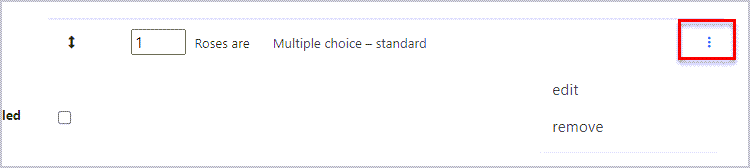
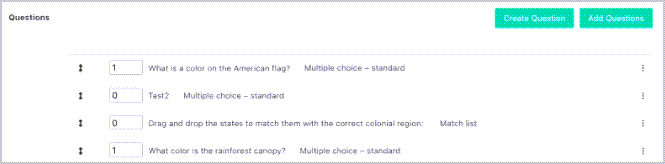
Your question will now show in the question list.

If you need to edit or remove a question from the list, select the three dots and select edit or remove.
Add Existing Questions to an Assessment
If you want to add questions that have already been created in the question bank, select Add Question.

A new window will appear.
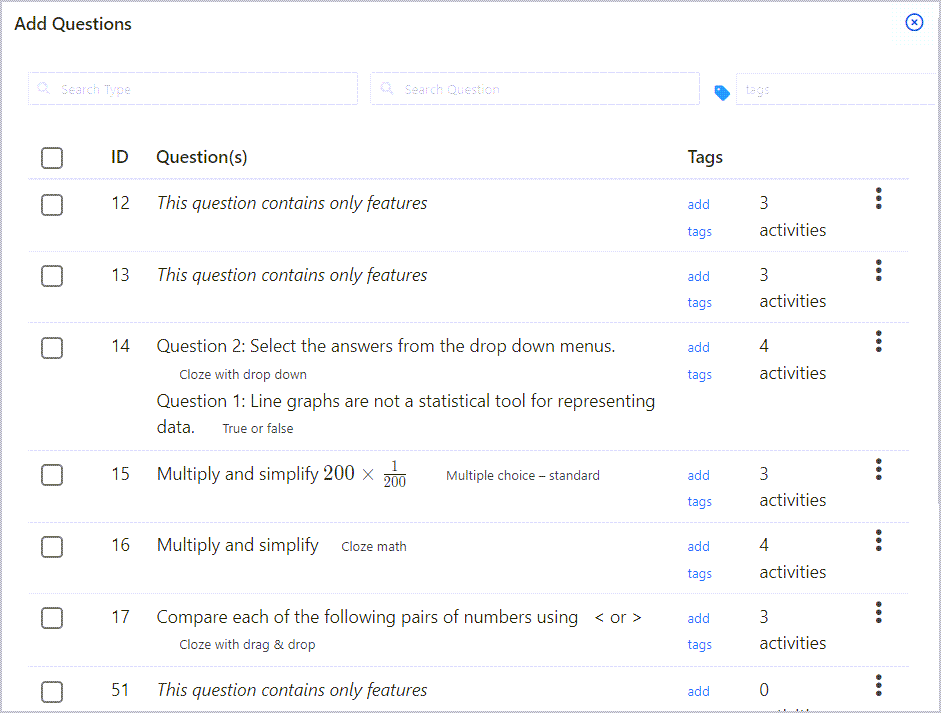
Select individual questions (1), select all questions in the list (2), and/or edit a question (3). Then select add (4) when finished.

The newly added questions will appear in the list.
Add a Conversation to the Assessment
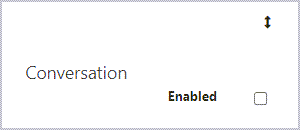
To enhance social learning and peer interaction, you may chose to enable the conversation feature if desired. Review the user guide How Do I Enable a Conversation in an Activity? for help on this feature.
Add Grading Settings
Select the grading method you wish to use.
- Autograde- the system will autoscore the assessment. Note: all questions must be set to autoscore in the question templates and autograde scoring can not be used for manually scored question types such as file uploads, essays, audio recorders, etc.
- Manual Points - the instructor or facilitator manually inputs scores after reviewing learners' submissions
- Manual Rubric - the instructor or facilitator manually scores learners' submissions using a rubric
- Mixed- mixed grading is used when there is a mix of manual score and autograde questions in an assessment. Select this option if your assessment contains both.
- Participation- learners are automatically awarded the max score upon submitting the assessment
- None- used for ungraded activities
Indicate the type of grading for the assessment.
Adjust the Max point value as needed. For autoscored questions, the Max Points will automatically tally the sum of the points set in the question templates.

To set a different max score for an autoscored assessment, select Set Max Score.

Then, add a new max point value. The new max score will automatically distribute point values to the questions.

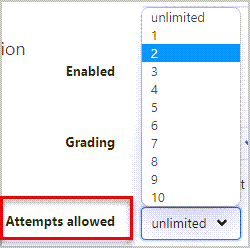
Select the number of attempts allowed.
Indicate when the activity should begin:
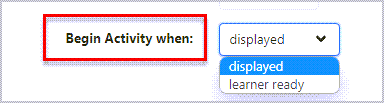
- Displayed means the assessment will display automatically below the page content.
- The Learner Ready setting requires the learner to select a link to begin the assessment.
Note: for timed assessments, the Learner Ready option must be selected.
Select whether to display total points for the assessment to the learner (recommended for Learner Ready view)
Save the Assessment
When you are done editing and adding your questions, select Save.
Comments
0 comments
Please sign in to leave a comment.