
Overview
At times you may need to adjust the expiration date or other settings on a syndicated learning path or course. This guide will walk you through the process.
Go to Syndication
Click on Syndication from the navigation.

A list of learning paths will appear. Click on the number or name of the syndication.
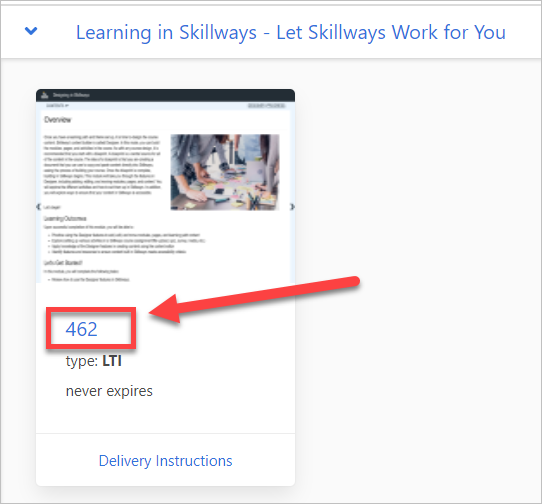
A new screen will appear.
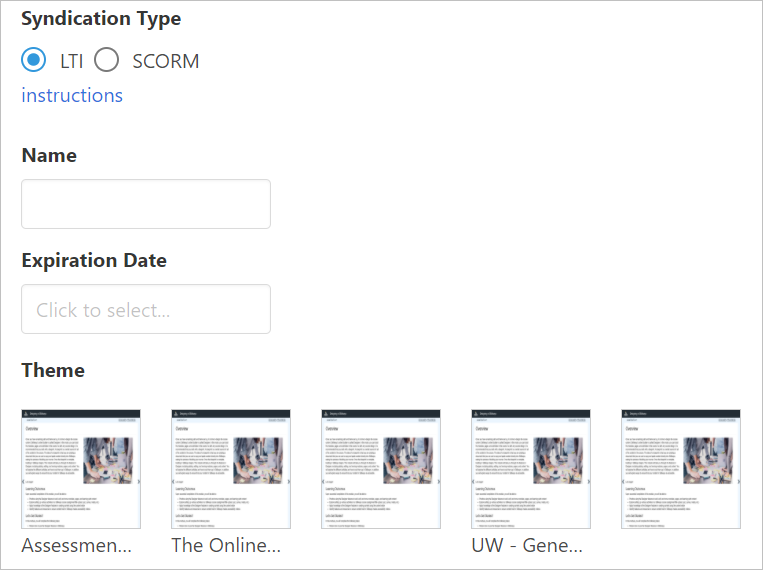
Edit the Name
Click under Name and edit as needed.
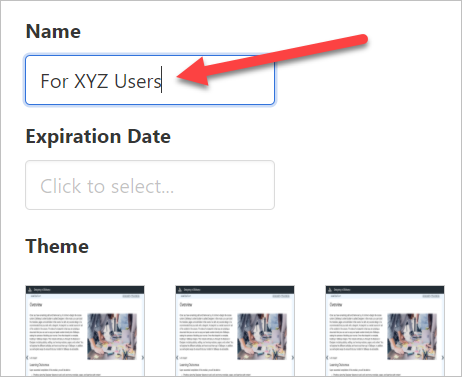
The Name field is used to distinguish multiple instances of the same learning path. For example, if you are using the same course/module for two programs or clients, you would use the Name field to distinguish.
Edit/Access the SCORM course identifier (for SCORM packages only)
See the How do I Edit/Access the SCORM Course Identifier user guide if you wish to syndicate multiple learning paths in a course in a SCORM-based LMS environment.
Edit the Expiration Date
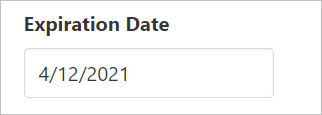
Click under Expiration Date and select your date from the calendar.

Your Expiration Date will now appear.
Change the Theme
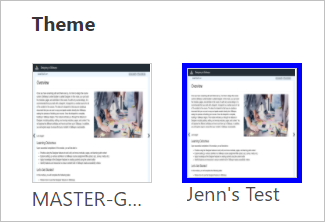
You can also change the Theme from within the Syndication feature, by selecting the thumbnail of the new Theme you wish to apply.
Click Save when you are done adjusting your syndication settings.
Comments
0 comments
Please sign in to leave a comment.