
Overview
Skillways allows you to duplicate learning paths which can be useful if you plan to use most of the content from the learning path for a different learning path, course, or client. Note, if you wish to use the exact same content and only adjust the theme (logo, branding, etc.), please consult our user guide, How Do I Create a New Syndication for a Learning Path in Skillways.
Go to Paths
Select Paths from the top right navigation.
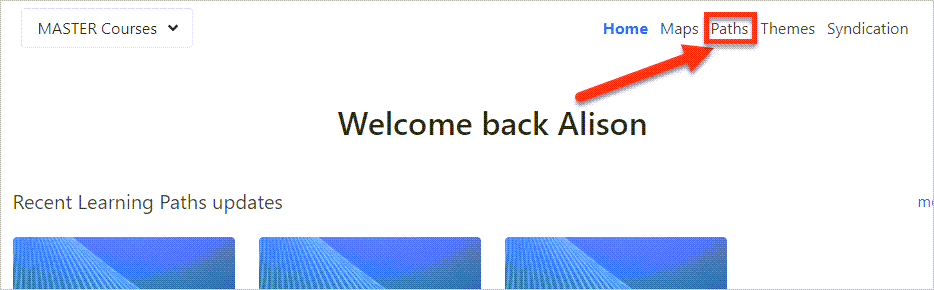
A new page will appear with a list of paths. Select the learning path you wish to duplicate.
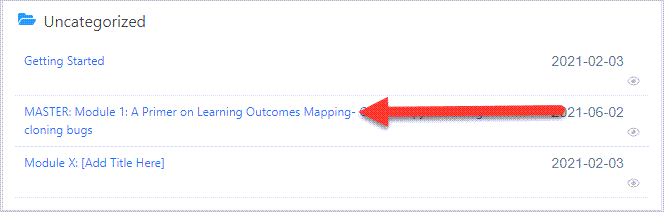
Click on the Clone icon in the upper right.

A drop-down menu will appear.
Select the account from the dropdown menu where you wish to add the duplicate path. Accounts to which you have access will display as options in the drop-down menu.

A pop up window will appear.
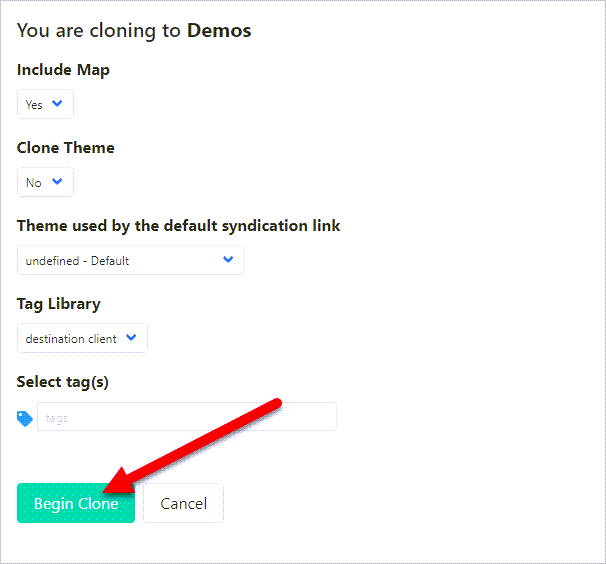
Include Map- select yes if you wish to keep the map currently bound to the learning path.
Clone Theme- select yes if the Theme has not already been cloned/copied to the destination account; otherwise select no.
Theme used by default syndication link- select which Theme you would like to apply to the default syndication (you can edit this at any time)
Tag Library - select if you want to use the tags from the account you are cloning to or the source account.
Select tag/s- apply any tags you wish to add to this cloned path (you can apply these later in Settings as well)
Select Begin Clone when finished.
Rename the Newly Duplicated Learning Path
Click on the newly duplicated learning path. You can look to the right of the path name to see when the learning path was last updated if you are unsure which path is the clone. The more recently updated path will be the new one.

Select the Settings tab.
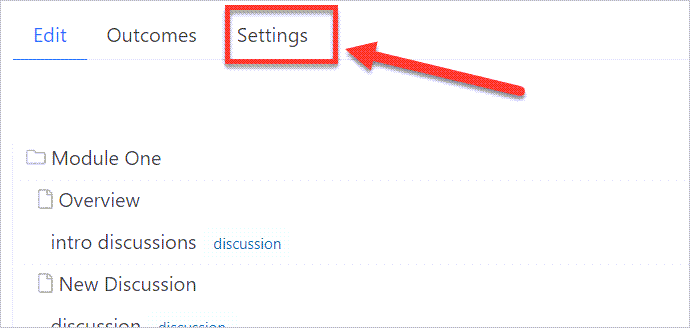
Add a new name for your duplicated learning path. This is necessary to avoid confusing the cloned path with the original path.

You may choose to keep the original settings (multiple modules with an overview page, show dashboard, read tracking) or you can adjust the settings as needed. You can also add a new image card if desired.
When finished, scroll down to the bottom and click Save.

Comments
0 comments
Please sign in to leave a comment.