
Overview
One of the key features of Skillways is the ability to syndicate content to various end users or groups of learners with the benefit of only needing to update your content in one place. If you wish to use the same content for different users except for reskinning the content with a different logo, brand, or theme, you can create a new syndication for an existing learning path. This enables you to update a single learning path rather than updating separate learning paths for each group of learners. Creating a new SCORM syndication in Skillways is simple. This guide will walk you through the process.
Go to Syndication
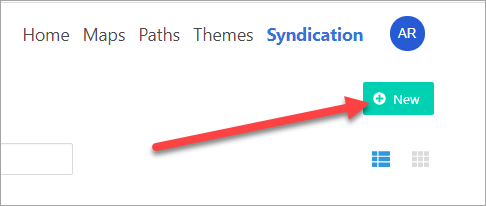
Select Syndication from the top-right navigation.

Create a New Syndication
Click New.
From the drop-down menu, select the learning path for the new syndication.

Select SCORM for the syndication type.

Add a Name for the new syndication. This may be the name of your client or end-users, for example.
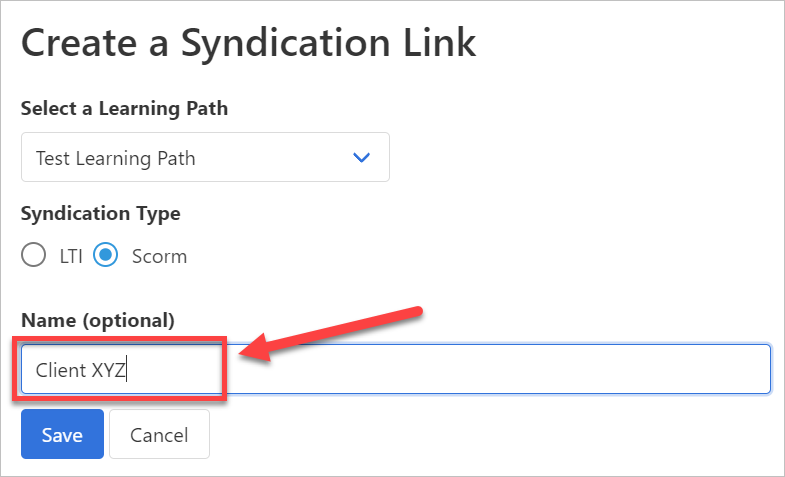
Click Save.

Add an Expiration Date
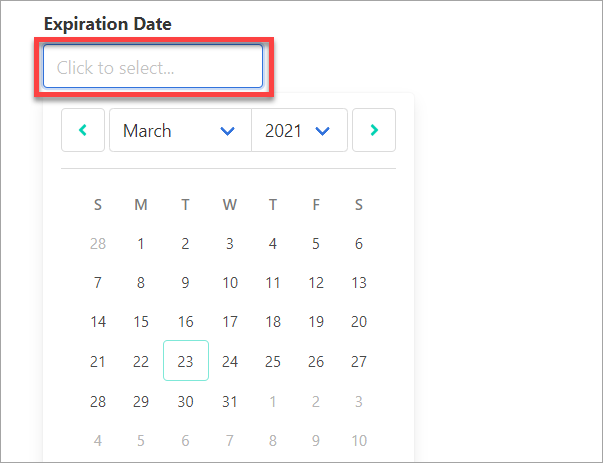
Click in the box under expiration date and select the date. Users will only have access to the syndicated learning path through that date. You can also choose to leave the expiration date blank to allow users to access indefinitely.
Add a Theme
Select a Theme option. You can change the theme or create a new theme and associate it with the new syndication later. Refer to the How Do I Create a New Theme user guide if you wish to create a new theme at this point.
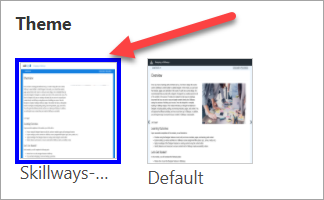
When finished, click Save

Access the SCORM package
From Syndication, you can also access the SCORM package for embedding the learning path into another platform.
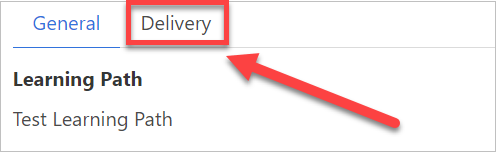
To do so, click on the Delivery tab.
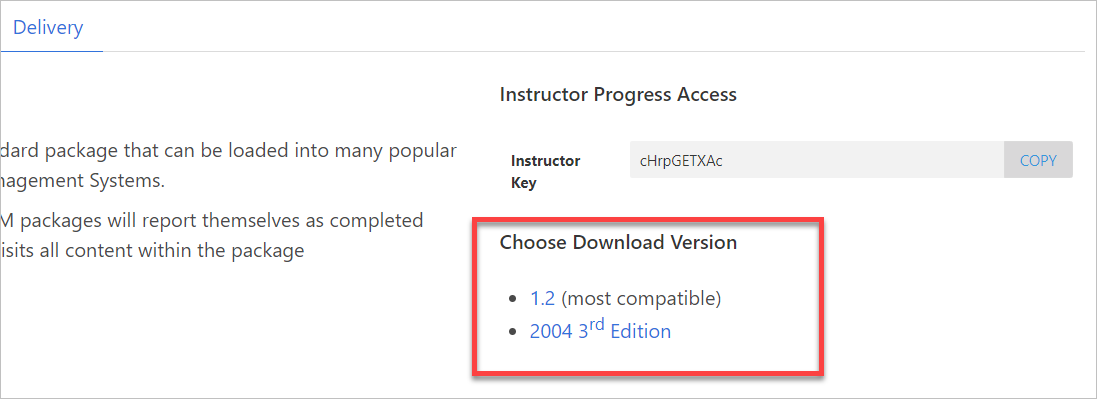
Download the appropriate SCORM version. If you are unsure which version is compatible with your platform, check with your LMS administrator.
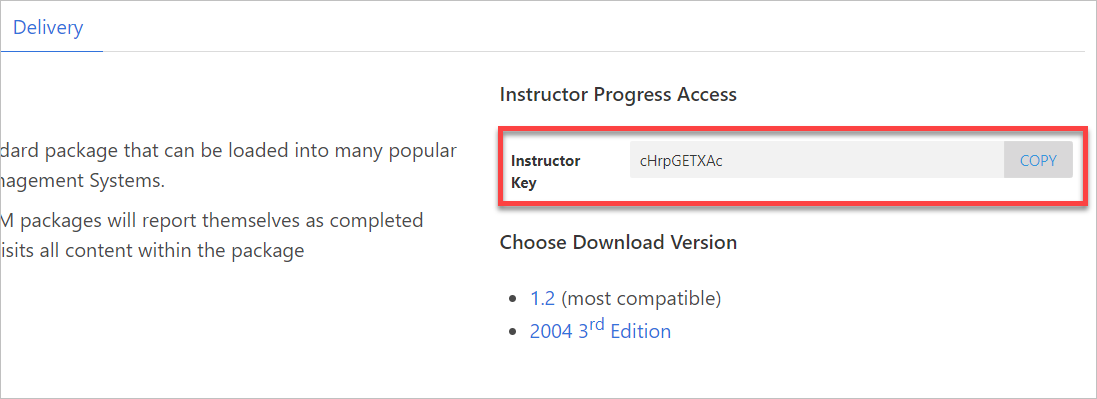
Instructor Key
Because of SCORM limitations with role identity (instructor vs. learner), facilitators who wish to view Skillways progress in a SCORM based LMS will need an instructor key the first time they access the Skillways learning path or module in the LMS. The Instructor Key information is located in the Delivery area of Syndication above the SCORM download.
Click copy and send your instructor or facilitator the key. They will be prompted to enter it the first time they access a Skillways course through the LMS.
Comments
0 comments
Please sign in to leave a comment.