
Overview
When you’ve finished creating your learning path, it is time to syndicate it to your users. The preferred method for integrating your Skillways learning path is via LTI. However, if your LMS or platform supports SCORM but not LTI, you can download a SCORM version to integrate your learning path into the SCORM compatible LMS or platform. Note, you may need to contact your LMS administrator for support in adding the SCORM package if it is your first time or if permissions are not enabled for your role.
Go to Syndication
Select Syndication from the top-right navigation.

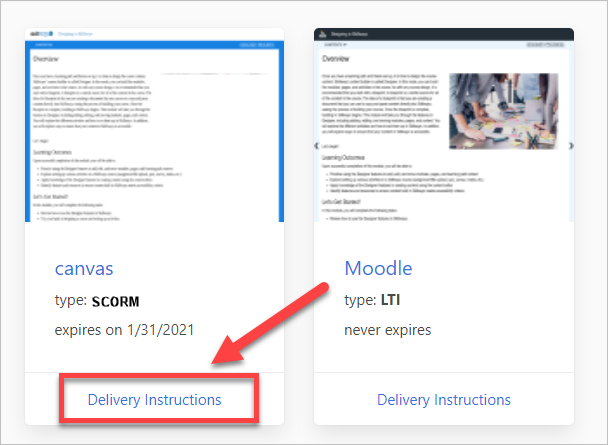
A list of learning paths will appear. Click on Delivery Instructions.
Note: in some cases there may be more than one syndication for the path, so make sure you are selecting the desired syndication.
Download the SCORM package.
Click the appropriate SCORM version to download the SCORM wrapper. Note, if you are unsure which version your destination LMS or platform uses, please consult your LMS administrator.
Download the appropriate SCORM version. If you are unsure which version is compatible with your platform, check with your LMS administrator.
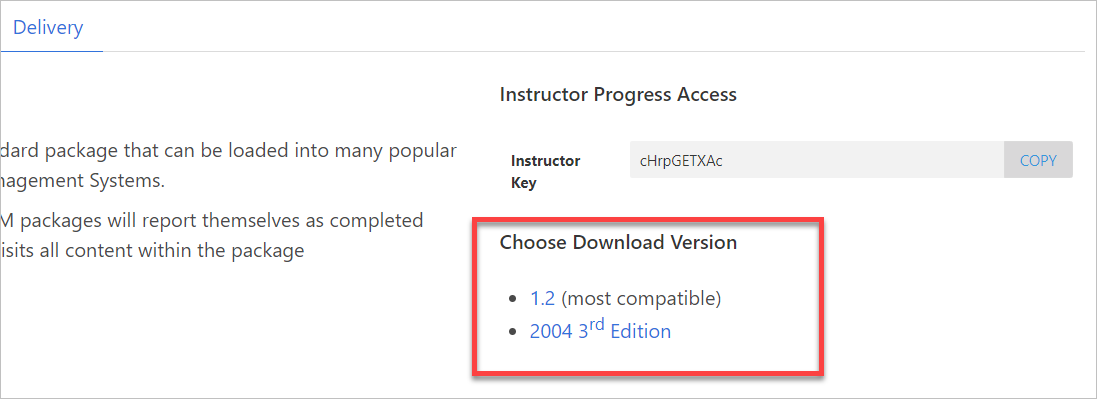
The SCORM wrapper will download. You can now forward the zipped file to your LMS admin or add it to the destination LMS if permissions are enabled.
Instructor Key
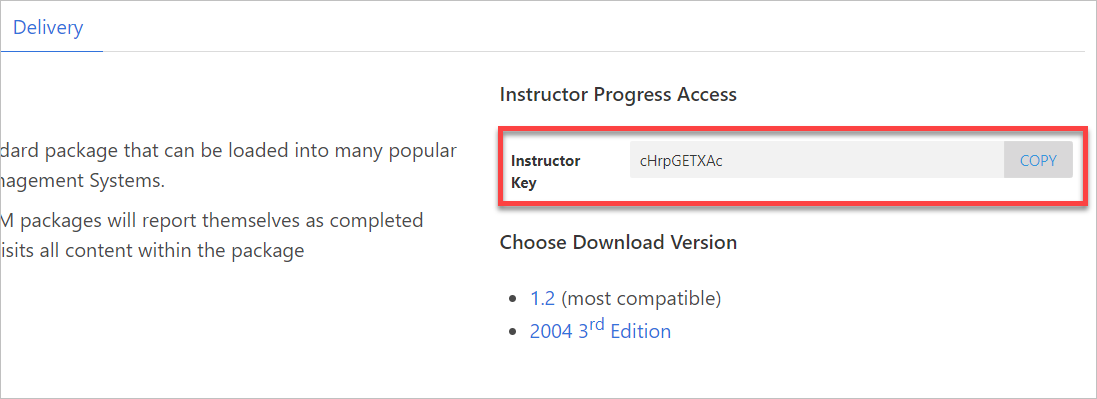
Because of SCORM limitations with role identity (instructor vs. learner), facilitators who wish to view Skillways progress in a SCORM based LMS will need an instructor key the first time they access the Skillways learning path or module in the LMS. The Instructor Key information is located in the Delivery area of Syndication above the SCORM download.
Click copy and send your instructor or facilitator the key. They will be prompted to enter it the first time they access a Skillways course through the LMS.
Comments
0 comments
Article is closed for comments.