
Overview
One of the key features of Skillways is the ability to syndicate content to various end users or groups of learners with the benefit of only needing to update your content in one place. Creating a new LTI 1.1 syndication in Skillways is simple. This guide will walk you through the process.
Go to Syndication
Select Syndication from the top-right navigation.

Create a New Syndication
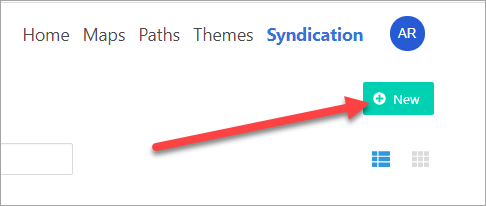
Click New.
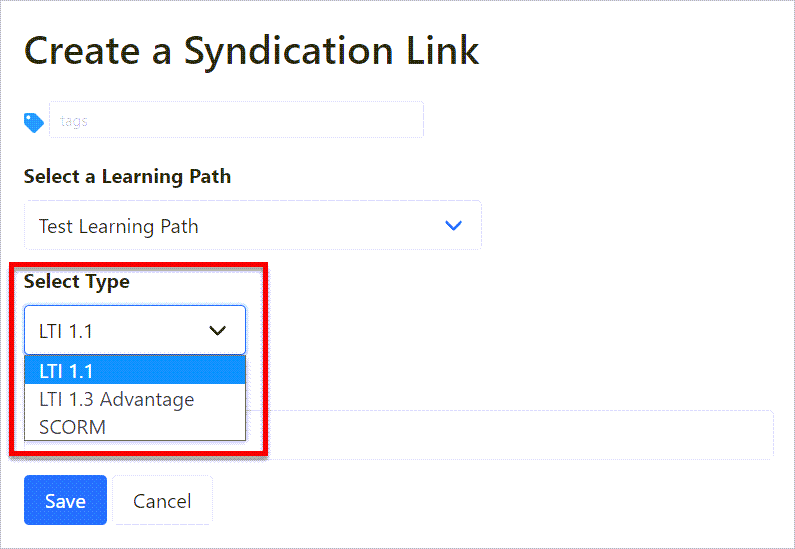
From the drop-down menu, select the learning path for the new syndication.

Select LTI 1.1 for the Syndication Type.
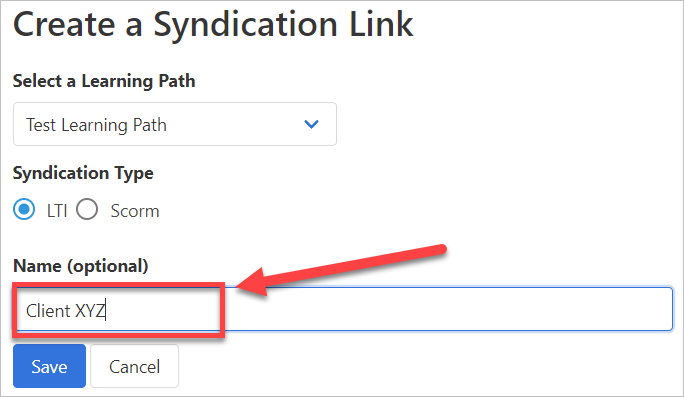
Add a Name for the new syndication. This may be the name of your client or end-users, for example.
Select Save.

Add an Expiration Date
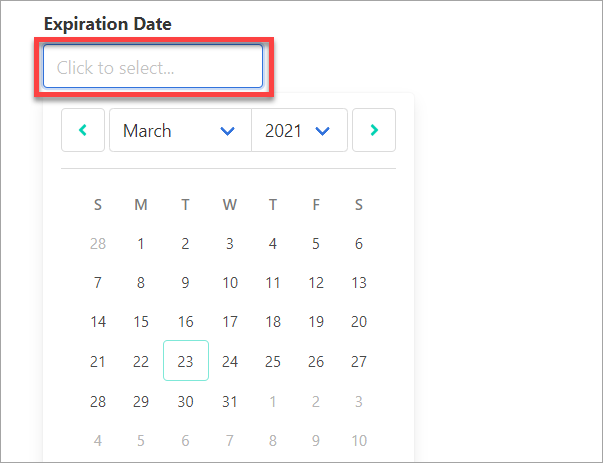
Select an expiration date (if desired). Users will only have access to the syndicated learning path through that date. You can also choose to leave the expiration date blank to allow users to access indefinitely.
Add a Theme
Select a Theme option. You can change the theme or create a new theme and apply it to the syndication later. Refer to the How Do I Create a New Theme user guide if you wish to create a new theme at this point.
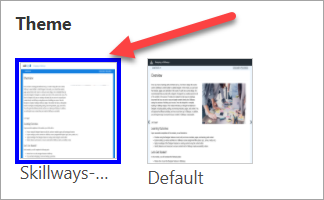
When finished, select Save

Access the LTI 1.1 link
If you have selected LTI 1.1 for your Syndication type and wish to embed the path into an LMS or other platform, you can access the LTI link from Syndication.
To do so, select the Delivery tab.
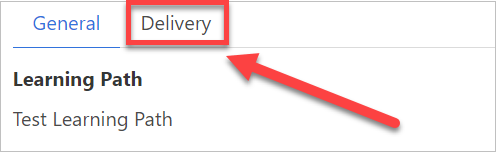
Copy the LTI link.

Comments
0 comments
Please sign in to leave a comment.