
Overview
Once you create a learning path, you can adjust the settings at any time. From Settings, you can enable the dashboard, progress tracking, and determine if your learning path will contain multiple modules and an overview page. You can also add Tags to make it easier to filter and search an image card displayed on the Home page when you log into Skillways.
Go to Settings
From within the learning path, click on the Settings tab.
Adjust the Settings
You can check or uncheck the settings.
Multiple modules with an overview page will provide a dashboard with tiles and links to each module in the learning path
Show Progress will make sure the Progress dashboards and Grader are available in Skillways
Hide Overall Score will hide the overall score for learning paths in a course from the Progress dashboards (recommended if weighting is used in the LMS gradebook)
Read tracking displays an indicator on the Module Cards in the preview (see screenshot, for example).
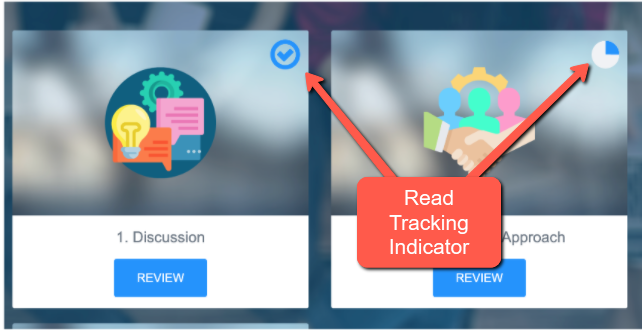
Fig.1 - Example of what Module Cards display in Preview when Read Tracking setting is selected.
You can also add Tags to your learning path to help organize and filter your learning path when searching. See the How Do I Add a Tag to a Learning Path user guide for details.
Add a Card Image
You can also add an image card, which will display on your Home page when you log in to Skillways, as shown below.
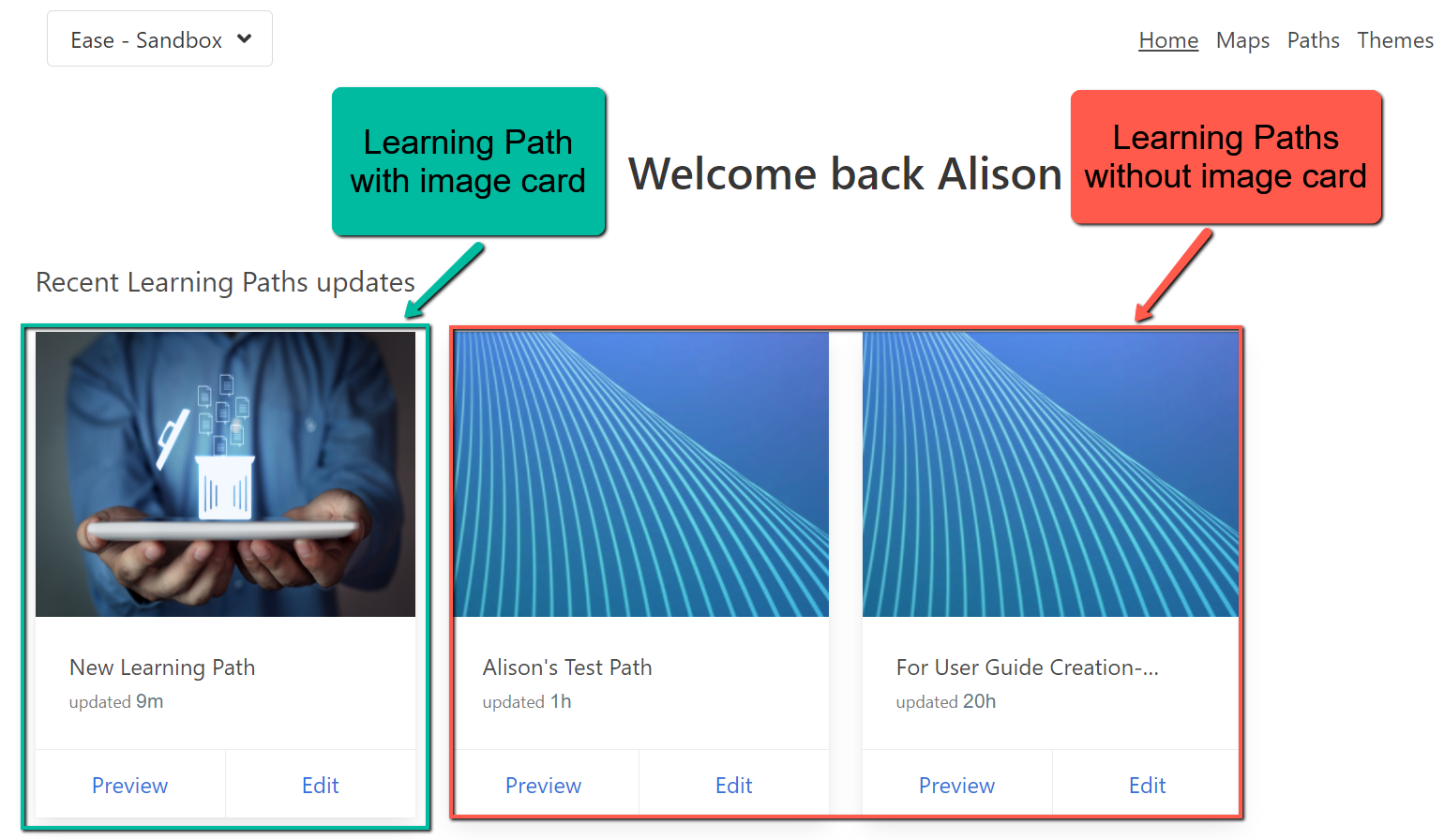
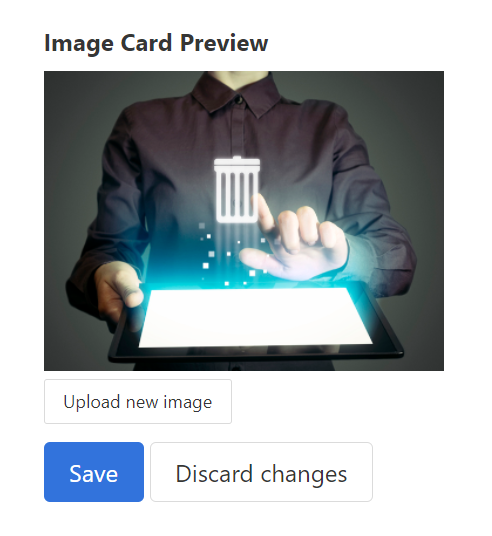
To add or edit an Image for your image card preview, click Upload New Image.
Browse or drag and drop the image you wish to add.
If you wish to crop the image, drag the handles, then click crop.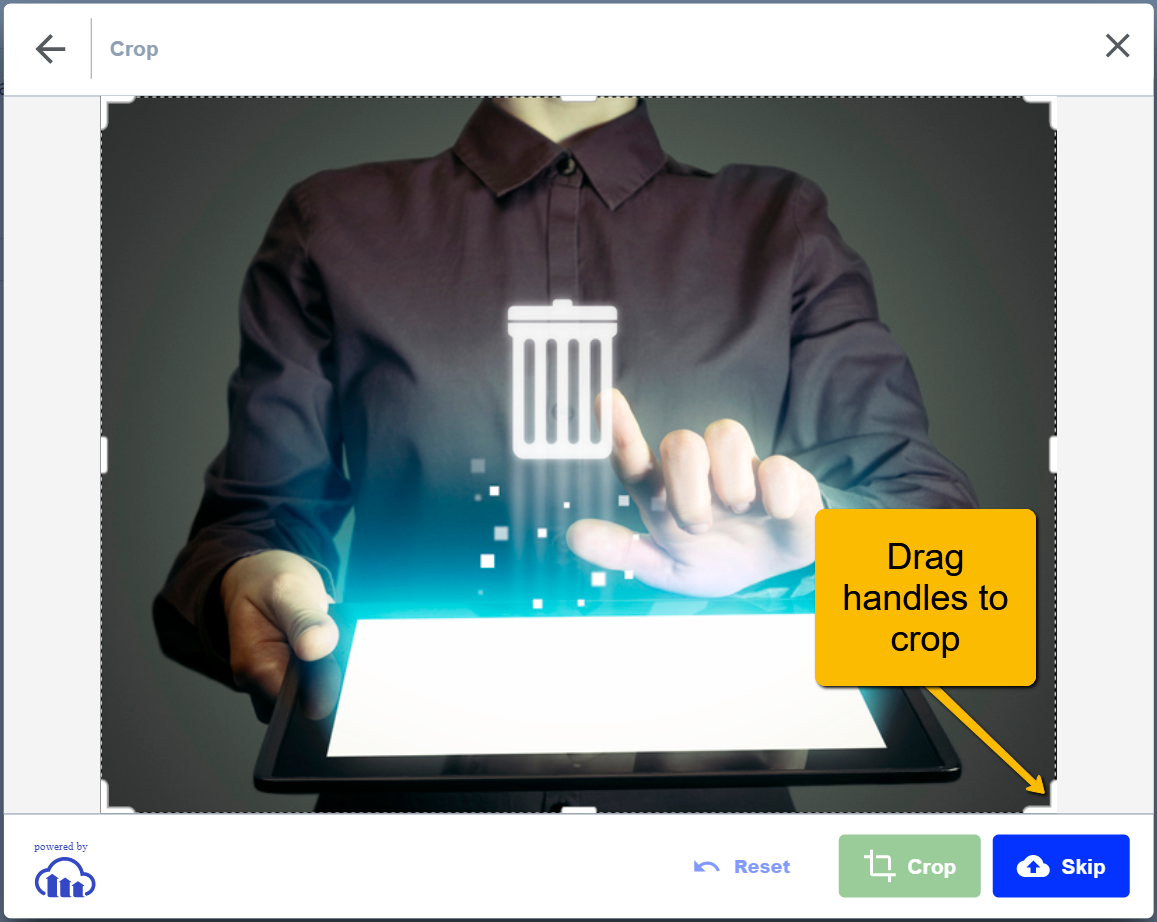
Otherwise, click Skip to skip cropping your image.

Your image card preview will now display.
Edit the Default Rubric Settings
You can set the default rubric achievement levels at the learning path level. It will then become the default for the entire learning path.
Click Save when you are finished.
Comments
0 comments
Please sign in to leave a comment.