
Overview
LTI 1.3 or LTI Advantage provides improved integration standards and security between Canvas and Skillways data as well as a simple way to add Skillways syndications to a course. In addition, LTI 1.3 offers the ability for granular grade pass back for individual assignments from Skillways to the LMS gradebook.
Before adding Skillways LTI 1.3 syndications to a Canvas course, your LMS admin must first set up and configure the Skillways deployment/s. Contact your project lead to schedule a time for this one-time set up.
LTI 1.3 Syndications must also be created for the paths you wish to add to your course. Review the How Do I Create a New LTI 1.3 Syndication? user guide. Once these two steps have been taken, Skillways LTI 1.3 syndications can be easily added to a course.
Note on Access to Syndications
Skillways can be configured in Canvas to restrict access to syndications (paths, courses, learning units. etc.). to specific Canvas sub-accounts. This ensures users in one Canvas sub-account can't see or add syndications created for use by a different department or subset of users. These decisions are made and implemented when the tool is initially configured with the LMS admin. If, as you work through this guide, you notice you don't have access to syndications you wish to add, it may be a result of one of these common issues:
- an LTI 1.3 syndication for your path may not have been created in Skillways and is therefore not showing up as an option
- when the Skillways LTI 1.3 tool was initially configured by your LMS Admin, it was not added to your sub account or your sub account was not given appropriate access
Add Skillways Syndications to a Canvas Course
Skillways syndications can be set up in a course using the following Canvas features:
- Rich Content Editor - this option is recommended for all use cases unless grade pass back is NOT desired or if your Skillways path only contains one activity and you wish to leverage certain Canvas features.
- Link Selection - this option is recommended if grade pass pack from Skillways to the LMS grade book is NOT desired.
- Assignment - this option is only recommended if your Skillways path only contains a single activity AND you wish to leverage specific Canvas features such as Groups, Due Dates, etc.
Adding Skillways Syndications through the Rich Content Editor
The following steps will show you how to add a Skillways syndication to a Page in Canvas. Skillways syndications can be added to other places where the Rich Content Editor is present.
Set up a Page in Canvas
If you do not already have a Page set up where you wish to add the Skillways syndication, set a Page up in the Module as follows:
Select the plus (+) sign under the Module where you wish to add the Skillways syndication.
Select Page from the drop down
Select Create Page (1) and add the Page Name (2).
Select Add Item when finished.
Add the Skillways Syndication to the Page
Click on the link to open the Page where you wish to add the syndication.
Select Edit.
Select Skillways from the Rich Content Editor toolbar.
Select the Syndication you wish to add. You can use the search feature to search by tags or path name.
Add any additional Canvas settings to the Page and select Save when finished.
Your Skillways content will now appear on the Page.
Adding Skillways Syndications using Link Selection (No Grade Pass back)
Adding Skillways syndications using link selection is recommended if you plan to use Skillways content as a resource and/or do not desire to have grades from Skillways pass back to the LMS.
Select the plus (+) sign under the module where you wish to add the Skillways syndication.
Select External Tool (1) from the drop down menu, then Select Skillways (2) from the list of tools.
Select the Syndication you wish to add. You can use the search feature to search by tags or path name.
Select Add Item when finished.
Your Skillways link will now appear under the Module.
Adding Skillways Syndications using an Assignment
Skillways syndications can be added as Assignments to courses in Canvas. This option should only be used if you have a Skillways path that contains a single activity AND you wish to use certain Canvas features such as Groups or Due Dates.
Note: the Aggregated setting should be selected in your LTI1.3 syndication if you chose to set a Skillways path up as an Assignment in Canvas. This will ensure only one gradebook column is generated for the assignment.
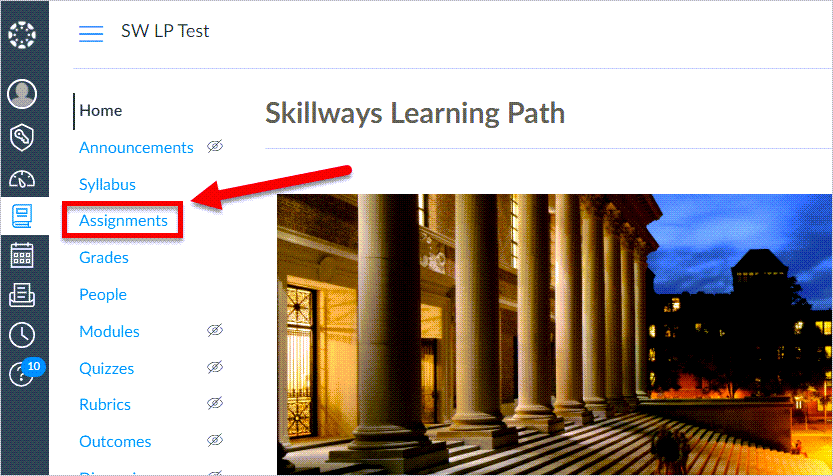
Open the Course in Canvas where your wish to set up the syndications and select Assignments from the navigation.
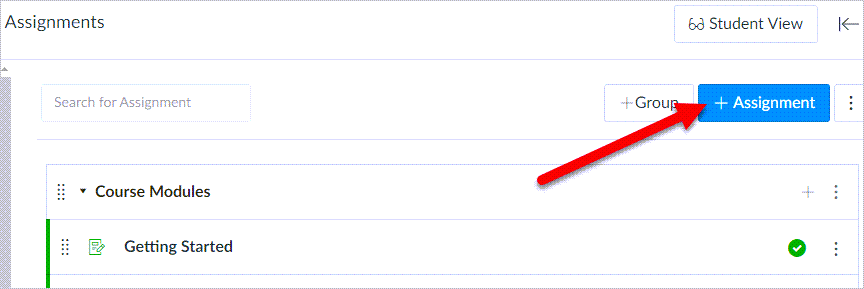
Select Add Assignment.
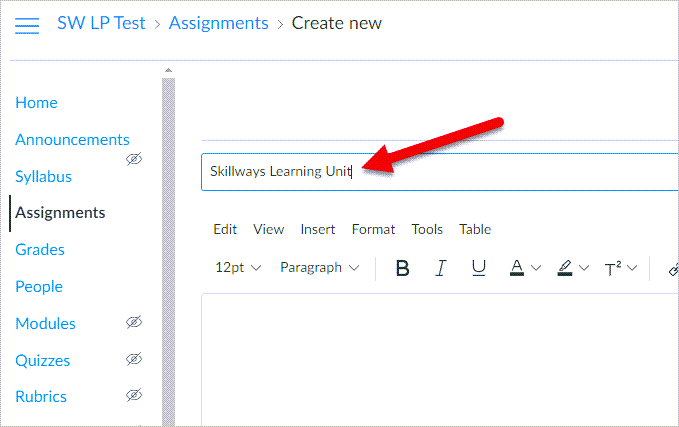
Add a name for the Assignment.
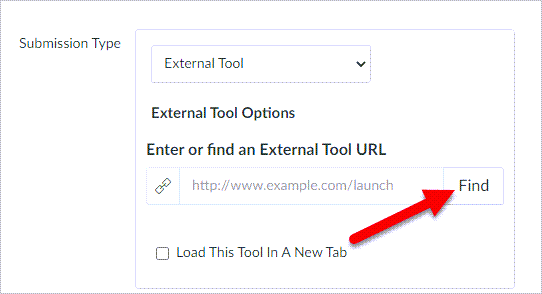
Add a description and adjust other settings as needed. Under submission type, select External Tool.

Select Find.
Select the Skillways tool from the list.
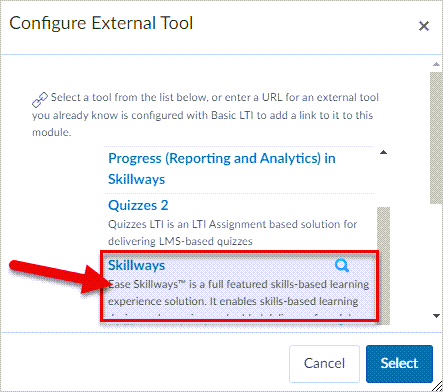
Select the Syndication you wish to add. You can use the search feature to search by tags or path name.
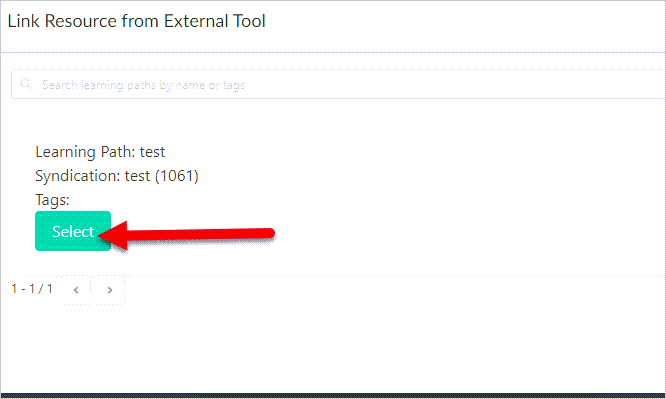
Choose Select from the next screen.

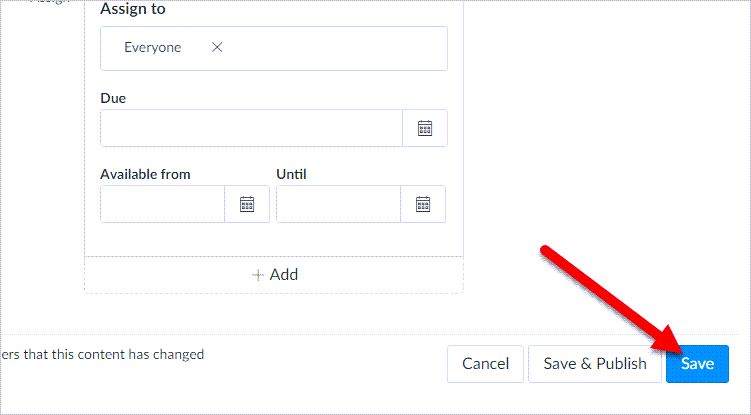
Finish editing Assignment settings as needed and select Save when finished.
The Skillways assignment should now display.

Comments
0 comments
Please sign in to leave a comment.