
Overview
You can add CSS to a Theme in Skillways to further customize the look and feel of your pages.
The following examples can be used to hide page names, customize the width and margins, hide headers, etc.
Go to Themes
Select Themes from the top navigation.
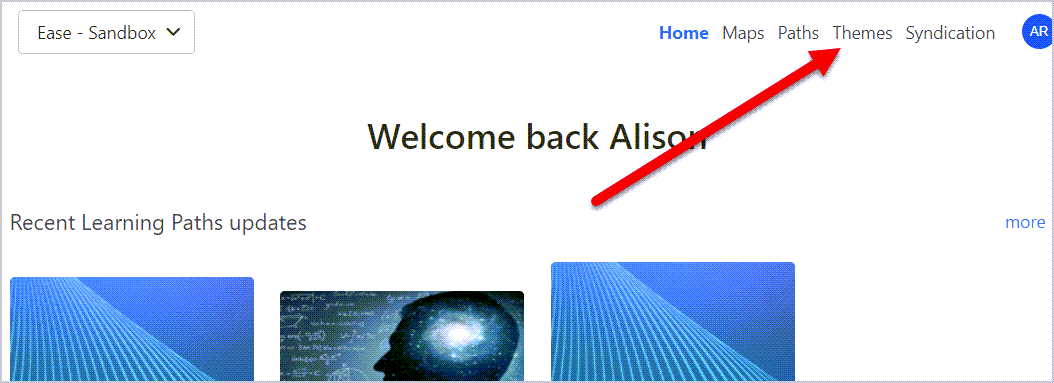
Select the theme you wish to edit.

Edit Your Theme
A preview of the Theme you selected will appear. Before editing the default Theme, review the note below.
Note: The default theme in Skillways is accessibility compliant. Any changes to the theme should be made with accessibility in mind. Make sure that any color or font adjustments meet accessibility standards.
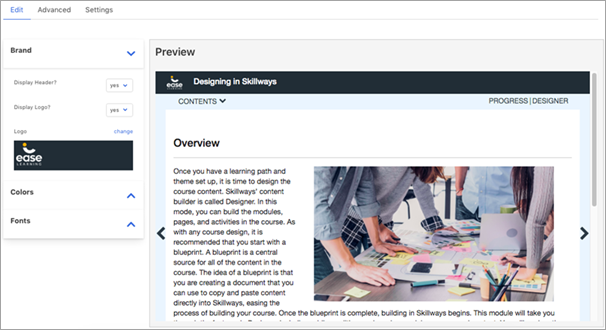
Select the Advanced tab

Add your code to the CSS editor.

You can also use the following options to hide page titles, adjust the maximum width of a page and auto size margins, or hide page headers.
Hide Page Titles
Add the following CSS to hide the page titles.
.page-title {
display: none !important;
}
.assessment-title {
display: none !important;
}
Adjust Maximum Width and Auto Size Margins
To adjust the maximum width and auto-size margins, paste the following CSS to the Theme editor. You can adjust the pixels as needed (i.e. replace "1300" with the desired size).
.simplebar-content-wrapper {
margin:auto;
max-width:1300px;
}
Hide Header
To hide the header that appears next to the logo on pages, add the following CSS.
#mainHeader span {
display: none;
height: 30px;
}
Publish Changes
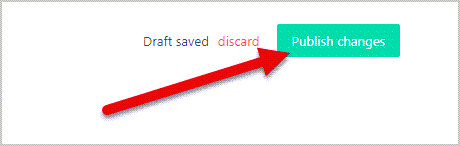
When finished adding or editing your CSS, select Publish Changes.
Comments
0 comments
Please sign in to leave a comment.