
Overview
If you want to create a completely new theme for your learning path, you can do so using the Themes feature. If you are creating multiple learning paths and they all need to be the same theme, you can create the theme the first time and then apply it to the other learning paths. This way you only need to create the theme once.
Add a New Theme
To start, select Themes from the top-right navigation.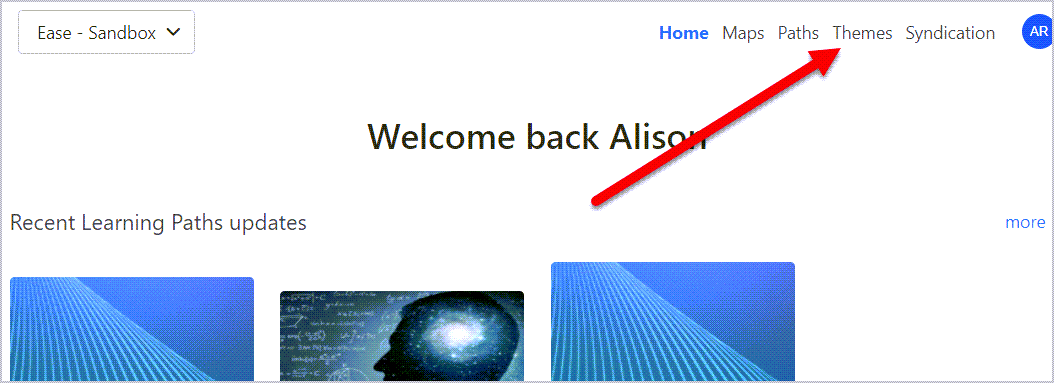
You will see a list of any existing themes, including a default. Select New.
A new window will pop up.
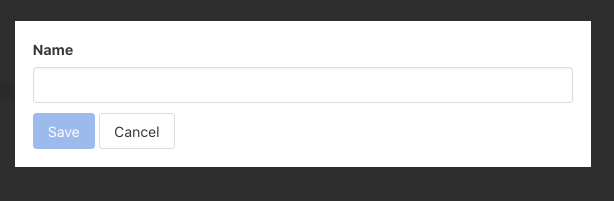
Add the Name and Save.

Customize Your Theme
A new screen will appear with a default theme. You can use this or customize it.
Note: The default theme in Skillways is accessibility compliant. Any changes to the theme should be made with accessibility in mind. Make sure that any color or font adjustments meet accessibility standards.

You can now add the following:
Display a Header

A Header will look like this if displayed.
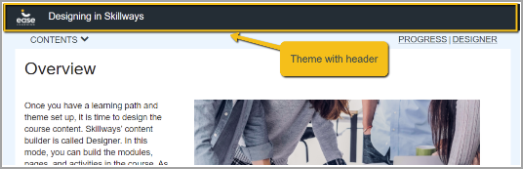
The Page will look like this with no header.

- Display a logo

- Upload a new logo by clicking change
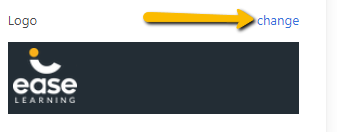
- Adjust colors by clicking on the color you want to adjust

- You can then adjust the color palette and then click save

- Adjust fonts

- You can also add Custom CSS by clicking the Advanced tab. Review the How Do I Add CSS to a Theme guide for tips.

When complete click Publish changes. Note: You can discard your changes to start again.

Comments
0 comments
Please sign in to leave a comment.