
Overview
One of the key features of Skillways is the ability to syndicate content to various end users or groups of learners with the benefit of only needing to update your content in one place. One of the biggest advantages to using LTI 1.3, also known as LTI Advantage is the ability to pass back grades for individual assignments (LTI 1.1 only offers cumulative grade pass back). LTI 1.3 also provides improved integration standards and security between the LMS and Skillways data as well as a simple way to add Skillways syndications to a course.
Creating a new LTI 1.3 syndication in Skillways is simple. This guide will walk you through the process.
Go to Syndication
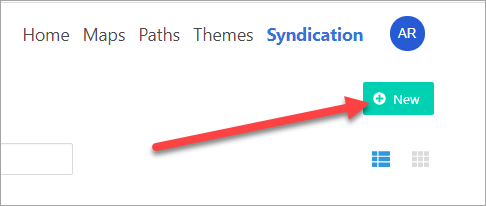
Select Syndication from the top-right navigation.

Create a New Syndication
Click New.
From the drop-down menu, select the learning path for the new syndication.

Select LTI 1.3 for the Syndication Type.
Select a Deployment. The Deployment refers to the LMS where the syndications will be set up. If your Deployment does not appear in the list, Skillways may not yet be configured in your LMS as an LTI 1.3 tool. Reach out to your LMS Admin or a Skillways admin to get Skillways configured before proceeding.
Add a Name for the new syndication. This may be the name of your client or LMS for example.
Select Save.

Add an Expiration Date
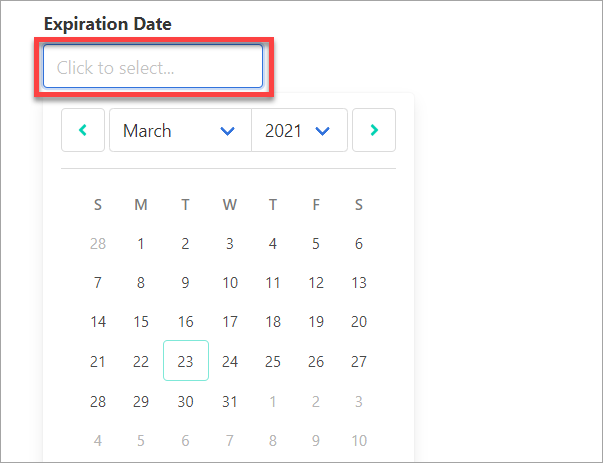
Select an expiration date (if desired). Users will only have access to the syndicated learning path through that date. You can also choose to leave the expiration date blank to allow users to access indefinitely.
Add a Theme
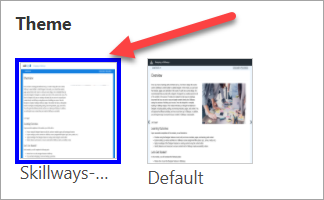
Select a Theme option. You can change the theme or create a new theme and apply it to the syndication later. Refer to the How Do I Create a New Theme user guide if you wish to create a new theme at this point.
When finished, select Save

For Paths Containing a Single Activity
If your Skillways path contains a single activity AND you plan to set it up in Blackboard Ultra or Canvas using the Assignment feature, it is recommended that you select the Aggregated setting in the syndication to avoid duplicate grade book columns. From the syndication, select the Delivery tab and choose Aggregated under the Grade Reporting drop down. For all other cases, leave this setting as Granular.
Add LTI 1.3 syndications to your course
You will now be able to add the links directly through the LMS provided the tool has been configured. Review the following related guides:
- How Do I Configure Skillways LTI 1.3 in Canvas?
- How Do I Add LTI 1.3 Syndications to a Canvas Course?
- How Do I Configure Skillways LTI 1.3 in Blackboard?
- How Do I Add Skillways LTI 1.3 Syndications to a Blackboard Course?
Comments
0 comments
Please sign in to leave a comment.