
Overview
Because of SCORM limitations with role identity (instructor vs. learner), facilitators who wish to view Skillways progress in a SCORM based LMS will need an instructor key the first time they access a Skillways learning path or module in the LMS. This guide will walk you through this process.
Retrieve your instructor key.
Ask your Admin for the instructor key or, If you have the appropriate permissions, access the key through Skillways Designer as follows:
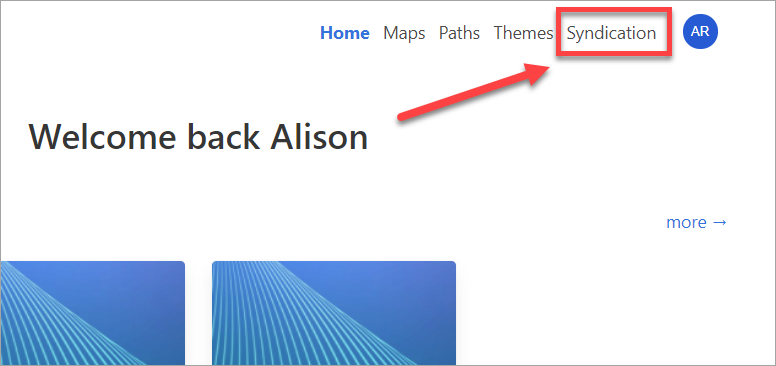
Select Syndication from the navigation.
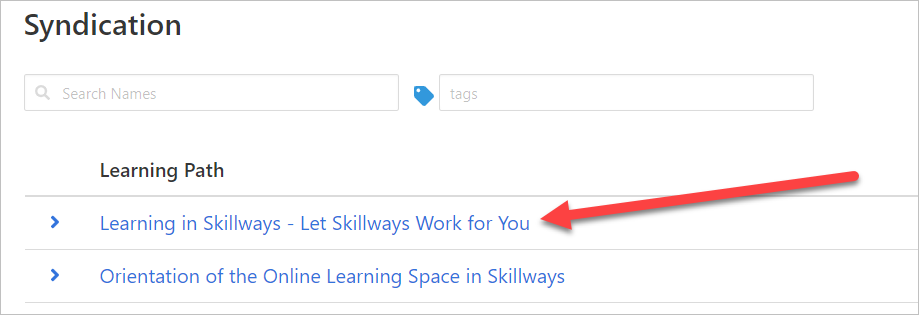
Select the learning path you wish to access.
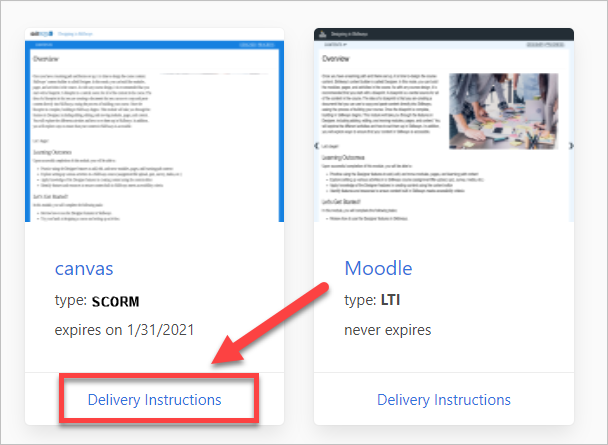
Click on Delivery Instructions.
Note: in some cases there may be more than one syndication for the path, so make sure you are selecting the desired syndication.
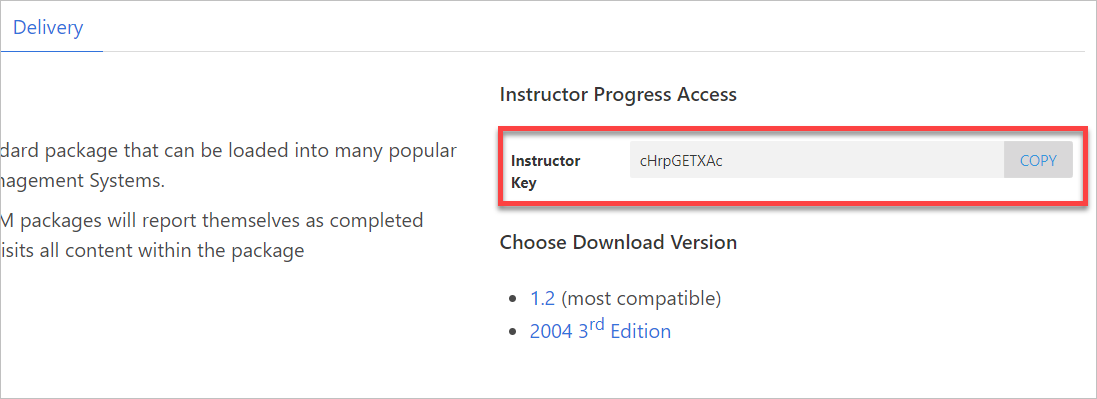
The Instructor Key information is located in the Delivery area of Syndication above the SCORM download. Click copy.
Go to your LMS and enter the key.
You should only need to enter the instructor key the first time you access a Skillways course in your LMS.
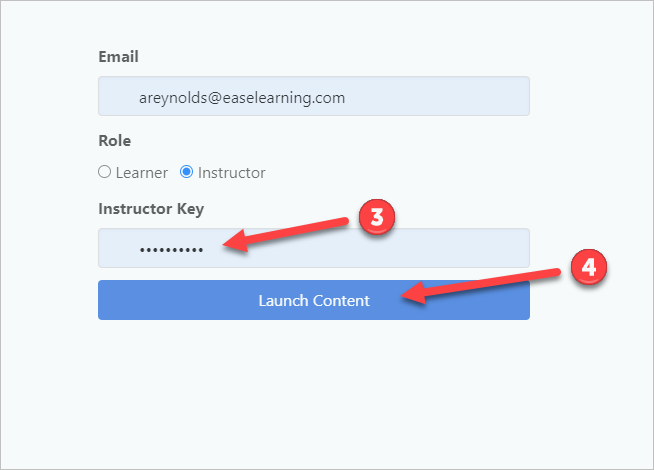
When the prompt appears, enter your email (1) and select instructor (2) for the role.

Add the Instructor Key (3) you retrieved from your Admin or copied from Skillways and select Launch Content (4).
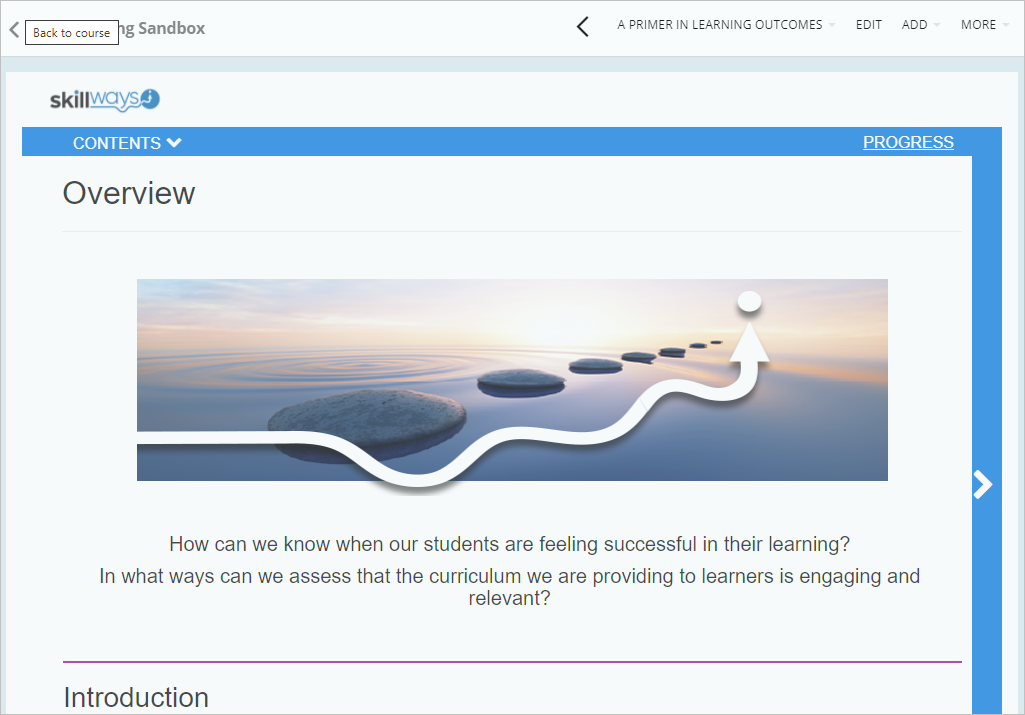
The course should display and you should now be able to view learner data when accessing the Progress link.
Comments
0 comments
Please sign in to leave a comment.