
Overview
This guide will show you how to edit a discussion that has already been created in Skillways, how to edit the grading, and how to add an additional discussion topic.
Go to the discussion activity
From the left navigation in the learning path, click on the discussion activity you want to edit.
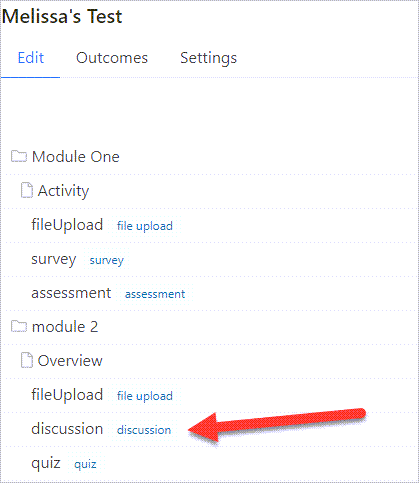
A new window will appear.
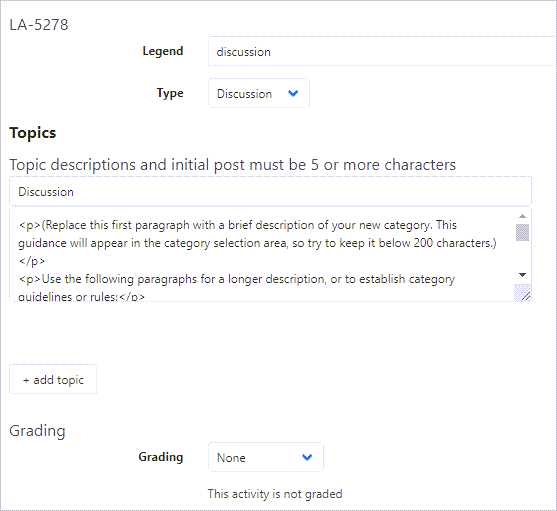
Edit the discussion.
Edit the Topic description (1) as needed and add or edit the prompt (2). You do not need to write it in source code. Simply replace the default or the current prompt with your prompt text. See example below.

When you are done, click Save.

You may also choose to add additional topics. By adding additional topics, you will add the ability to have more than one discussion going in the same activity.
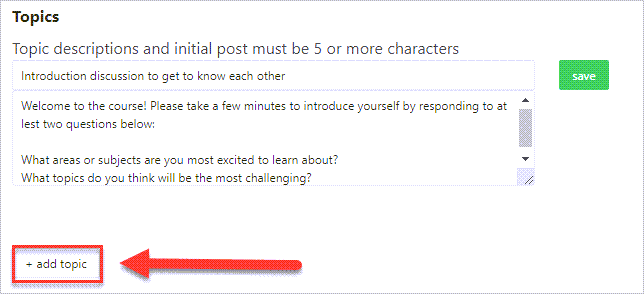
Edit the Grading (if needed).
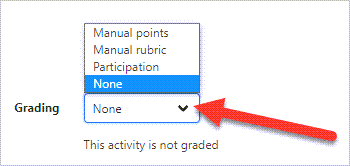
When you have finished adding topics, select the preferred Grading method from the dropdown. The grading can be “manual points” which means the learner would receive all points if they complete the discussion or “participation” which allows for a complete/incomplete type of assignment without points associated. You can also choose to add a Rubric for grading. “None” means no grading is associated with the discussion.
Finally, click Save at the bottom of the page.

Comments
0 comments
Please sign in to leave a comment.