
Overview
Skillways provides a discussion forum for learners to collaborate. This guide will help you as you facilitate the discussion.
Go to the discussion activity.
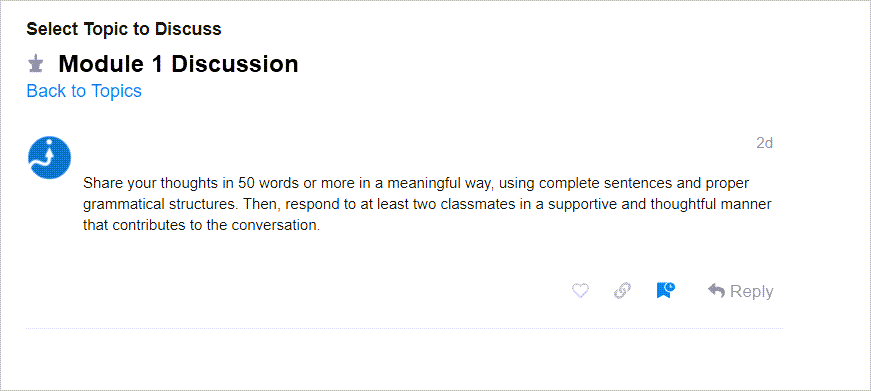
Reply to a Topic.
To respond to a topic, click on Reply.
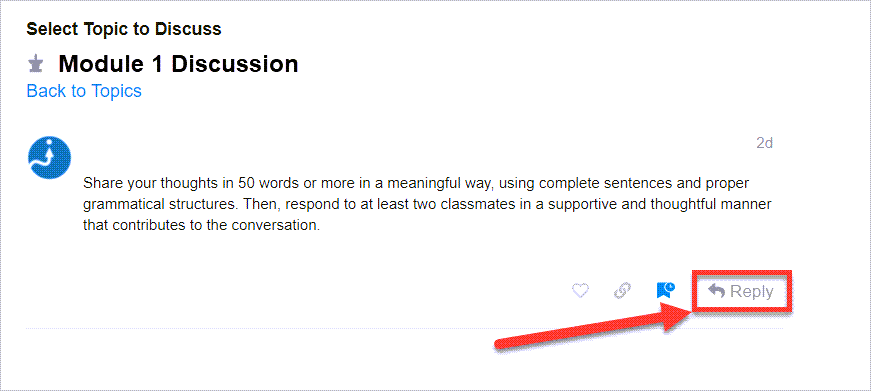
A new window will open.
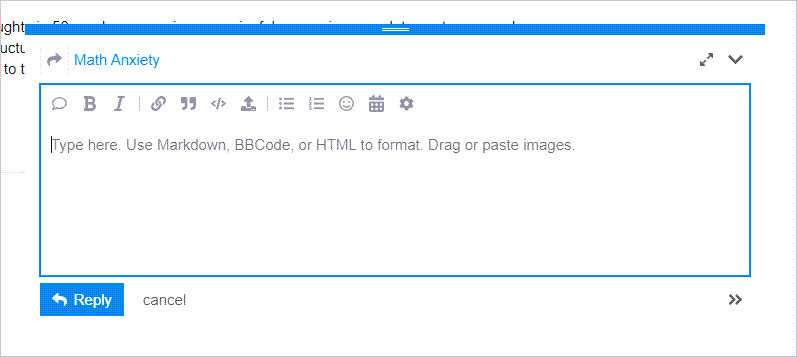
Within the box, you will be able to add a written post.
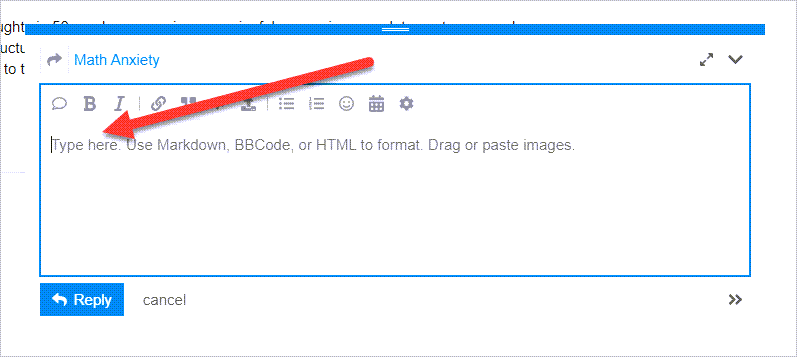
Edit your post and add files or images.
The tools in the content editor will allow you to do the following:
Quote

This feature allows for quoting the whole post.
Bold and Italic

These features allow you to bold or italic any of the text in your post for emphasis.
Link

This feature allows you to insert a hyperlink to a file, website, or article.
BlockQuote

This feature allows you to highlight text in your post into a blockquote. It will put your text in a grey box and keep the format that you have applied to it.
Preformatted Text

This feature will put your text in a grey box and keep the format that you have applied to it.
Upload

This feature allows you to upload a number of file types including jpg, jpeg, png, gif, mp3, mp4, mov, pdf, doc, xls, ppt, and pub. The maximum file size limit is 512 MB.
Simply click upload and it will prompt you to add your file. You can add it from your computer by choosing a file or from the web.
Bullets and Numbering

This allows you to bullet or number content in your post.
Emoji

This allows you to add an emoji.
Calendar

This feature allows you to add a date and time.
Extra Features

This icon provides a drop down menu with two options: hide details and build poll. The hide details allows you to hide highlighted text in your post. Build poll allows you to create a poll within your post.
Preview
To view the final look of your post, enable the Preview pane by selecting the arrows. Select them again to hide the preview pane.

Once you are done creating your post, click Reply.

Comments
0 comments
Please sign in to leave a comment.