
Overview
The Progress feature in Skillways provides the means for grading learners. This guide will review the Grader feature in Progress.
Go to Progress.
Select the Progress icon in the upper right.
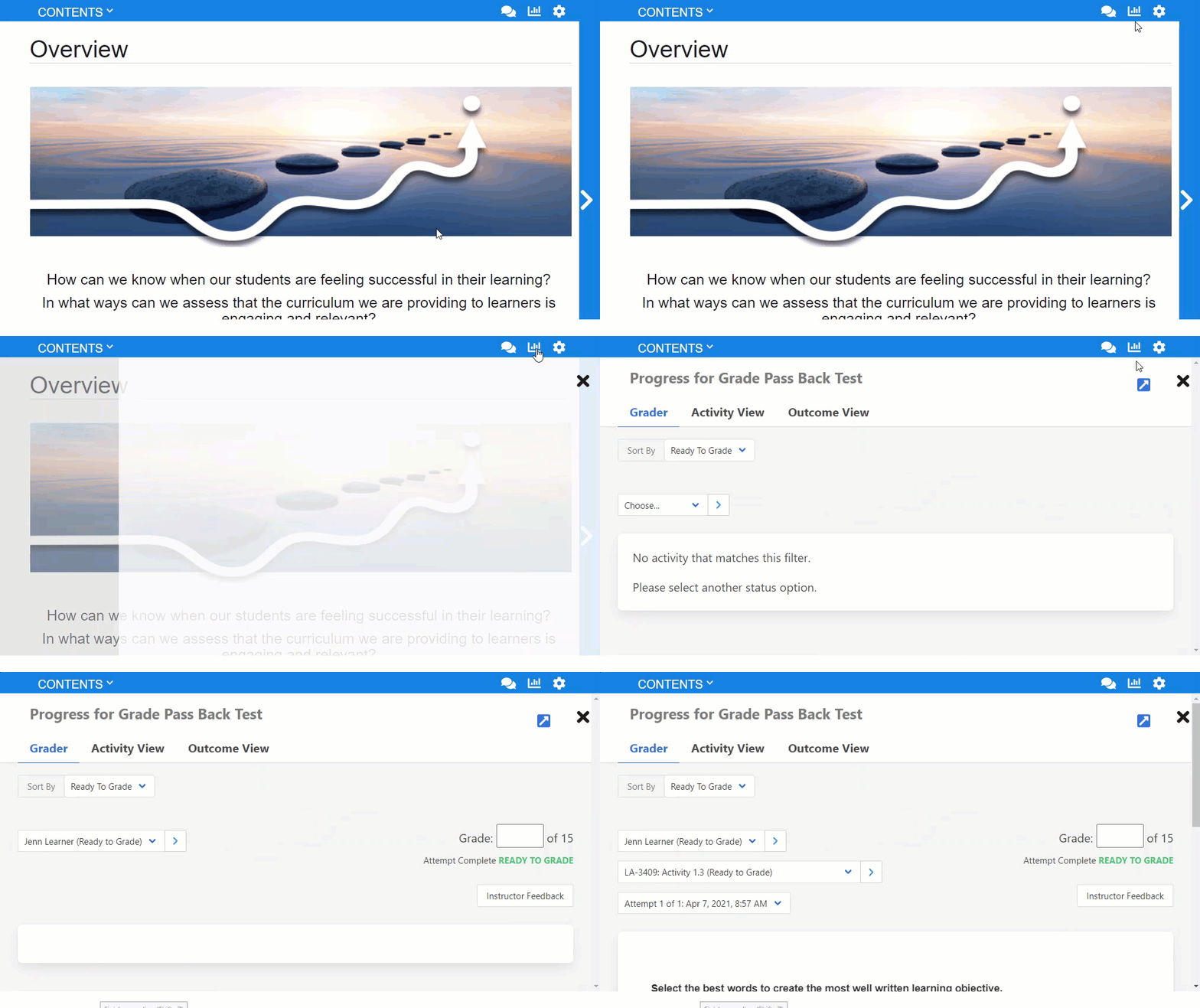
A new window will appear defaulting on the Grader view..
The Learners section lists each learner and adds a check if they have been graded on the specific activity.

A timestamp below the learners name shows you when the attempt was submitted. You can also view the number of the attempt.
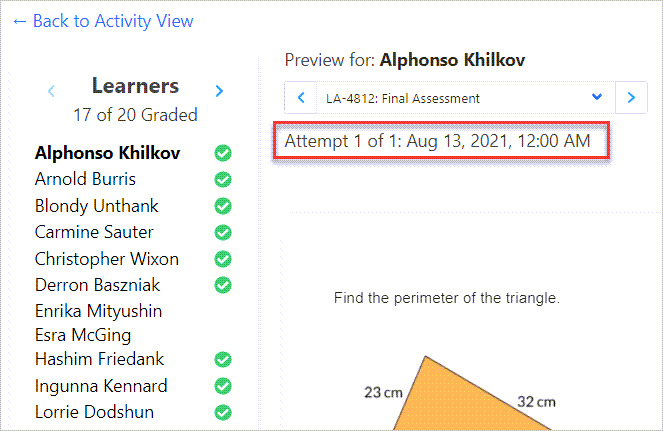
A green check indicates the learner's submission has already been graded.
A yellow triangle indicates the learner's submission is ready to grade.
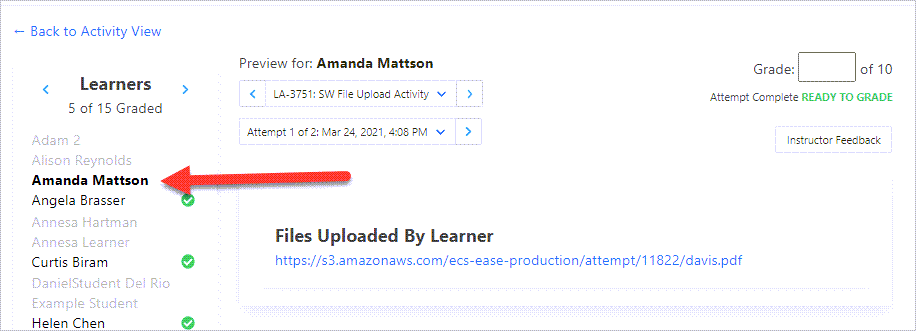
If there is no symbol present, the learner has not submitted the attempt.
Grade submissions
Select the learner you wish to grade.
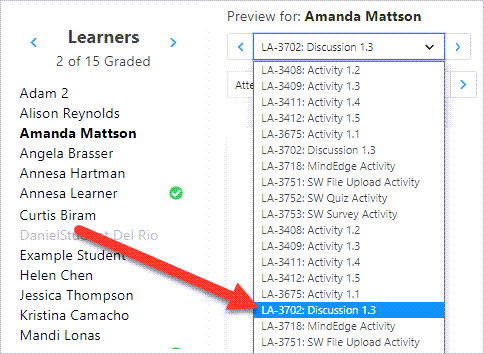
From the drop-down menu, choose the activity you want to grade.
The activity submission will preview for you to grade.

In the Grade area to the right, add a Grade (1) and leave feedback (2) if desired.

Rubric scored activities
For activities with Rubrics, you can grade using the Rubric.
Select Complete Rubric.
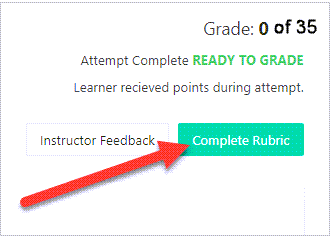
A new window will open. Select the desired scoring for each criteria to award points and click the X to close when finished.

The points will display for the learner according to the criteria you selected in the Rubric.

Repeat this process for each learner and activity.
Auto scored activities
Auto scored items will populate automatically. You can adjust points as needed.

Manually Overriding Grades
You can manually override an autograde, manual points, or participation grade activity at any time.
Note: Manual rubric scored activities cannot be overwritten manually. The Rubric must be used to adjust the score.
Next to Grade, select the score you wish to revise and type in the new score.

Comments
0 comments
Please sign in to leave a comment.