
Overview
The Skillways discussion tool offers a polling feature that is available to both facilitators and learners. The poll results are auto-populated by the tool into a bar or pie graph. This guide will help you navigate the polling feature.
Go to your discussion activity.

Click on Reply.

A new window will open.

The content editor contains the polling feature. It is part of the Extra Features button.

Build poll allows you to create a poll within your post. Click on the build poll button from the drop down menu.

A new window will appear with a form to set up the poll.
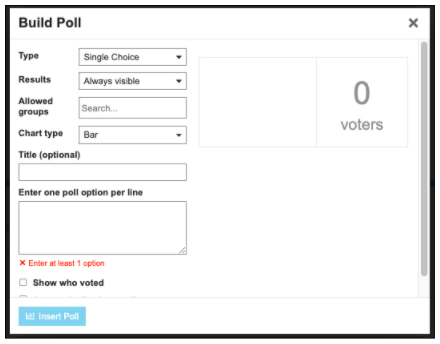
You will need to complete the form that appears.
Choose the Type. You can choose: single choice, number rating, or multiple choice.

Choose how you want the results to display. They can be always visible to everyone in the discussion, only visible once someone votes, only visible once the pole is closed, or only by staff (someone behind the scenes).

Allowed groups setting should be ignored for now.
Choose the chart type. You can have a bar or pie graph.

Add a title if you want. This is optional.

Add the poll options. The tool will set up the poll for you and show a preview of how it will look in the adjacent panel.

Choose to show who voted or whether you want it to be anonymous.

Choose whether you want to close the poll yourself or automatically close. If you want it to close automatically, you will need to select a date and time.

When complete, click Insert Poll.

The poll will then show in the content editor of the discussion post.

Once you are done creating your post, click Reply.

The poll will now display in your post.

Comments
0 comments
Please sign in to leave a comment.