
Overview
Mapping skills to learning outcomes is an essential part of Skillways. Analyzing whether students are meeting learning outcomes and their associated skills demonstrates competency in those outcomes and mastery of related skills that transfer to the workplace. Skillways has a skill tagging feature, known as Credentials, to facilitate this process. Using the Credentials search tool, you can instantly source industry and occupational skills, micro-credentials, certifications, degrees, and accreditations from databases such as EMSI, and map them to your learning outcomes in Skillways.
It is helpful to add Credentials when creating your curriculum map, but they can also be added after the initial map and outcomes are created. Credentials will show under the outcome in the list, lineage, and preview views. Credentials are added to learning outcomes only because the lowest level of mapping is the one associated with the learning activities. Skills are mapped to activities. They are not added to higher-level outcomes such as program or course outcomes.
Note: Credentials are not to be confused with Tags, an organizational tagging feature in Skillways generally used to organize content (ex. maps, learning paths, and themes) for filtering purposes so you can easily find items related to a certain course or department, for example. The Tags feature can also be used to create custom tags not available in Credentials for accreditation or other governing entities. For information on Tags, see the user guides on tagging in maps, learning paths, and themes.
Go to Maps
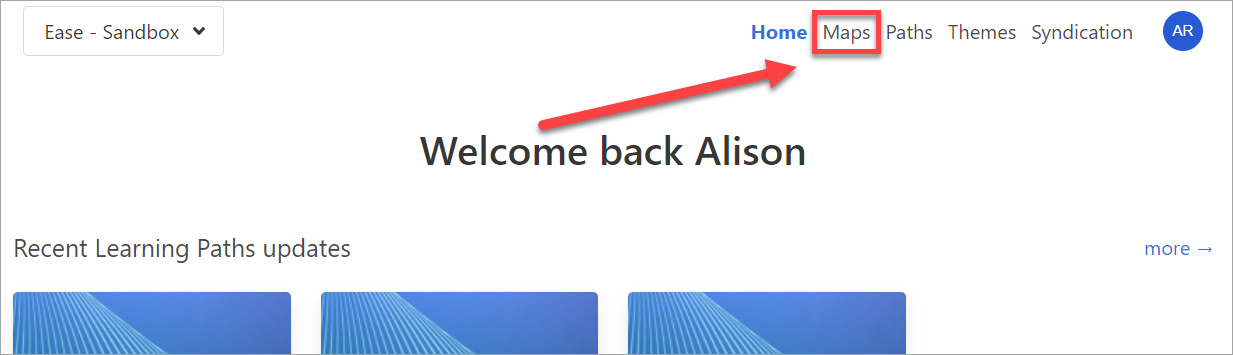
Click Maps from the top-right navigation.
Select the Map from the list.

Edit the Learning Outcome
Hover over the outcome where you wish to add or delete the skill tag and click edit outcome on the far right.

A new page will appear.
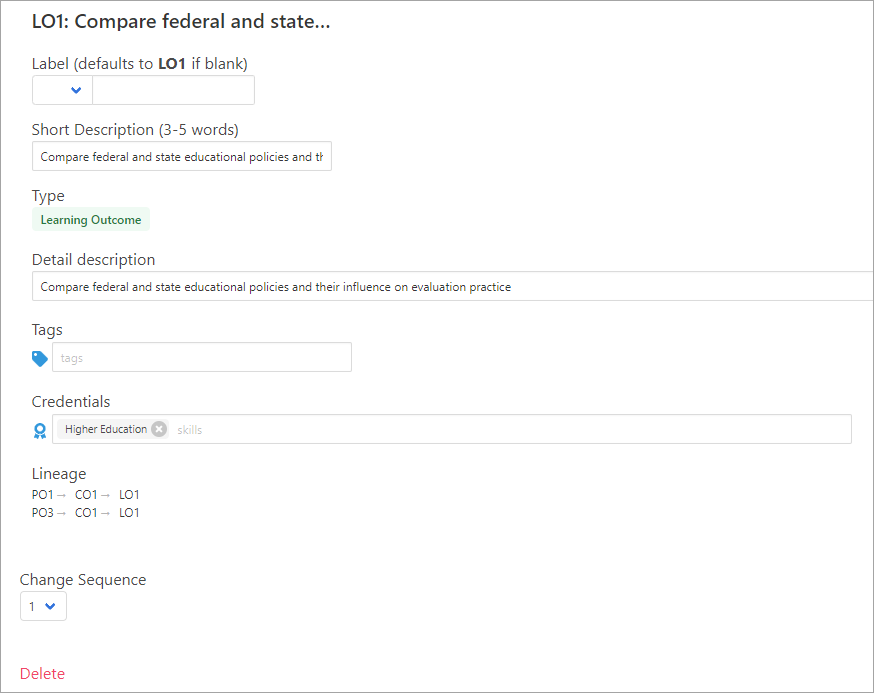
From here, you can Add or Delete Credentials (Skill Tags). You can also Edit the Legend and Detail Description.
Find and Add a Credential (Skill Tag)
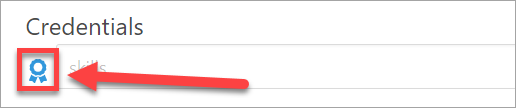
To add a credential, click on the credential icon.
A pop-up window will appear. Select the skill database you want to search. The menu defaults on Emsi skills which are searched by occupation; however, any number of skills databases can be added to Skillways.


Search for skills by occupation or skill.

In the example below, the occupation “designer” was added to the search field and the skill “Graphic Design” was selected. Once selected, the skill is added to the credential box. You can add any number of credentials.

To close the pop-up window, click on the credential icon again.

If you want to go back and add more skills from the same occupation, click on the Credentials box and the drop-down menu will appear.

When you are done adding skills, click Save.

Delete a Credential (Skill Tag)
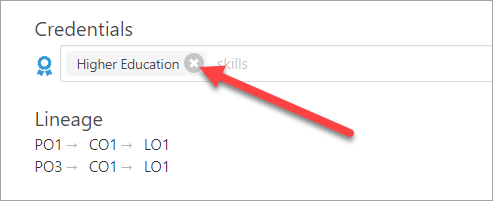
To delete a Credential, click the “x” to the right which will remove the tag. You can then search and replace it with a new tag.
When you are finished, click the Save button.
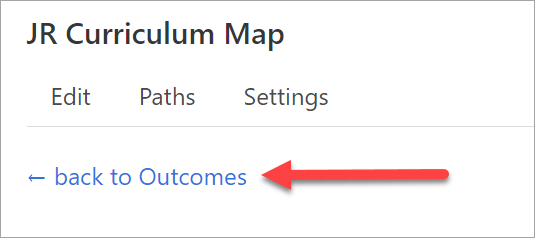
You can return to the list by clicking back to all outcomes at the top.
Your newly added credential will now display under the learning outcome in the list, lineage, or preview view.

Comments
0 comments
Please sign in to leave a comment.