
Overview
You can edit the description, skill tags, sequence, or numbering of an outcome at any time in Skillways. This guide will walk you through the process.
Go to the Map You Wish to Edit
Click Maps from the top-right navigation.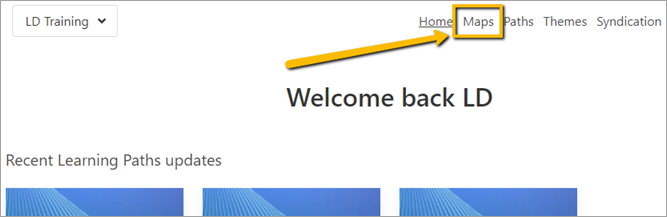
Select the Map from the list.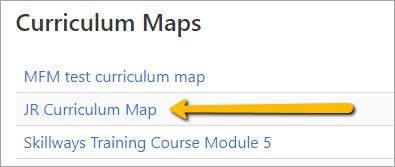
Edit the Outcome
From the List view, hover over the outcome you want to edit and click the edit outcome button on the far right.
A new page will appear.
From here, you can Edit the Short Description, Edit the Detail Description, Edit the Label, Add or Delete Skill Tags, and Change Sequence. Note: See the user guide How Do I Find, Add, and Delete Credentials (Skill Tags)? when ready to add Skill tags.
Note: the Detail description is where you can add a longer description
Example:
Short Description = Understand mechanisms of theory-driven evaluation
Detail Description= Understand mechanisms of theory-driven evaluation and its real-world applications in evaluation practice.
As you add your outcomes, you can also adjust the numbering (label). Skillways has a default numbering system. However, you can change the numbering at any time.
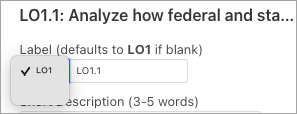
Go to Label.
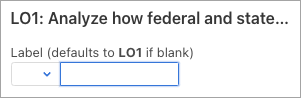
Add in the new number. As you add the number, it will show above.
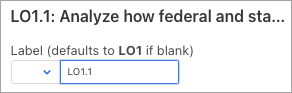
If there are labels already created that you want to use, you can use the drop-down menu.
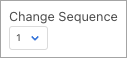
You can also move an outcome to a different position (change the sequence).
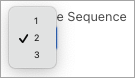
Choose the position from the drop-down menu.
When finished, click the save button.
You can then return to the list by clicking back to all outcomes.
Comments
0 comments
Please sign in to leave a comment.