
Overview
Activities in Skillways can be mapped to learning outcomes which can then map to higher level outcomes such as module, course, and or program outcomes. To map or associate activities with learning outcomes, you will first need to add activities to your path. Review the Designing in Skillways user guides for help setting up activities. You will also need to bind a curriculum map to your path. If you haven’t created your curriculum map, review the How Do I Create a Curriculum Map user guide to set one up.
Go to the Path
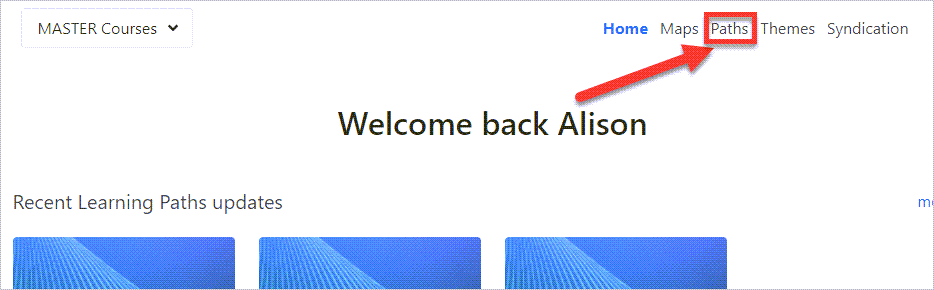
Select Paths from the top navigation.
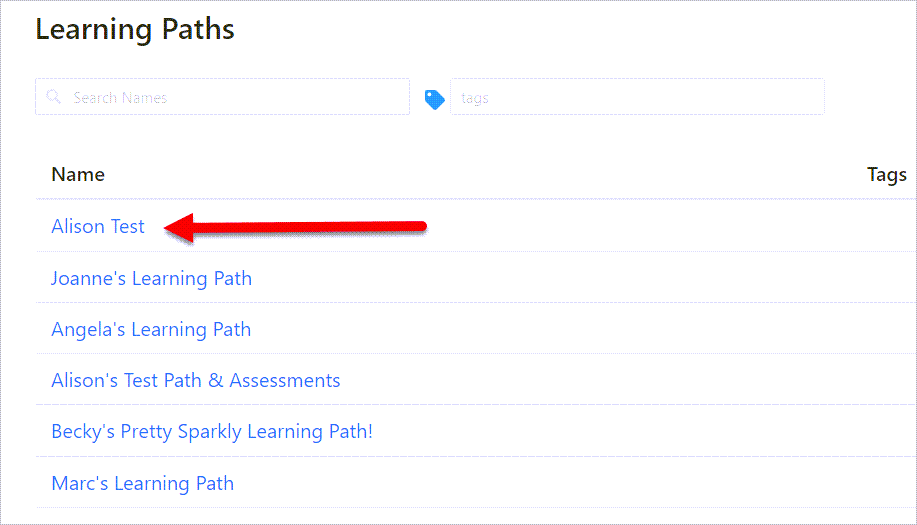
Select the Path that contains the activities you wish to map.
Go to Outcomes
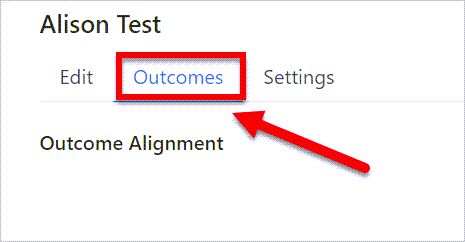
From within the Learning Path, select the Outcomes tab.
Map Activities to Outcomes
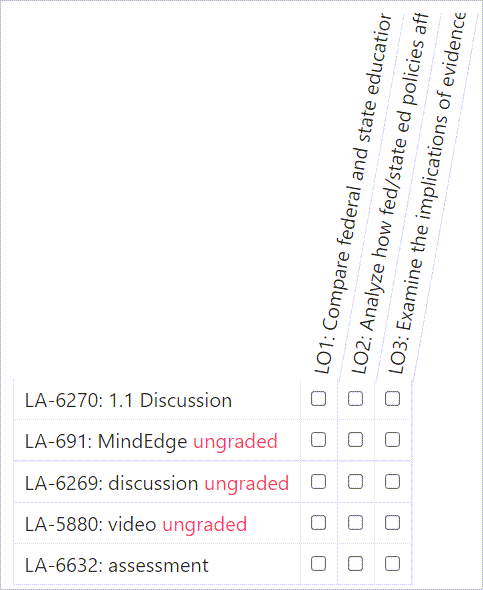
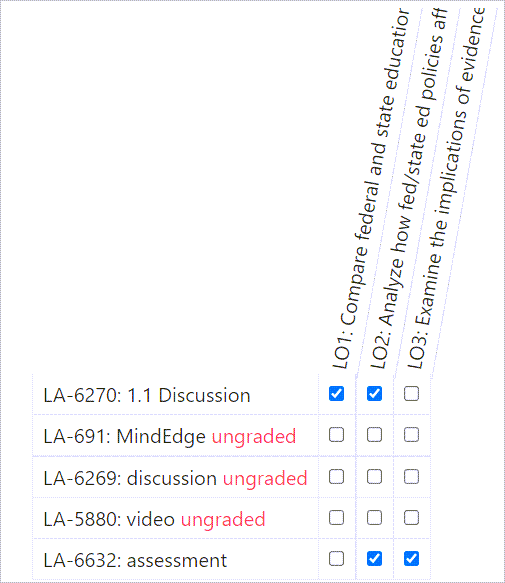
The outcome alignment will now display under the Outcomes tab. Next to each activity is an empty checkbox. Ungraded activities are denoted.
Note: If outcomes do not display, you will need to bind the path to a curriculum map. Review the How Do I Bind a Path to a Map user guide for details. If you have not created a map yet, refer to the How Do I Create a Map user guide as you will need to do that before binding.
Select the box or boxes for the appropriate outcome for each activity to complete the outcome mapping.
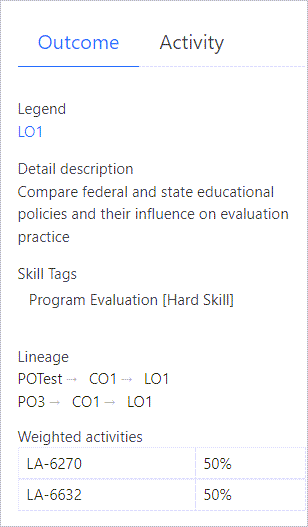
As you select the outcome/s for each activity, a panel on the side will show information for the outcome such as the legend (its name and number), the detail description, the associated skills tags, the lineage (outcome mapping and association), and the weight of the activity or activities associated with the outcome.
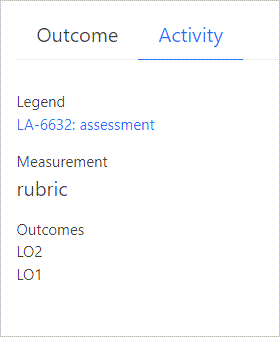
You can toggle to the Activity tab to see information specific to the activity such as the measurement (grading method) and associated outcomes.
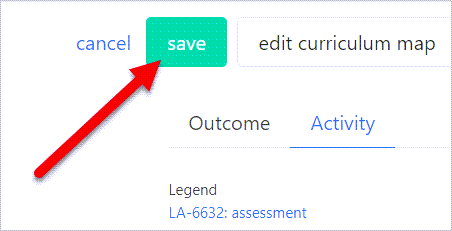
When you are done mapping, select Save.
Mapping Rubric Criteria
Activities with rubric grading have an additional mapping option where you can associate criteria to learning outcomes. Review the How Do I Map Rubric Criteria to Outcomes user guide for details.
Comments
0 comments
Please sign in to leave a comment.